The Importance Levels strategy allows you to distinguish between tasks that are urgent (time-sensitive) and tasks that are truly important (valuable to your long-term goals).
Note: Long-time users might remember this feature as "Priority Stars/Levels."
How to enable
To enable this strategy, go to ☰ → Features/Strategies → Importance Levels.
How to use
Once enabled, you can assign importance levels to both Tasks and Projects.
Assigning Importance
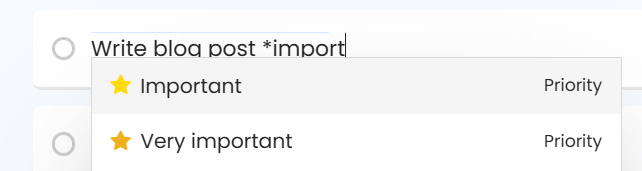
Magic Words: Type
*important,*p1,*p2, or*p3in the task title while creating or editing a task.
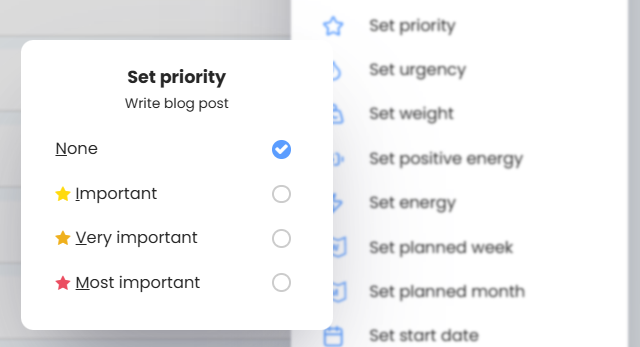
Menu Action: Add the "Set priority" action to your Hover Buttons, Right-Click menu, or the Left Button.
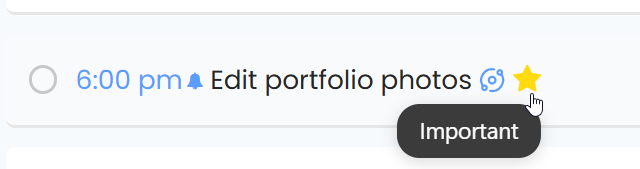
Day View Shortcut: In your Day view ("My Day"), clicking the priority icon to the left of a task title cycles through the available levels.
By default, Marvin starts in "Simple Mode," but you can unlock more levels in the settings:
Standard Mode (One Star): A binary choice; either a task is Important (Star ⭐) or it isn't.
Advanced Mode (P1-P3):
P1 (Red): Most Important.
P2 (Orange): Very Important.
P3 (Yellow): Important.
Low Priority: You can also enable a "Low Priority" level (displayed as a down arrow) for tasks that should happen only when everything else is done.
Settings
You can customize exactly how this feature behaves:
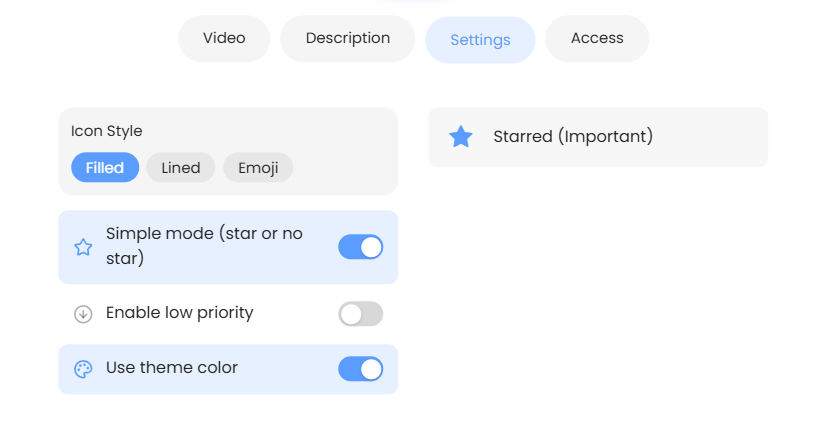
Simple vs. Advanced: Toggle the Just two priority levels setting. Keep it checked for a simple Star/No-Star system, or uncheck it to use the full P1, P2, P3 hierarchy.
Low Priority: Check Enable low priority to add the "Low Priority" option (down arrow)
Use Theme Color: Color stars using the main theme color.
Icon Styles: Choose between lucide icons (outlined), filled icons, or Emojis to match your other Item Properties.
How priorities look
Priorities (called Importance Levels in Marvin) help you see at a glance what matters most. You can choose how they look: a star or other icon, several icons for higher levels, or simply a colored checkbox. You can also add a Low priority level for things that can wait.
Screenshot to add: Tasks in a list with colored checkboxes showing red, orange and yellow priority levels
These display settings are on the web and desktop app.
Simple mode or multiple levels
By default Marvin uses Simple mode (star or no star): a task is either starred (important) or not. Turn it off to get three levels: P1 (Most important), P2 (Very important) and P3 (Important).
Showing priority as a checkbox color
With Simple mode off, choose a Level Display:
Single icon: one icon that changes color by level.
Multiple icons: 1, 2 or 3 icons depending on the level.
Colored checkbox: no icon next to the title. Instead, the task's checkbox border takes the priority color. Projects show a small colored dot on their icon instead.
Screenshot to add: The Importance Levels settings with Level Display set to Colored checkbox
Low priority
Turn on Enable low priority to add a Low priority level, shown as a down arrow. Use it for tasks you want to mark as "not now" without deleting them. Once it's on, Low priority appears in the priority picker (open it with Set priority) and in the mobile app's priority options. Low priority keeps its arrow icon even when you use Colored checkbox.
Display settings
Icon Style: Filled, Lined or Emoji (default: Lined).
Level Display: Single icon, Multiple icons or Colored checkbox (default: Single icon). Only shown when Simple mode is off.
Simple mode (star or no star): just two levels (on by default).
Enable low priority: adds the low priority level (off by default).
Use theme color: use your theme's main color for every level instead of separate colors (off by default).
Click a level's icon to change it, and click its color swatch to change its color.
Tip: Colored checkboxes keep your task titles clean, which can make a long list feel less busy.
Why use this strategy?
The Eisenhower Matrix: Combine Importance Levels (Stars) with Urgency (Fire) to instantly see which tasks are "Important & Urgent" vs. "Important but Not Urgent."
Focus Filters: When you have 50 tasks for the day, filtering by "Important" helps you identify the 3-5 tasks that actually move the needle.