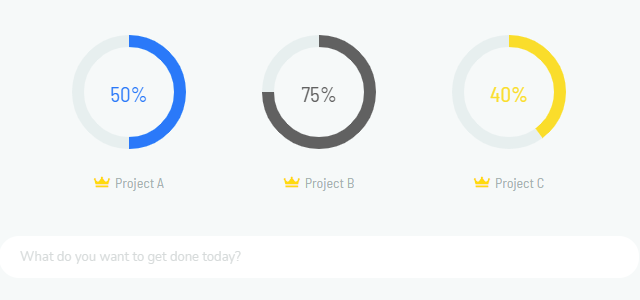
Turning on the MIP strategy allows you to assign a crown to a limited number of projects to make them your "most important projects".
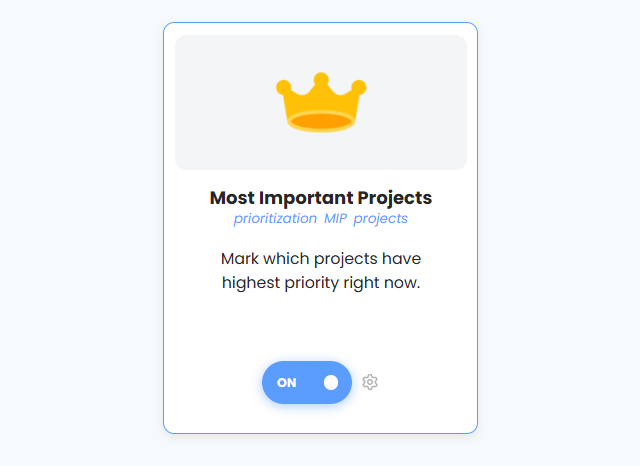
How to Enable
To enable this feature, go to ☰ → Amazing Features → Most Important Projects.
Note: The "Amazing Features" view was previously known as "Strategies".
How to assign crowns to projects
There are a few ways to make a project a MIP:
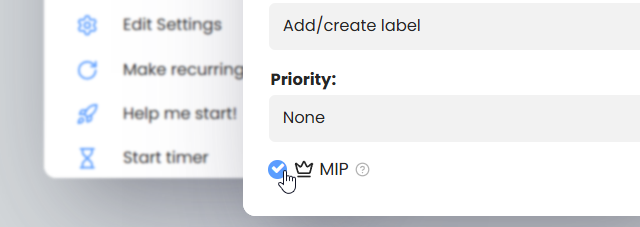
Using the Edit Settings menu: Click on the edit icon in the hover menu or right-click menu for a project, and then select the crown icon at the bottom right. You can even customize your setup to add the Edit Settings button directly to your hover or right-click menu for quicker access.
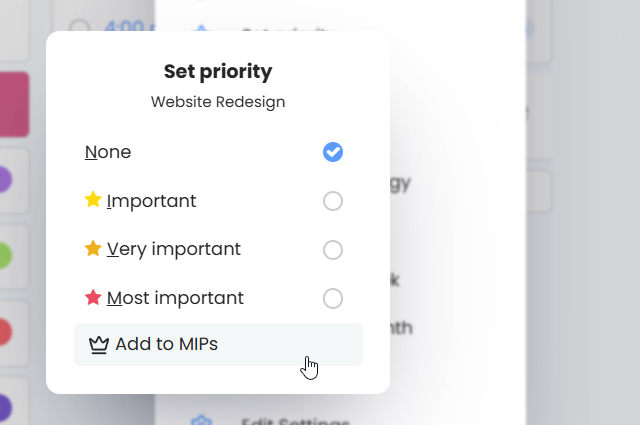
Using the Add to MIPs button: You can use the dedicated Add to MIPs button directly from the hover menu or right-click menu.

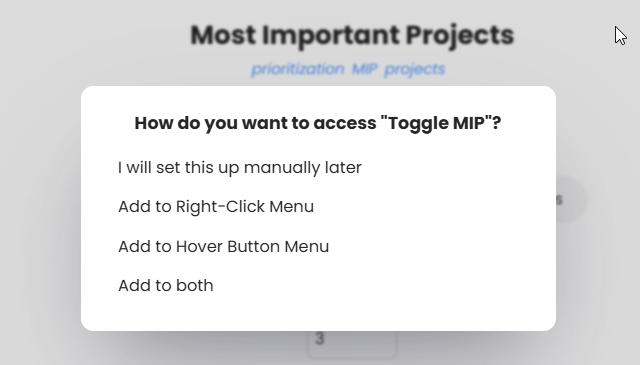
You can quickly add the button for setting MIP to your right-click menu, hover button menu, or both, by clicking on the "Access" button in the feature settings.
Using the Set Priority menu: Open the Set Priority menu, which can also be accessed using the hover or right-click menu, and select the crown to make it a MIP.
How to add a limit to the number of MIPs
In the strategy settings you can set the max number of MIPs you can have at any one time. If you want to assign a new crown when you already have 3 MIPs and your limit is 3, you need to first complete a MIP or take away a crown from one of the MIPs to be able to assign the crown to another project.
The limit can be adjusted anytime.

How you can tell a project is a MIP
A MIP will have a crown on top of the regular flag icon.

Displaying MIPs in your day view
To always have your most important projects displayed in the day view, activate the Project Shortcuts strategy and choose the "Show MIPs" option.