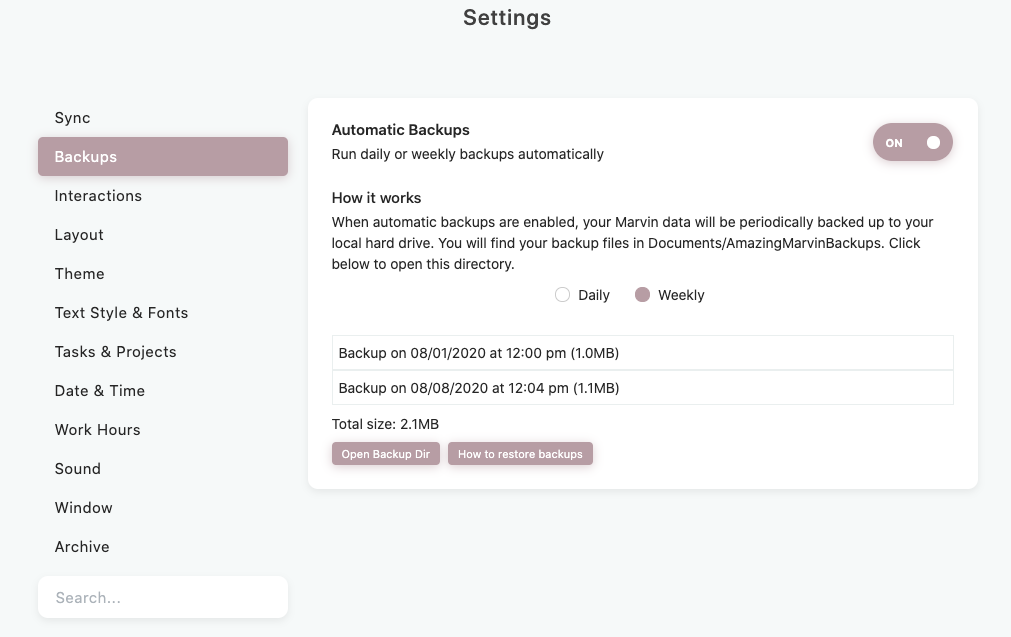
Marvin can back up your data automatically, daily or weekly. Where the backups go depends on where you use Marvin:
Desktop app: backups are saved as files on your computer.
Marvin in a browser: backups are saved to the cloud, where you can download them from any device. Cloud backups are available once your trial has ended and stop while your subscription isn't active.
Mobile apps: don't make automatic backups.
Each device backs up to one place, not both. If you don't use the desktop app and don't have cloud backups, add a backup to your weekly review and perform the backup manually. It's very easy and you might be glad you did it someday! OK, pretty please at least back up your data once ☺️.
How to
Open ☰ → Account and click Backups. There you can turn automatic backups on or off for this device, choose daily or weekly, and run a backup right away.
When does Marvin make backups?
When automatic backups are on and Marvin is open, it checks regularly whether a day or week has passed since the last backup. It then saves a backup when Marvin is in the background (you are using another program) or you haven't clicked or typed in Marvin for 30 seconds, so a backup doesn't interrupt your work. It also waits while Marvin is syncing. Because of this, a backup can happen a little later than scheduled. If a backup fails, the Backups page shows why.
Where does Marvin store backups?
In the desktop app, backups are saved in your Documents folder, in AmazingMarvinBackups, unless you chose another folder. The files are named like AmazingMarvinBackup_2026-10-06-14-30.json (or .json.lzma), with the date and time of the backup. Scroll down beneath your list of backups to see the folder, change it or open it.

Cloud backups are listed on the Backups page, where you can download or delete them.
Keeping old backups
For cloud backups, you can choose how many to keep (all, or the last 5, 10 or 20). Older ones are removed after a new backup succeeds, and Marvin always keeps at least three. Backups saved to your computer by the desktop app are never removed automatically, so clean out ones you no longer need from time to time.
Super secure backups
You could add Documents/AmazingMarvinBackups to your Dropbox, Google Drive, or other cloud storage provider if you want even more reliability!
How to restore backups
See this guide on how to restore backups.
Troubleshooting
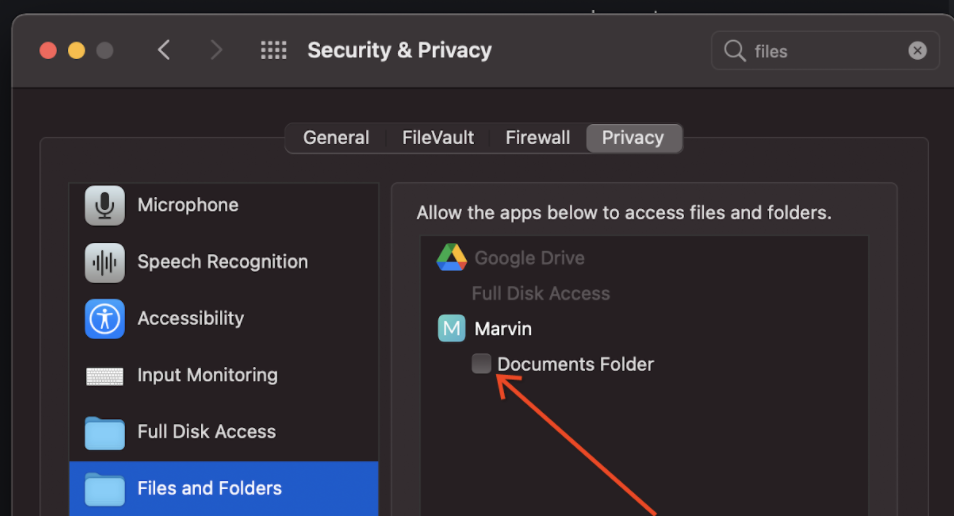
On macos you may see an error that Marvin wasn't able to read your Documents folder. In this case, backups are still correctly being saved, but Marvin just can't access them in order to show you when your backups were made. You can either fix this by changing your backup directory to a non-protected directory on your computer, or you can give Marvin access to read your Documents directory. To do this, open → System Preferences → Security & Privacy. Then in the Privacy Tab (at the top), select the Files and Folders tab (on the left), then scroll down until you see Marvin, and click to enable the checkbox to give Marvin access to the Documents Folder.