This is a map of the app so you know where everything lives.
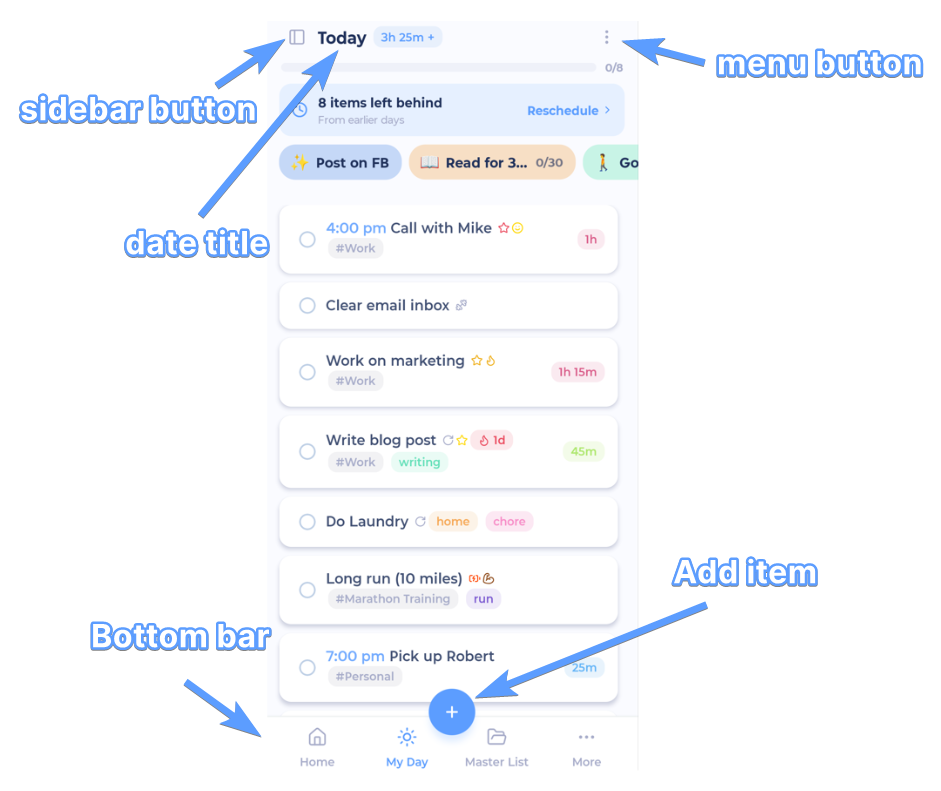
The bottom bar
At the bottom of the screen:
Home: your personal dashboard made of blocks. See Setting up your Home screen.
My Day: what you've scheduled for today. The app opens here.
Master List: all your categories and projects.
More: opens a panel with everything else: Search, Calendar, Week View, Features, Timers, Habits, Lists, Notebooks and more.
+ (the round button in the middle): add something. What it adds depends on the screen you're on.
More in The bottom bar and the More panel.
The sidebar
Swipe right from the left edge of the screen, or tap the sidebar button at the top left. The sidebar has your tabs (your lists, categories, projects, labels) and, at the top, Account & Settings.
More in The sidebar.
The top of the screen
On My Day, tap the date to show or hide the week strip, so you can jump to another day.
The ⋮ button at the top right opens List options: work modes, sort, group, filter and display settings for the list you're looking at.
Tasks
Tap a task to open it and edit it.
Tap the checkbox to complete it.
Swipe it to the left for action buttons, or all the way to the right for a quick action (by default, Mark done).
Hold and drag to reorder.
More in Gestures and common patterns.
Settings and features
Features: More panel > Features. Turn features on and off for your phone.
Settings: sidebar > Account & Settings. Appearance, swipe actions, date and time, account, sync and help.