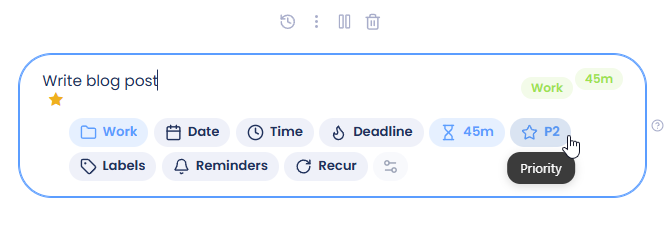
Let's say you have a weekly recurring task. If you are using time estimates as part of your workflow you would want that task to always have the same time estimate and perhaps a frog or star. Or you might want to add subtasks or a note that always shows up with this recurring task.
How to add attributes to recurring tasks
Add attributes to the recurring task itself, not to one copy in your day. Then every new copy gets them.
On the web and desktop app, editing a copy in your day or list only changes that copy. To change all of them, click the recurring icon next to the task's title, or open the main menu, click Recurring, and click the pencil next to the task. This opens the recurring task settings.
On the mobile app, open the task and choose All instances at the top before you make your change.
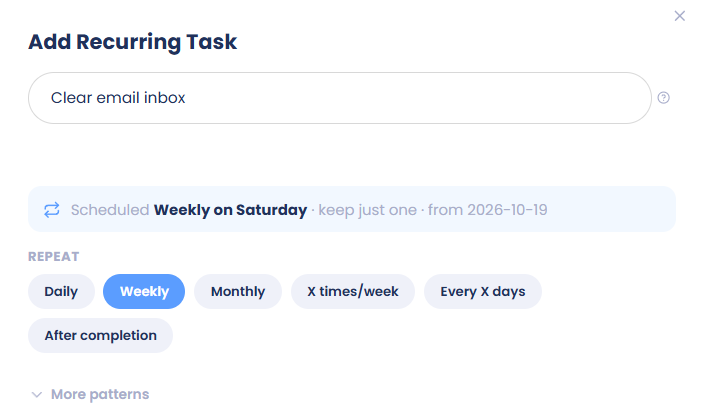
To add an attribute (importance, frog, time estimate, label, etc.) to the recurring task use the task input shortcuts, hover button menu, or task input pills.

Example:
To add a time estimate, click on the title and add the estimate with the "~" symbol like above. After pressing enter the attribute gets added.
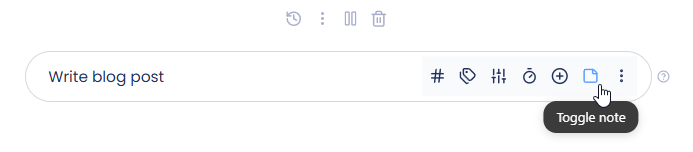
To add a note or subtasks, hover over the task and click the button on the right:
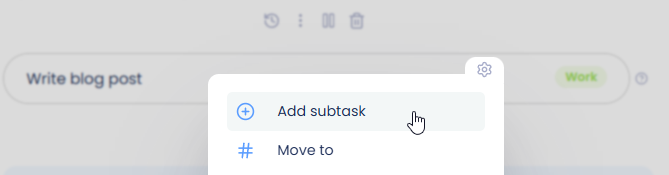
You can also use the right-click menu to add subtasks.
Removing attributes
Depending on the attribute you can remove it like this:
remove a time estimate by overwriting the current estimate with "~0m"
remove a label by clicking the label
remove an importance level or frog using the task input pills