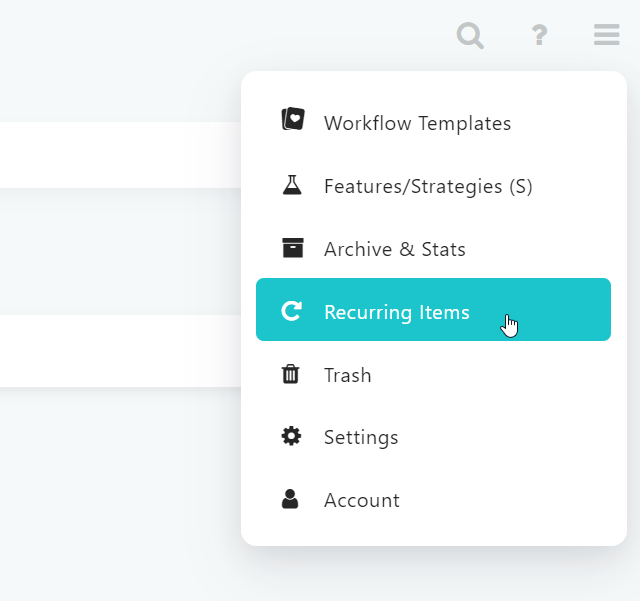
When you create a recurring task you set up a "template", what we call the "parent". You find it on the Recurring Tasks screen (open the main menu and click Recurring).

From this template tasks get created and scheduled into the correct days.
The tasks you see in your days and complete are not connected to each other. This means, changing one (adding a note or subtask to it), will not add the same note or subtask to any other recurring task.
How to add a permanent note to a recurring task
So if you want to add a note to a recurring task and have that note show up in all the instances of the recurring task you need to add it to the parent task (template.)
Click the recurring icon next to the title of any copy of the task to open the recurring task settings. Or open the main menu, click Recurring, and click the pencil next to the task.

In the dialog you can hover over the title at the top to reveal the note icon on the right. Clicking the note icon opens the note and you can edit it.
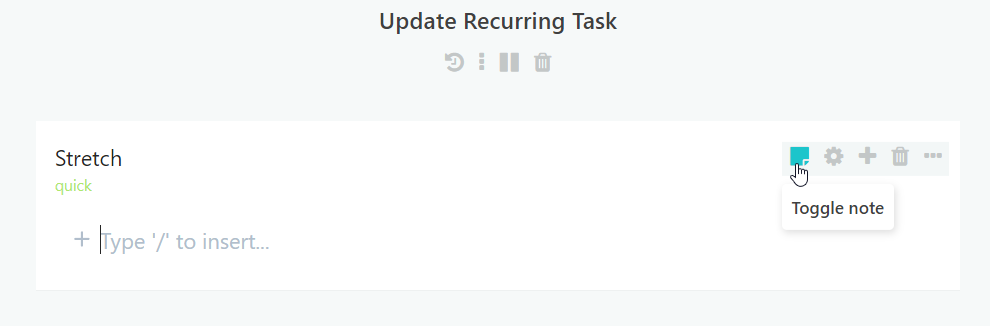
Then click Update Recurring Task to save.