When you create a new account on your phone, Marvin walks you through a short setup. It takes a few minutes, and by the end you'll have your areas of life set up and the things on your mind turned into tasks.
A progress bar at the top shows where you are. Tap Back at any time to go back a step.
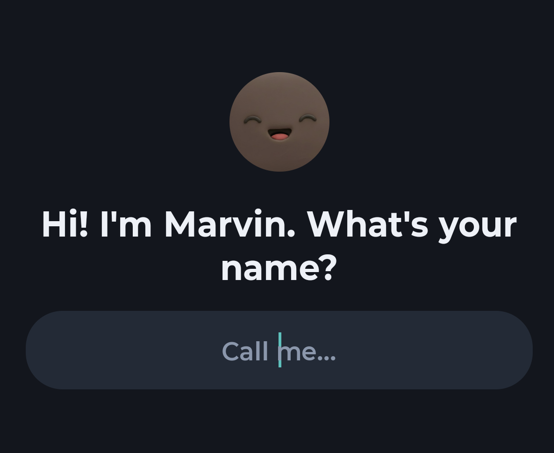
1. Tell Marvin your name
Type what you'd like to be called and tap That's me.
2. Your areas of life
Marvin explains categories: the big areas of your life like Work, Home or Health. Every task lives in one. Tap Set up categories.
You have two ways to create them:
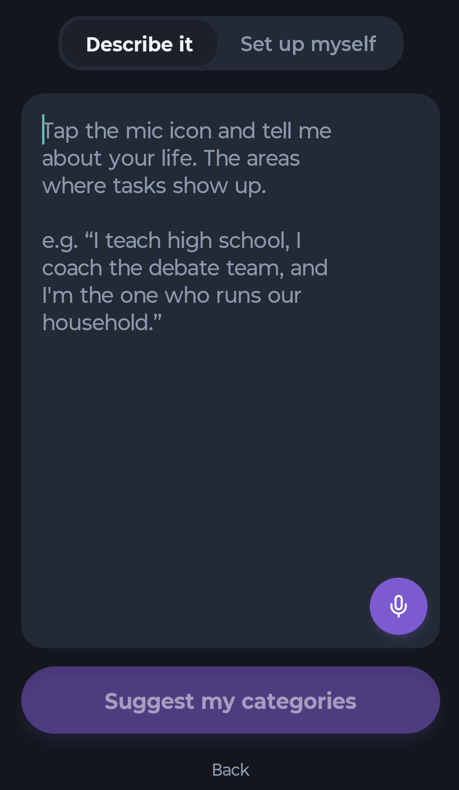
Describe it: tell Marvin about your life, by typing or with the microphone, and tap Suggest my categories. Marvin suggests categories that fit.
Set up myself: tap the suggestions you want.
Under Your categories you can tap a category to rename it or change its icon and color, hold and drag to reorder, or tap Shuffle colors.
3. Empty your head
Next, Marvin helps you get everything out of your head. Pick one:
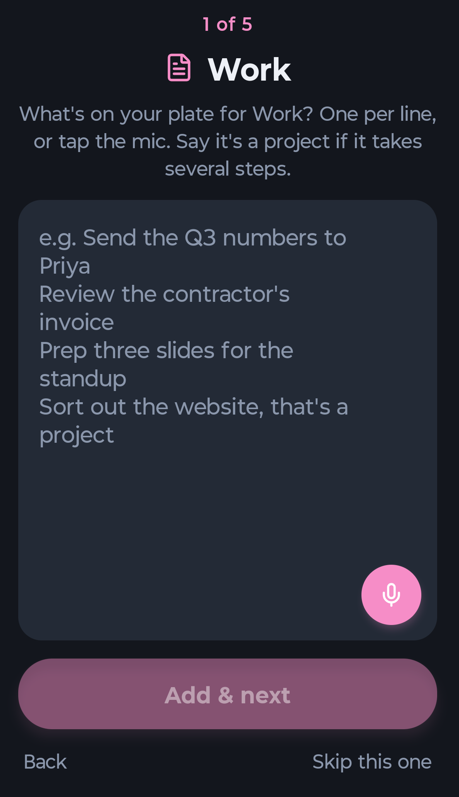
Go area by area: one screen per category. Type or say what's on your mind for that area. Tap Skip this one to move on.
Dump it all at once: one big box for everything.
Marvin turns what you wrote into tasks. Tip: say "that's a project" after something bigger, and it becomes a project.
4. Review your tasks
You'll see the tasks Marvin made. Tap any task to edit it. Keep the ones you want.
5. You're ready
The last screen shows when your trial ends (no card needed) and how to reach us. Tap Start using Marvin.
What next?
If you already have an account from the web, you won't see this walkthrough. Everything you set up there is already on your phone.