Tap the round + button above the bottom bar to open the add sheet.
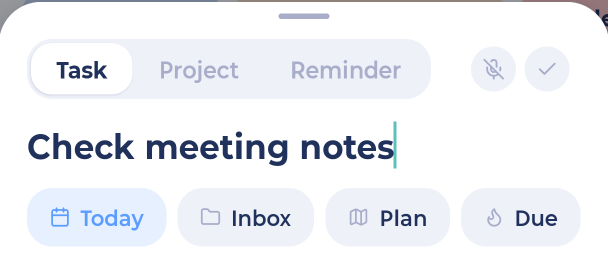
The add sheet
Choose Task or Project at the top left.
Type the title.
Tap pills underneath to set the list, date, duration and more (optional).
Tap Add task (or Add project).
You'll see Added ✓ when it's saved.
Tip: type p: at the start of the title to switch to Project.
Where does it go?
The + button fills things in for you based on where you are:
On My Day or another day: scheduled for that day.
In the Master List: inside the project or category you're viewing. At the top level, it goes to your Inbox.
In a smart list: with that list's category, labels and so on already set.
In the Calendar: at the time you pick. See The Calendar.
You can always change it with the List and Schedule pills before you add.
Pills
Tap a pill to set that detail. The ones you'll always see:
List: the category or project
Schedule: Today, Tomorrow, This weekend, next week, or pick a date
Due: a deadline
More pills show up when you turn on features, like Duration, Recur, Priority, Labels, Reminders, Plan ahead and Pledge.
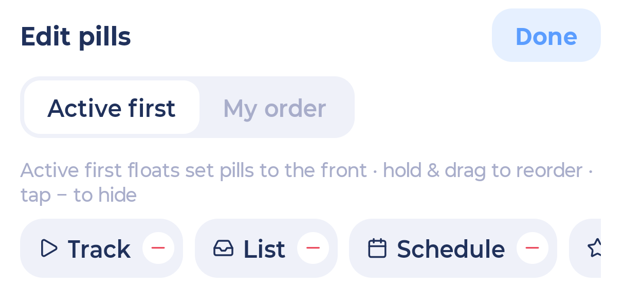
To change which pills you see and their order, tap the Edit pills cog at the end of the row. You can hide pills, drag to reorder them, and choose Icons and text or Icons only.
Adding a subtask or note right away
Under the title, tap + Subtask or + Note. For subtasks, press Return to start the next one. When adding a project, you'll see + Task to add tasks inside it.
Adding several things at once
The button at the top right of the sheet switches between three modes. Tap it to cycle:
One at a time: the sheet closes after you add.
Add multiple: the sheet stays open so you can keep adding.
Brain dump: type or say everything at once and Marvin sorts it into tasks. See Voice input and brain dumps.
Your choice is remembered.
Adding a quick reminder
When Reminders is on, the add sheet also has a Reminder option next to Task and Project. Type something like "in 10 min call Sam", or tap a quick time like In 30 min or Tomorrow 9am.
Resizing and closing
Drag the handle at the top of the sheet to make it bigger or smaller. Drag it all the way down to close it.
Other ways to add
Type shortcuts in the title, like
#workor+tomorrow. See Shortcuts you can type while adding.Hold a section heading in a list to add straight into that section.
From a phone widget, Siri, the share sheet or your Apple Watch. See Phone Widgets and Integrations.