To change the color of a category or project in Amazing Marvin, you first need to open the Master List view. You can do this by pressing "M" on your keyboard, or by clicking on the "Master List" button in the Skinny Sidebar.
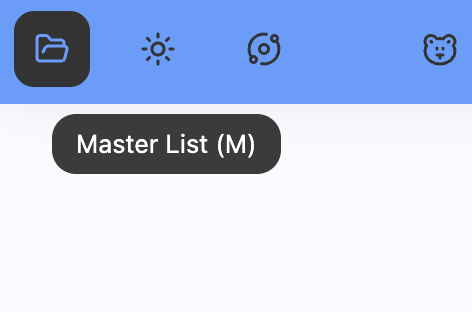
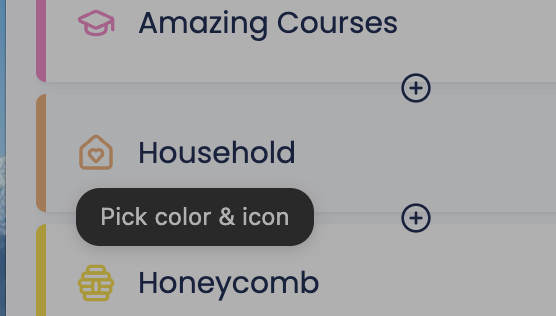
Once in the Master List click on the icon for the category that you want to change the color of.
The icon might be a custom icon that matches the category or a folder icon (you can customize this by clicking on "View options" in the top right in the Master List and configure where custom icons show)
Then pick any color from your current palette or click the plus to choose a custom color.
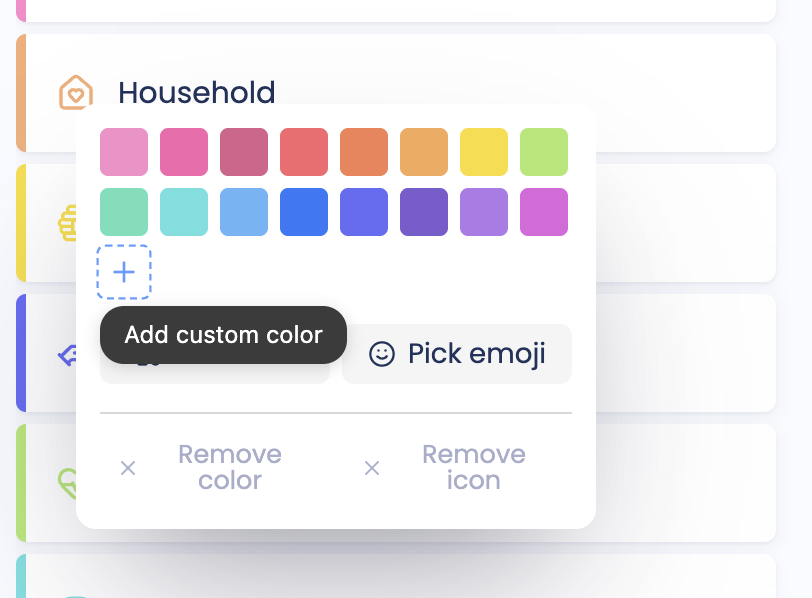
You can change the color of a category anytime.
Tip:
Marvin looks a lot more pleasing to the eye when the colors of the categories fit together and colors from the same palette are used in the theme everywhere.