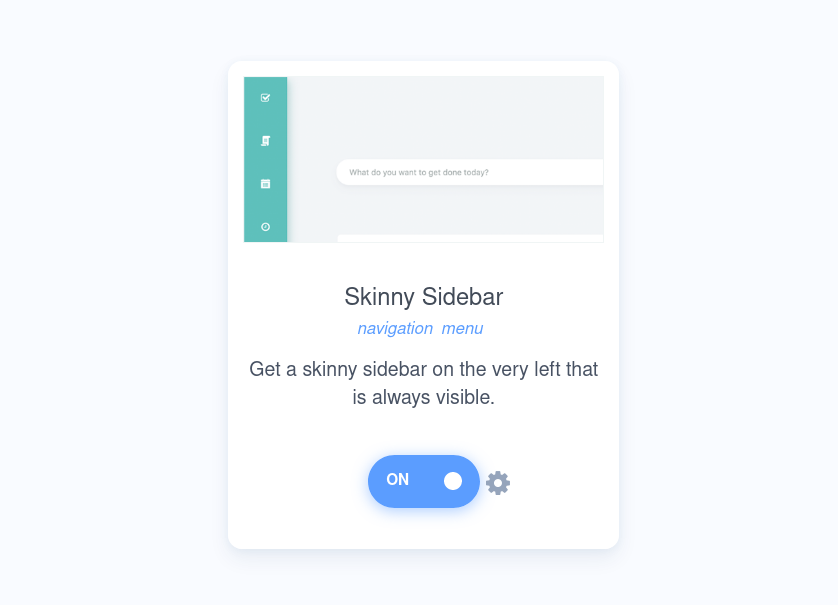
The skinny sidebar allows you to have a navigational element that is always accessible, no matter where you are in the app (e.g. Master List, Calendar, Strategies). So setting it up as a main navigation between the different screens is an ideal use case.
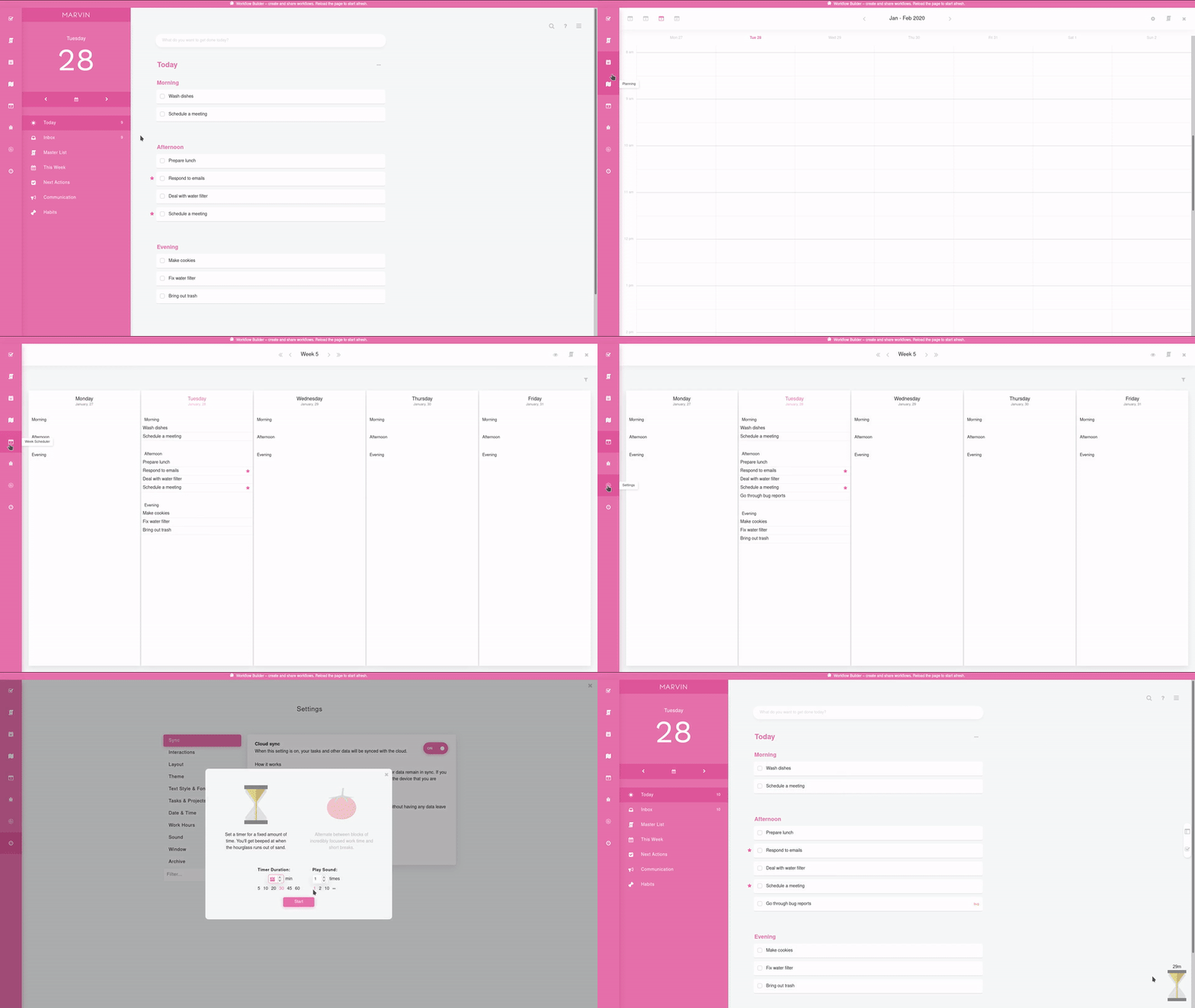
By going to the strategies and clicking on the cog of Skinny Sidebar you can access the settings of this strategy. There you can choose which items you'd like to have in your skinny sidebar. After you hover a certain item you get an option to hide it or to remove it from the skinny sidebar.
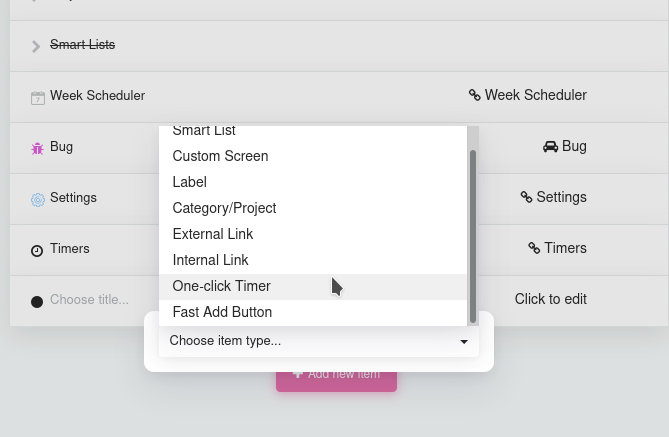
In the settings, you can also choose the Background Color (Light, Dark, Theme Color or Custom Color), where the skinny sidebar shows (left, top, right or bottom of the screen) and the spacing of the icons.
Add tasks right from the skinny sidebar
Hover over a category, project, label, goal or smart list in the skinny sidebar and click the + icon to add a task to it right away.
Want a sidebar that sticks around without taking up much space? The Skinny Sidebar stays visible as a slim strip of icons.