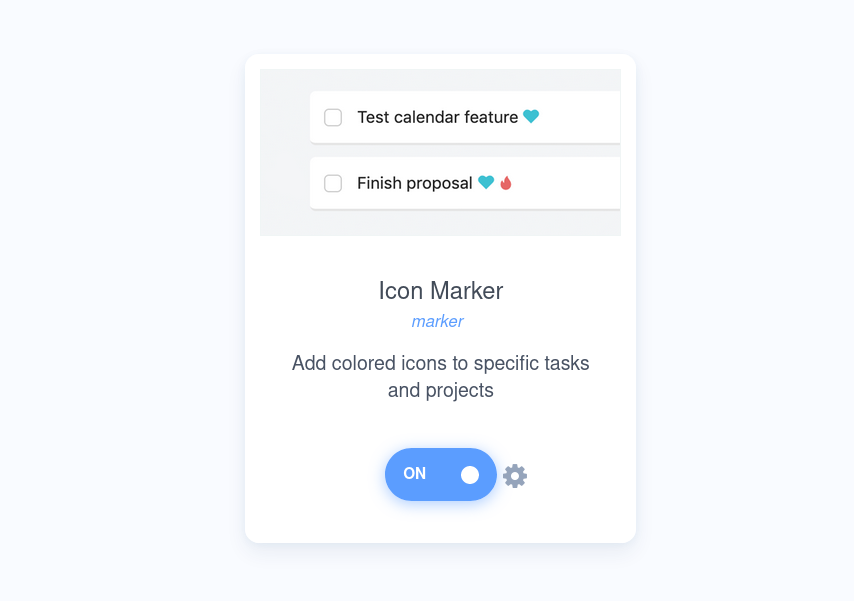
This strategy is great for you when you want to have a lot of visual context and want to quickly identify tasks and projects from one or more smart lists via an icon.
In this strategy's settings you can connect smart lists, labels or categories to colored icons. The tasks and projects that match that filter will then have the colored icon next to their title.
Example: Adding icons to "call" and "email" items
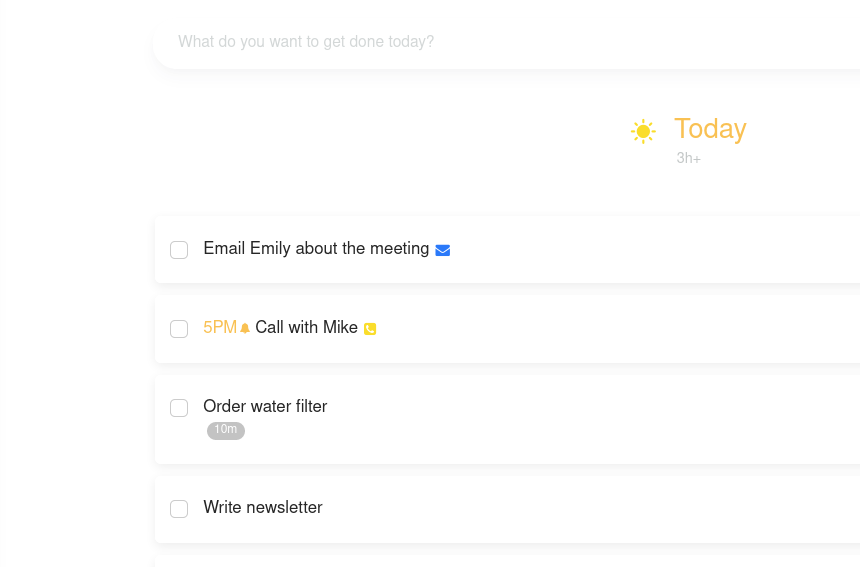
In case you want to easily see tasks that are related to reaching out to someone, either by calling or emailing them, using icon marker could be a solution. First, you'll need to have Smart Lists that filter tasks that contain words "call" or "email" in their title. For this example, I've used already made smart lists that are part of the Communication Screen workflow snippet.
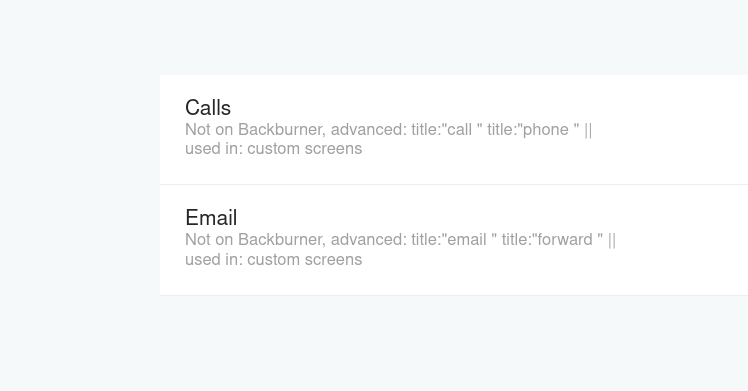
As you can see, "Calls" smart list selects all items that contain "call" or "phone" in their title while "Email" smart list selects ones that contain words "email" or "forward" in their title.
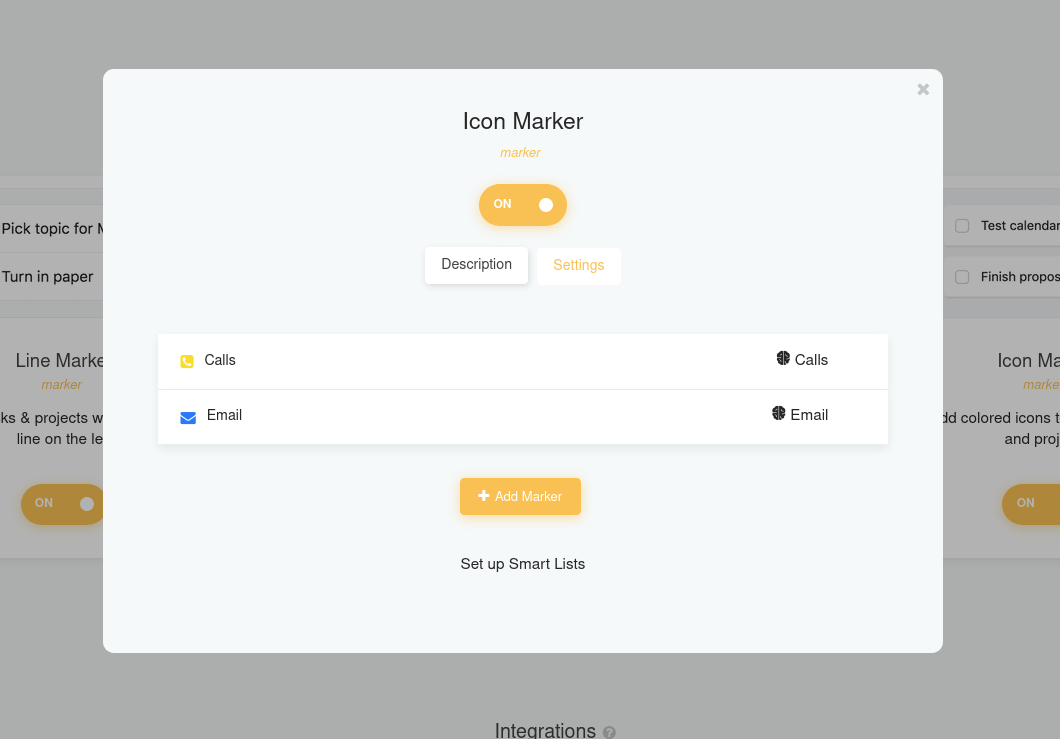
Now that you have smart lists, you can create markers by clicking Add. This creates a new marker that you connect to the smart list. You can also give each marker hover text.
Where the icon shows
Use Placement in the settings to choose where the icon sits: Before title, Before title, indented, After title (the default) or With other metadata.