Swiping is the quickest way to act on a task without opening it.
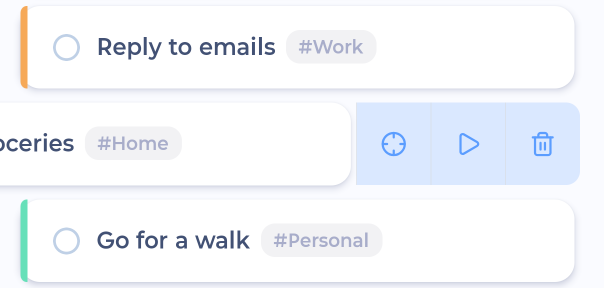
Swipe left: action buttons
Swipe a task to the left to show up to five buttons. By default:
Tasks: Focus, Track time, Add Pledge, Delete
Projects: Edit note, Add Pledge, Delete
Buttons for features you don't use are hidden.
Swipe all the way right: one quick action
Swipe a task all the way to the right to do one thing right away. You'll see the name of the action as you swipe. By default:
My Day and lists: Mark done
Master List: Schedule today (swipe again to unschedule)
A message confirms what happened, usually with Undo.
Changing your swipe actions
Open the sidebar and tap Account & Settings.
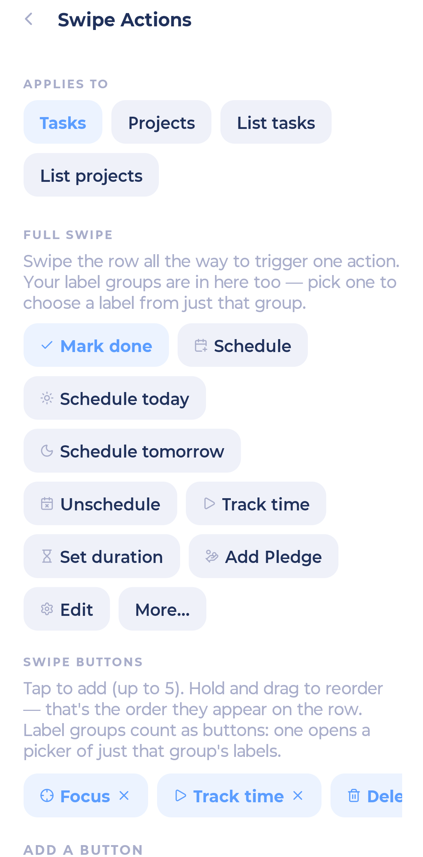
Tap Swipe Actions. (Or press and hold any swipe button.)
At the top, choose what you're setting up: Tasks, Projects, List tasks or List projects. "List" means tasks and projects in the Master List.
Under Full swipe, pick the action for a full swipe to the right (or None).
Under Swipe buttons, tap actions to add them (up to five). Hold and drag to reorder.
Common choices: Mark done, Schedule, Schedule today, Schedule tomorrow, Unschedule, Snooze, Track time, Set duration, Add Pledge, Edit, Delete. More are under More.
Label groups as swipe actions
If you use label groups, you can make a group a swipe button or your full swipe. Swiping then shows a picker with just the labels from that group. Handy for things like contexts or energy levels.
Other swipes
Swipe a subtask left to delete it.
Swipe a comment left to edit or delete it.
Swipe a reminder on the Reminders screen to delete it.