GCal
Remember The Milk (RTM)
Coming from another app? You can bring your tasks with you instead of retyping them. You export a file from your old app, then drop it into Marvin.
Keep in mind that Marvin has its own organization scheme (categories, projects and tasks) so make sure you understand the three item types in Marvin and convert your imported items as needed.
[IMAGE] The "Import Your Tasks" dialog with an app selected, the export steps showing and the drop box below.
Before you start
Import is optional. Many people use the switch as a fresh start: they braindump what's actually on their mind and leave the old list behind. If your old app is full of things you've been ignoring, consider a fresh braindump instead.
Completed tasks are skipped. Marvin only imports what's still open.
You'll see a preview first. Nothing is added until you click Import.
Apps you can import from
Todoist, TickTick, Things 3, Microsoft To Do, OmniFocus, Asana, Nirvana, Wunderlist, Toodledo, 2Do, ClickUp, Google Calendar, Informant, Goblin Tools, Sunsama, Google Tasks, Remember The Milk, Everdo and Sorted³.
Using something else? You can still import any spreadsheet or CSV file. See Import from any other app below.
How to import
Open the importer in one of these ways:
On the welcome cards when you're new, click Import tasks.
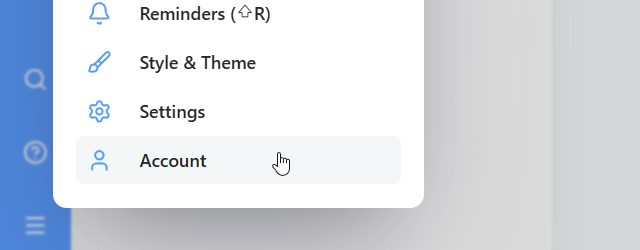
Any time: open the Main menu (the ☰ icon in the sidebar), click Your account, choose Import, then click Import from CSV.
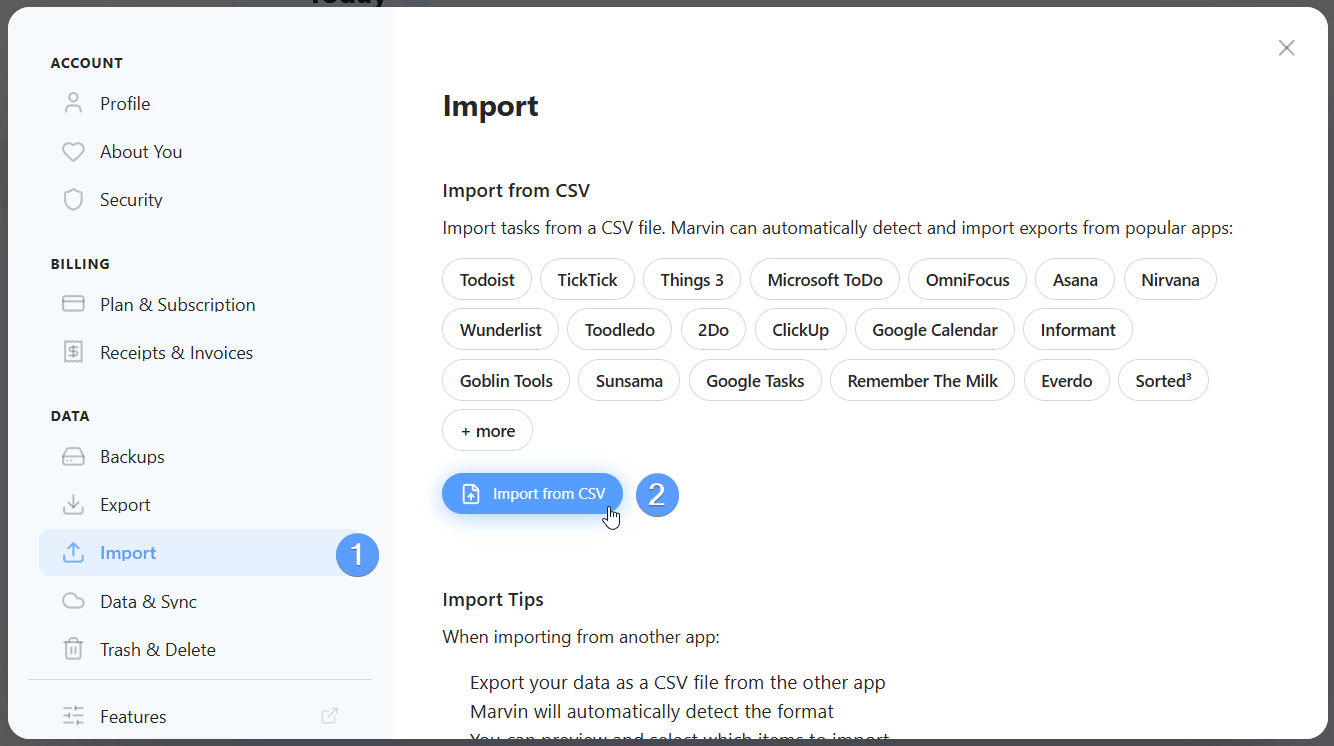
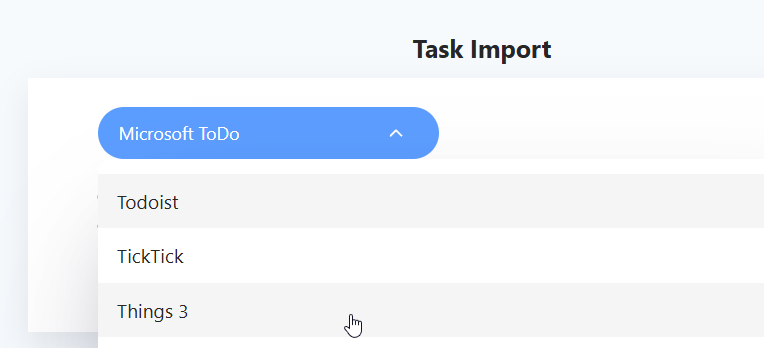
Choose the app your tasks are coming from.
Follow the export steps Marvin shows for that app (they're also listed below).
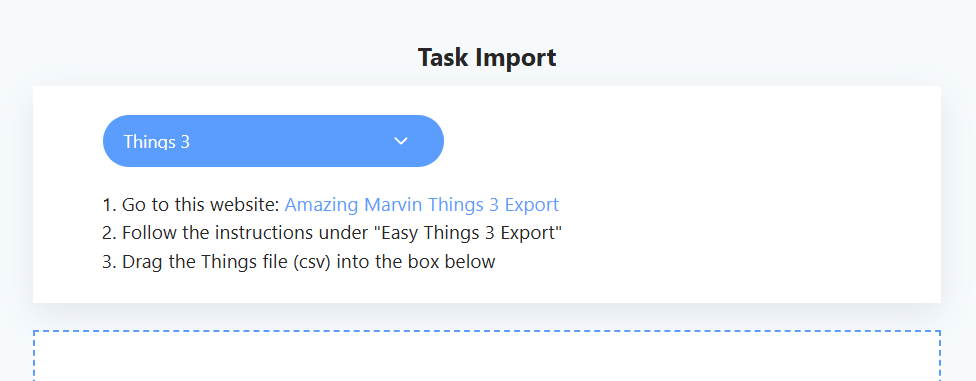
Drag the exported file into the box, or click the box to pick the file.
Check the preview. Marvin shows example tasks, the categories and projects it found, and any recurring tasks.
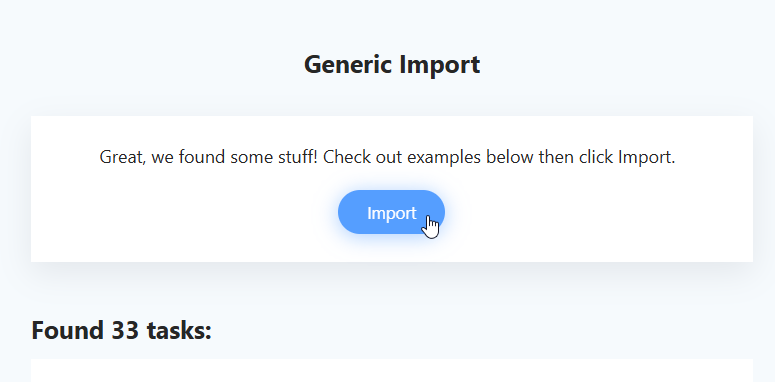
Click Import.
Export steps for each app
Todoist
Go to darekkay.com/todoist-export.
Download your Todoist data as a JSON file.
Drag the file into Marvin.
TickTick
In TickTick, click your avatar and go to Settings.
Generate a backup.
Drag the backup file (CSV) into Marvin.
Things 3
Go to the Amazing Marvin Things 3 Export page.
Follow the instructions under Easy Things 3 Export.
Drag the Things file (CSV) into Marvin.
Microsoft To Do
Microsoft To Do imports directly from your Microsoft account, no file needed.
Open Main menu → Your account → Import and click Import from CSV.
Choose Microsoft ToDo from the list.
Click Import Microsoft ToDo Tasks and sign in to Microsoft when asked.
OmniFocus
In OmniFocus, go to File → Export.
Export your data as CSV.
Drag the file into Marvin.
Asana
Open a project and click the menu next to the project title.
Click Export/Print and export as CSV.
Drag the CSV into Marvin. Repeat for each project.
Nirvana
Go to Settings at the top right, then My Account.
Scroll down to Data export and click export as .csv.
Drag the CSV into Marvin.
Wunderlist
Click your avatar and go to the Account tab.
Create and download a backup.
Drag the backup file (JSON) into Marvin.
Toodledo
Click your avatar and go to Import/Export/Backup.
Download your data as CSV.
Drag the file into Marvin.
2Do
In 2Do, click Edit and choose Export to CSV.
Select the lists you want and export.
Drag the CSV into Marvin.
ClickUp
In ClickUp, go to your account settings, then Import/Export.
Download your data as CSV.
Drag the file into Marvin.
Google Calendar
Set the date format to YYYY/mm/dd hours:minutes:seconds, separated by a dash, with the 24 hour clock.
Download the CSV and drag it into Marvin.
Informant
In Informant's sidebar, right-click a folder or project and click Export.
Drag the downloaded CSV into Marvin.
Goblin Tools (Magic ToDo)
Importing your data using Generic CSV option
Go through the Master List set up guide to understand how your Master List should be organized.
How to convert item types (e.g. turn a category into a project)
Click Export in the bottom left corner, then Save to file.
This downloads a file called
magic_todo.goblin.Drag that file into Marvin.
Sunsama
Open the Sunsama menu in the top right and click Settings.
Go to Account Management and click Export my data.
Click Download JSON, then drag the file into Marvin.
Google Tasks
Go to Google Takeout.
Under Select data to include, click Deselect all.
Scroll down and check only Tasks.
Click Next step, then Create export.
When Google sends it, download and unzip it.
Drag the
Tasks.jsonfile into Marvin.
Remember The Milk
Click the settings (cog) icon in the top right and choose Account settings.
Open the Export tab and click Download Export.
Drag the JSON file into Marvin.
Everdo
Click the menu (☰) icon in the top right, then Export Data as JSON.
Drag the file into Marvin.
Sorted³
In Sorted³, go to Settings → Export.
Export your tasks as CSV.
Drag the file into Marvin.
Import from any other app
If your app isn't listed, export your tasks as a CSV file (most apps and all spreadsheet programs can do this) and choose Generic CSV.
Starting from scratch? Click generic CSV template to download
MarvinImport.csv, fill it in, and drag it back in.Already have a CSV? Drop it in. If Marvin doesn't recognize the format, it matches your columns to Marvin fields for you. Check each row, change any that are wrong, or set a column to (ignore). Then click Import.
For what each column in the file can contain, see Importing your data using Generic CSV option.
[IMAGE] The column-matching screen with a few columns mapped to Marvin fields.
If it still doesn't look right, click Send this file to us instead and we'll take a look.
Want Marvin to import from your app directly? Email contact@amazingmarvin.com to ask. An importer for your app might already be in beta.
After importing
Open your Master List to see your imported tasks. Tidy up the categories so they match your life areas.
Want Marvin to feel like the app you came from? The Workflow Library has setups that mimic Todoist, Things, TickTick and others. See Find a workflow that fits you.