
Turn on the Deep Links strategy to link to a task, project, goal, smart list, day or week, from inside Marvin or from anywhere else: a notes app like Obsidian, a document, an email or a chat.
Copying a link
Open the strategy’s Access tab to choose where Copy deep link shows up, for example in the buttons that appear when you hover over an item, or in the right-click menu. Then use it on any task or project to copy its link.
Several items at once: select them (Ctrl or Cmd + click, or Shift + click) and choose Copy deep link in the bar at the top. Marvin copies a list of links with their titles, ready to paste into a note.
Keyboard: select a task or project and press Shift + L.
Goals: use the Copy Deep Link button in the goal’s settings.
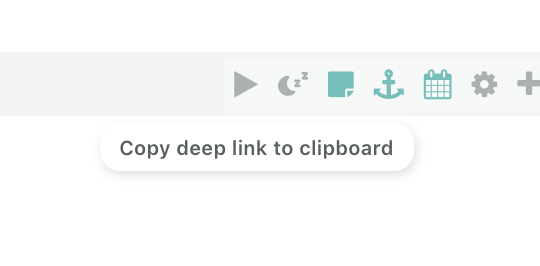
Smart lists: open the list, click the three dots above it and choose Copy link. You can also click the anchor icon next to a list in the Lists overview.
Days: open a day, click the three dots above it and choose Copy link.
Weeks: in Week View, click the anchor icon at the top.
Using a link
Paste the link anywhere. Inside Marvin, in a task title or a note, it shows the name and icon of what it points to. Clicking the link opens it.
To jump straight to a link, you can also paste it into Quick Jump (Shift + Space) or Search.
Where a linked task or project opens
In the strategy’s settings, choose where a task or project opens when you click a link to it:
Editor window (the default): the full editor, over the page.
Sidebar: the editor on the right. If the sidebar is showing something else, like the agenda, or another window is already open, the link opens in the editor window instead.
Focus view: just that item.
A link to the Inbox always opens in focus view. Smart lists open in the main view, days open that day, and weeks open Week View at that week.
Links to days and weeks
You can also type these links yourself, for example to link to a day from a calendar event or a journal:
A day: app.amazingmarvin.com/day/2026-10-24, or /day/today, /day/tomorrow and /day/yesterday
A week: app.amazingmarvin.com/week/2026-10-19 (any day in that week), or /week/2026-W43 (the week number)
Opening links on your phone
If you have the Marvin app on your phone, tapping a link to a task, project, smart list, day or week opens it in the app. Links inside the app (in titles and notes) open right there too. Links to goals open in your browser, since goals aren’t in the phone app yet.
Opening links in the desktop app
If you use the Marvin desktop app on a Mac or Windows computer, links you click in other apps can open in the desktop app instead of your browser.
The first time a Marvin link opens in your browser, Marvin asks if you want to open links in the desktop app on this computer. Choose Open in desktop app or Stay in browser. Marvin remembers your choice in that browser, so a computer without the desktop app keeps opening links in the browser.
After that, links go straight to the desktop app. Your browser may ask for permission to open Amazing Marvin. Allow it (some browsers let you tick a box so they don’t ask again). If you’d rather see a link in the browser that one time, click Open here instead in the bar at the top.
To change your choice later, open the Deep Links strategy settings in that browser and pick Desktop app, Browser or Ask.
For now, links to smart lists, days and weeks always open in the browser.
Good to know
Links you already saved keep working. New links look a little different (…/t/… instead of …/#t=…), and both kinds work everywhere.
On Linux, links always open in the browser.
If you remove the desktop app, links open in the browser again and Marvin asks next time.
Some apps open links in their own built-in browser instead of your regular one. Links opened that way may stay there.