Overview
Grouping splits a list into sections, like "Morning / Afternoon / Evening" or "Quick / Long". It makes a long list easier to read and helps you pick what fits the time and energy you have right now. You can group your day list and any smart list, including category and project lists.
How to group a list
Open the ⋯ menu above the list.
Click the Group by pill. It shows how the list is grouped right now.
Pick a grouping. Choose No grouping to go back to one plain list.
Depending on the grouping, the Group By... window also shows these options at the top:
Show empty sections: show a section even when nothing is in it.
Show empty section for Inbox: when grouping by category, also show an empty Inbox section.
Reverse section order: flip the order of the sections.
These are remembered for each kind of grouping, on all your devices.
Grouping options
Which options you see depends on the features you have turned on.
No grouping
Group by morning/afternoon/evening, Group by bonus/essential, Group by custom section, Group by time block section
Group by main category, Group by secondary category, Group by tertiary category, Group by category, Group by project, Group by parent. On a category or project list you get Group by next level instead.
Group by schedule date, Group by due date, Group by start date and Group by end date, each also available per week or per month. (Schedule date isn't offered on the day list.)
Group by priority, Group by frog, Group by size, Group by urgency, Group by weight, Group by positivity, Group by energy, and Group by Item Properties, which puts a task in a section for each property it has.
Group by planned week, Group by planned month, Group by backburner, Group by Goal, Group by creation date
Group by label, plus one option for each of your label groups
Group by age, Group by delay and Group by duration (see below)
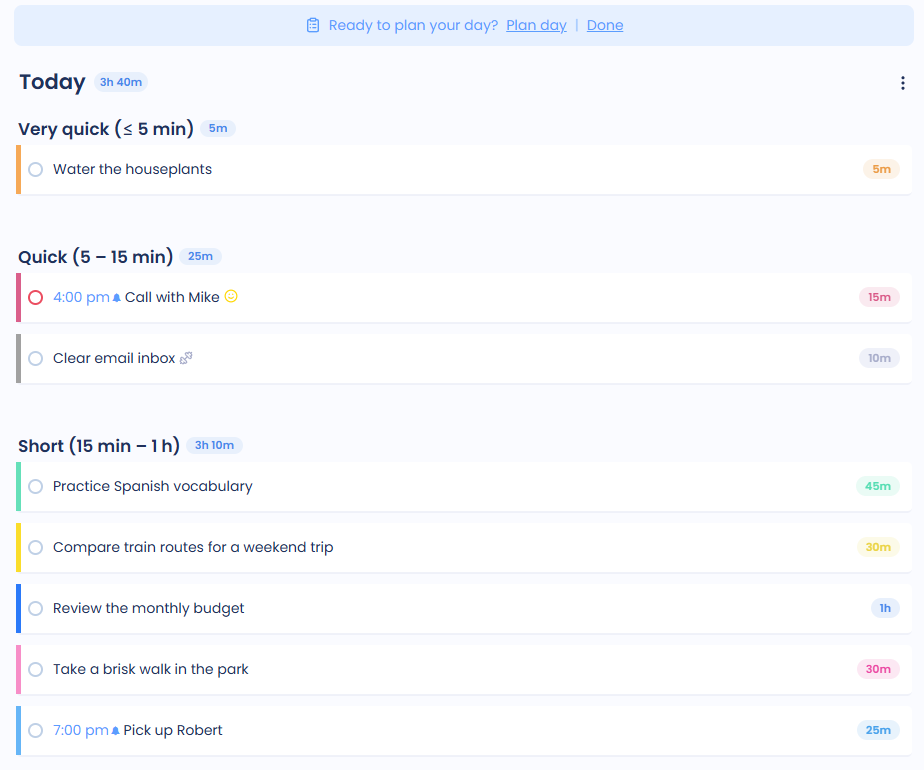
Group by duration
Sorts tasks by their time estimate into these sections:
Very quick: 5 minutes or less
Quick: 5 to 15 minutes
Short: 15 minutes to 1 hour
Long: 1 to 2 hours
Very long: over 2 hours
No estimate
If a task has no estimate but has a size, it's placed by its size instead. See Duration estimates.
Group by age
Groups tasks by how long ago you created them. The sections adapt to your list, so you get at most six useful groups instead of lots of tiny ones. Headers read like "Created today", "3-5 days old", "2-3 weeks old" or "Over 1 year old".
Group by delay
Groups tasks by how many days they've been carried forward since they were first put on a day list. Like age, the sections adapt to your list, for example "Not delayed", "Delayed 1 day" or "Delayed 2-4 weeks".
Layouts for grouped lists
Once a list is grouped, the Set layout pill lets you show the sections as Kanban Lists, Vertical Lists, a 2x2 Grid or a 3x3 Grid. With Kanban Lists you can also set the Column Width.
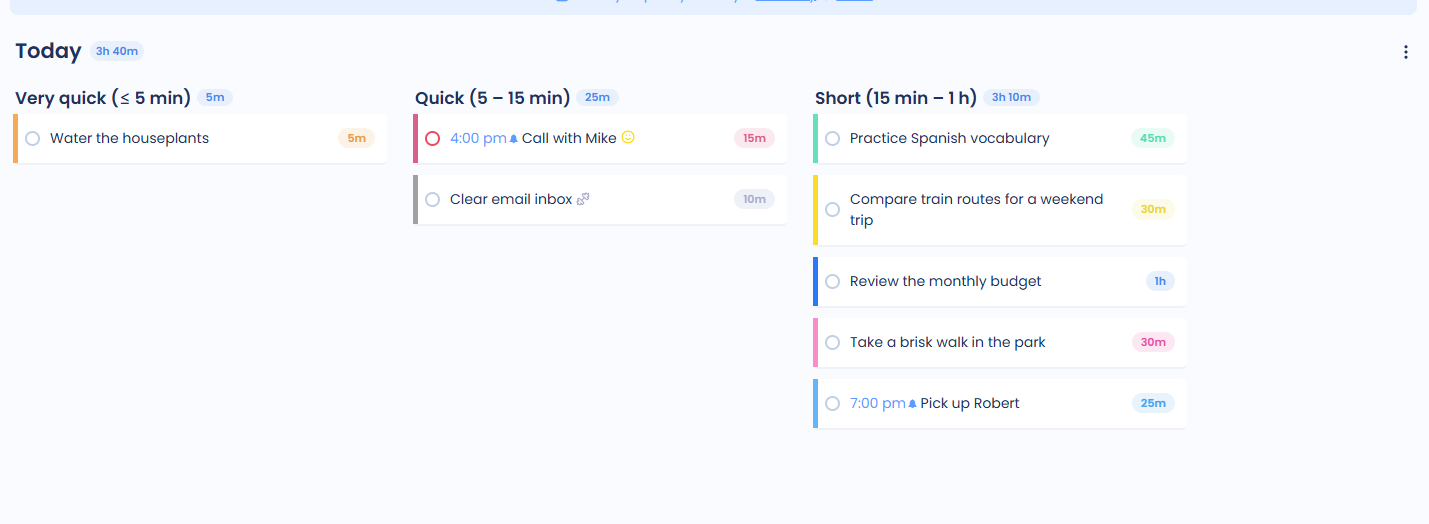
Grouping by duration, age and delay is also available in the mobile app.
Tip: On a busy day, group by duration and start with a few "Very quick" tasks to get going.