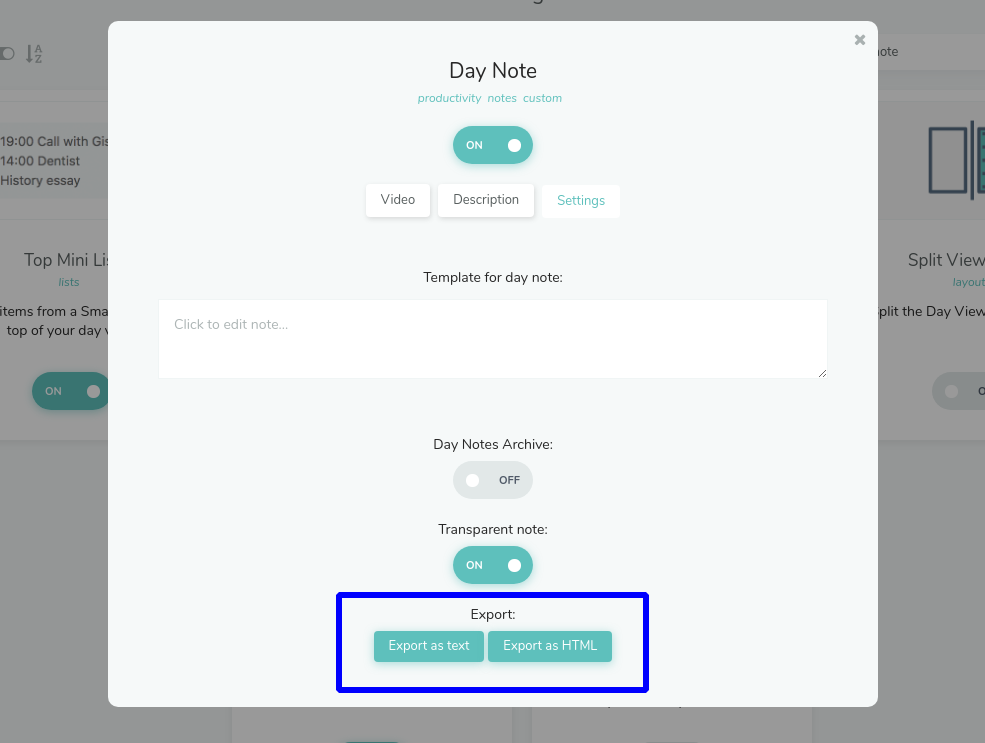
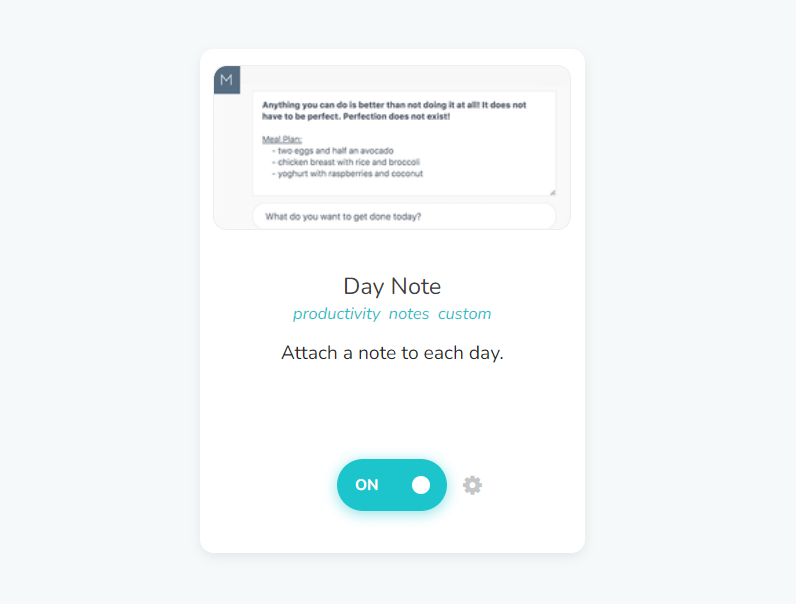
Turning on the Day Note gives you a note for each day. It can show at the top of your day view or in the right panel. To turn it on, go to ☰ → Features and find Day Note in the Extras group.
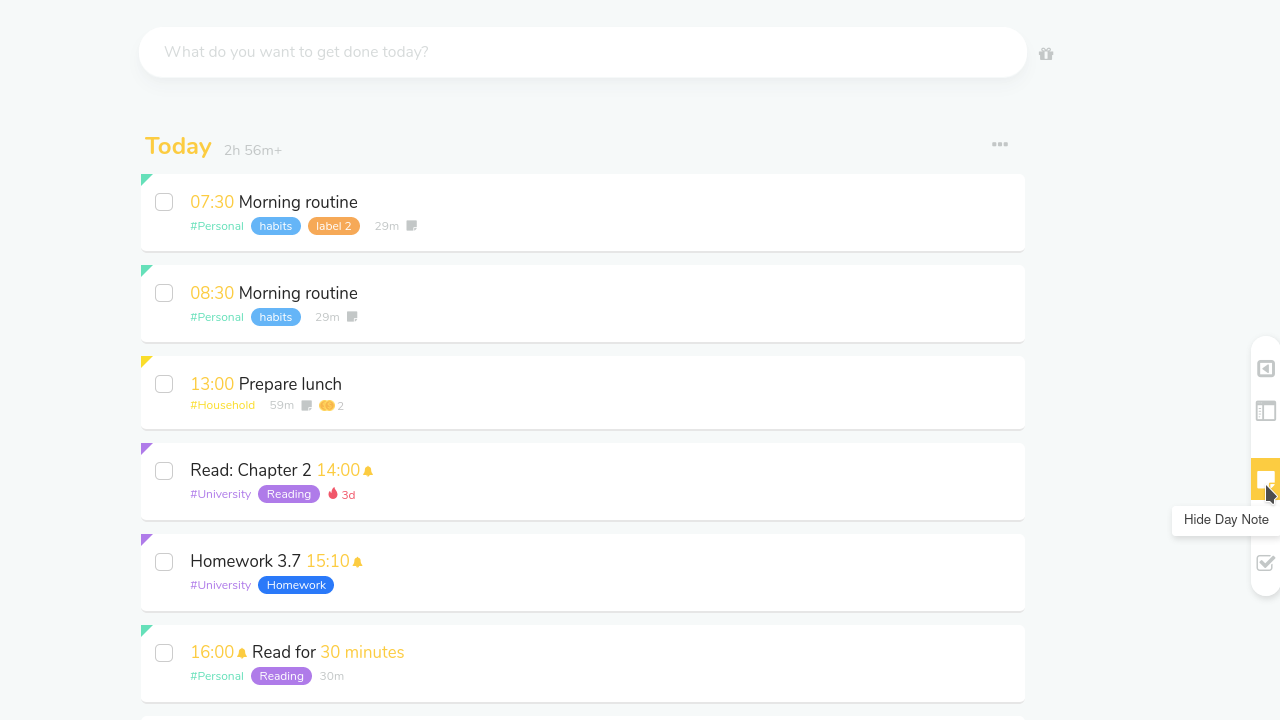
How to show/hide the day note
Press N to show or hide the day note. You can also use the Day Note switch in the list menu (the three dots above your day).
Choosing where the day note shows
In the Day Note settings, choose a Note position: Top of day view or Right panel.
How to edit the day note
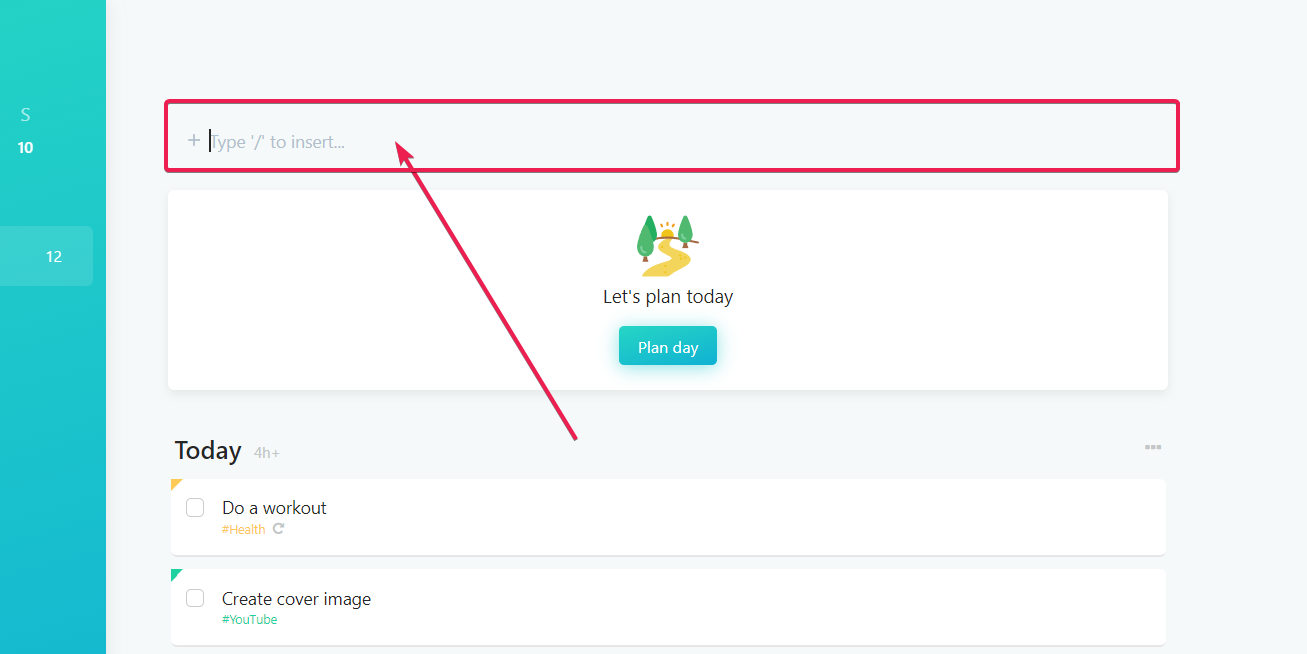
To edit the day note you can click on the day note field at the top of your day and edit it like regular text.
When there is no text yet in your day note, you will see a placeholder text.
How to edit text in the day note
You can use the same formatting options in the day note as you can use in regular task/projects notes.
To apply a formatting option, select the text you want to modify and choose on of the options.
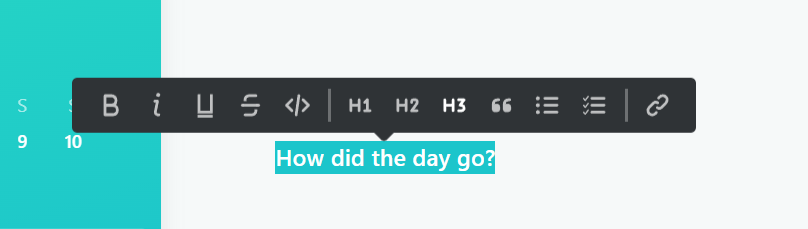
You can also use the "/" shortcut which will open a dropdown with all formatting options:
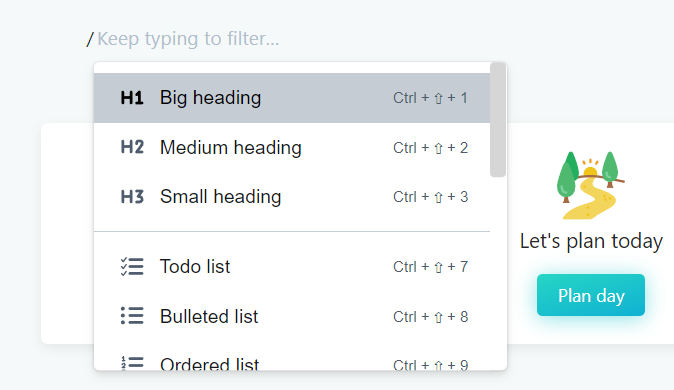
How to change the background color of your day note
In the Day Note settings, turn on Transparent note to show the note as just text, without a background. Turn it off for a white or dark background, depending on your theme.
How to use a template for your day note
In the strategy settings for the day note you can specify a template for your day note. This template will be automatically added as a default to a day note in the future.
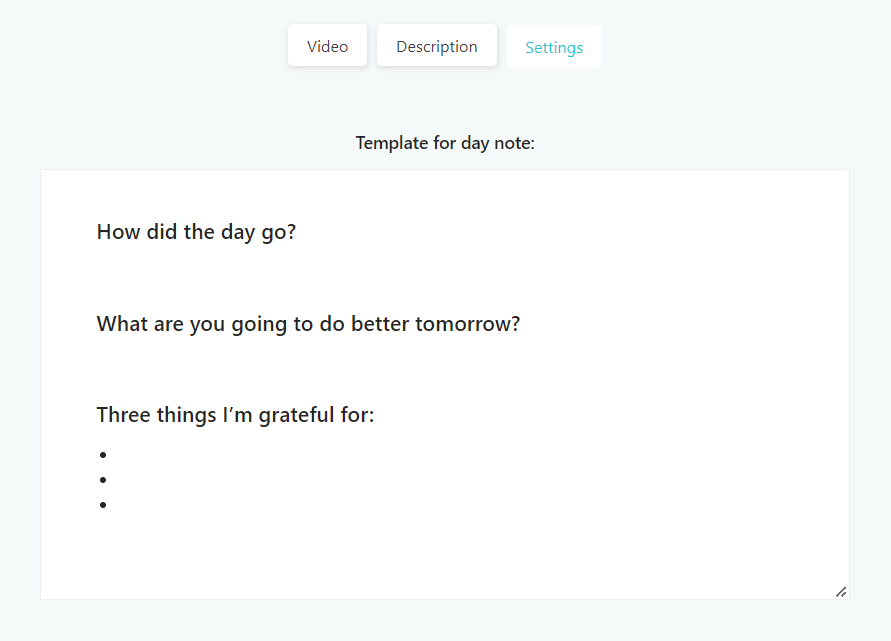
You can edit the day note as normal and it will only change the one day note.
Make sure you save the day note template by clicking outside the text area after you are done. Once you don't see the cursor anymore inside the day note template area, the template is saved.
How to access all your day notes
If you are using the day notes as a diary or anything you want to have access to later, turn on Day Notes Archive in the Day Note settings.
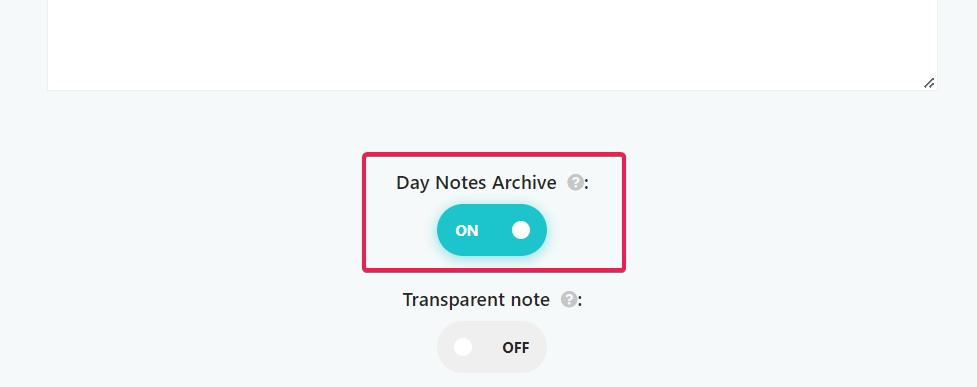
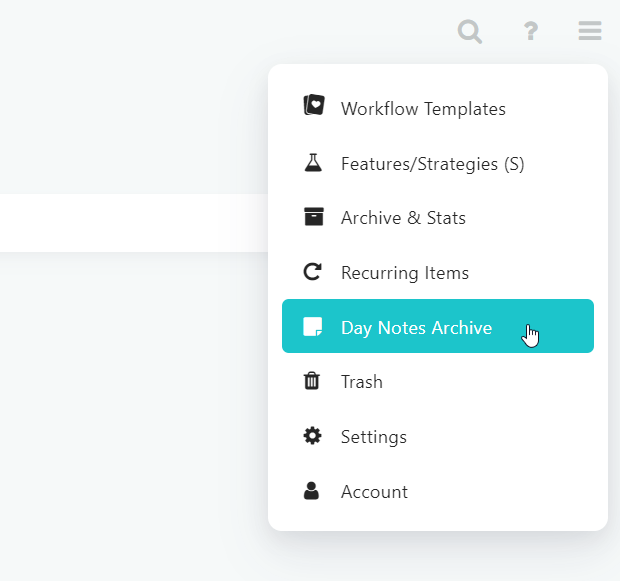
Then open the archive from ☰ → Day notes.
The day note archive shows you all your day notes by month:
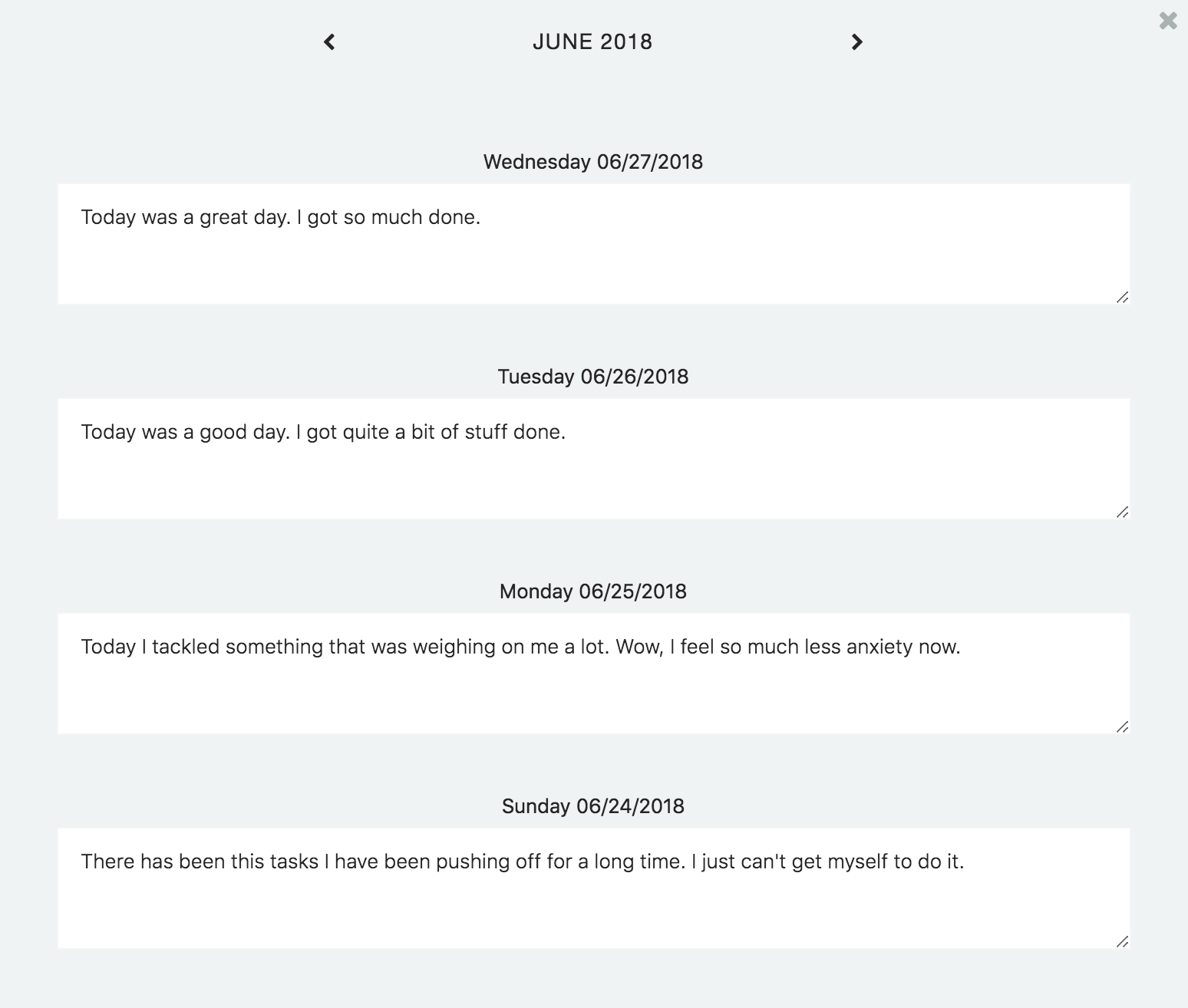
You can edit the day notes from the archive.
Can I export my day notes?
Yes. Go to ☰ → Features → Day Note, and at the bottom of the settings click Export as text or Export as HTML.