Tasks and projects in Marvin all work mostly the same way. This article shows the different ways you can open, change, move and complete them.
Open and edit an item (task/project)
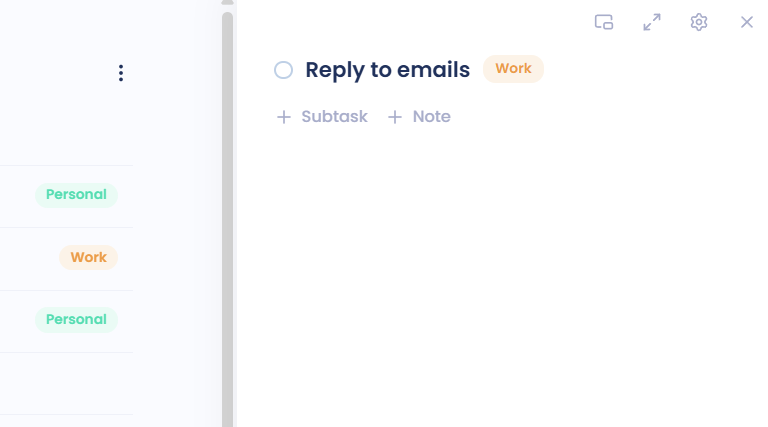
Click a task or project to open its details on the right, where you can change everything about it.
Double-click the title to rename it.
Click the checkbox to mark a task done.
You can change what a click does, for example so a single click edits the title. See Tooltips, the help button and click behavior.
Quick actions
There are three places with quick actions for an item:
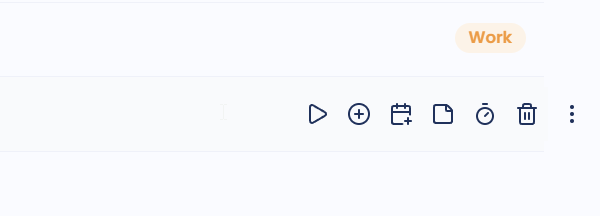
Hover buttons: hover over a task to see a row of buttons, like track time, add subtasks, schedule and delete. Click ... for more.
Left button: a button to the left of the checkbox when you hover. By default it opens the item's properties, like importance and urgency.
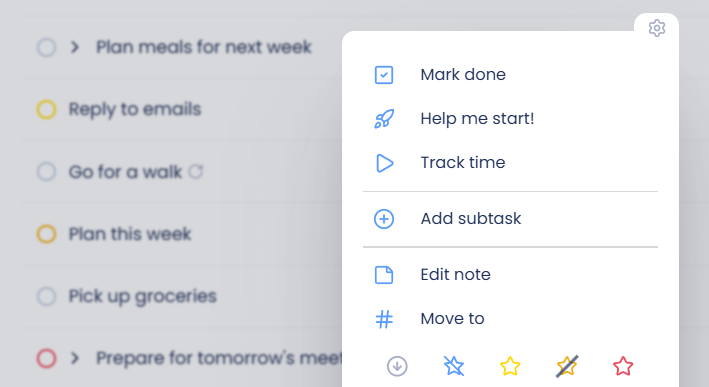
Right-click menu: right-click any task or project for the full list of actions.
You decide which actions show up in each of these. Open the Features page and look in the Item Interactions group, or see Hover button actions, Left Button and Right-click menu.
Set things while you type
When you add or edit a task, you can set its details right in the title with shortcuts:
# to put it in a category or project
@ to add a label
* for properties like priority
+ for a date, like +today or +friday
~ for a duration, like ~30m
If you'd rather click than type, the Task Input Pills row under the title lets you set the same things. See Using shortcuts while creating a task.
Change several items at once
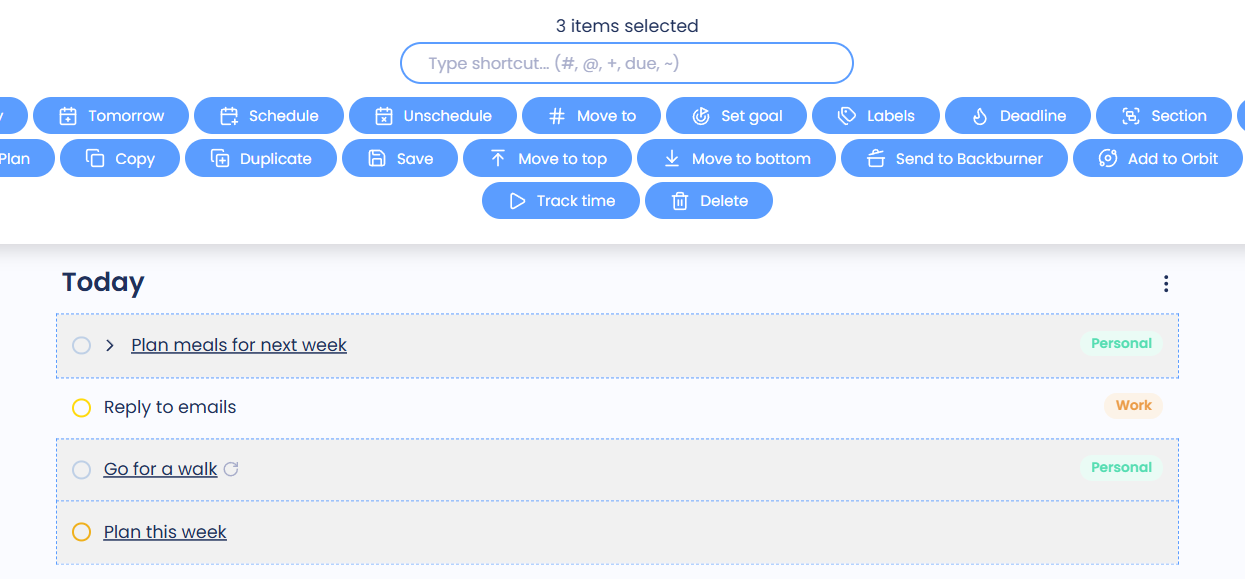
Hold Shift or Ctrl (Cmd on Mac) and click to select several items. A menu opens at the top of the screen with actions for all of them, like scheduling, moving or deleting. You can also just start typing a shortcut, like +today or #Work. See Bulk editing tasks.
Drag and drop
Drag items up or down to put them in the order you want.
In the Master List, drag a task into another category or project to move it there.
Drag a task onto a project shortcut to move it into that project.
In a grouped list, drag a task into another section or column, and it changes to match. For example, dragging it into a priority section gives it that priority.
Drag a task into the Agenda timeline to give it a time.
Projects too
Almost everything here works for projects as well. See Working with projects for what's special about them.