You can choose how Marvin shows dates and times, for example a 24-hour clock (sometimes called military time, like 14:00) or a 12-hour clock (2:00 pm).
Change the date and time format
Open the main menu and click Settings.
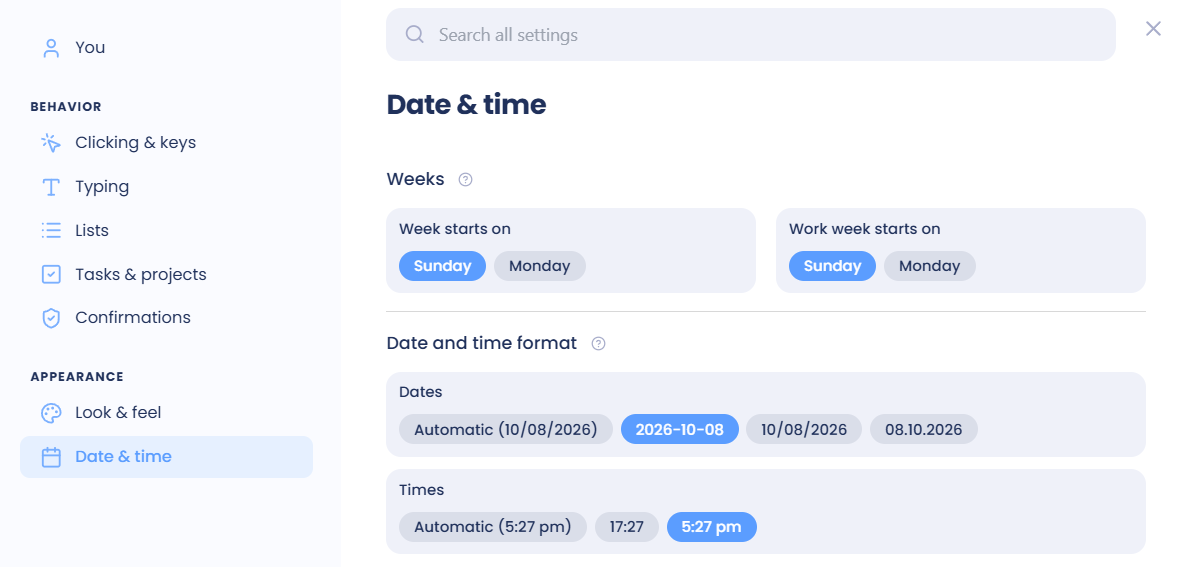
Find Date and Time Format.
Pick a Date Format and a Time Format. The preview next to each shows how it will look.
Your choices:
Time Format: HH:mm for the 24-hour clock (14:00), h:mm a for the 12-hour clock (2:00 pm), or Best guess to follow your computer.
Date Format: YYYY-MM-DD, MM/DD/YYYY, DD.MM.YYYY, or Best guess.
Typing times
Whichever format you choose, you can type times either way when you add a task, like 14:00, 2pm or 7AM.
More date settings
To choose whether your week starts on Sunday or Monday, see How to change the Week Start.
In the mobile app, these settings are under Account & Settings → Date & Time. See Date and time settings in the Mobile App section.