Overview
Ball Pit turns your task list into a playful pit of balls. Each task is a ball, and the bigger the time estimate, the bigger the ball. When you complete a task, its ball explodes in a burst of confetti.
It's a fun, visual way to work through your list.
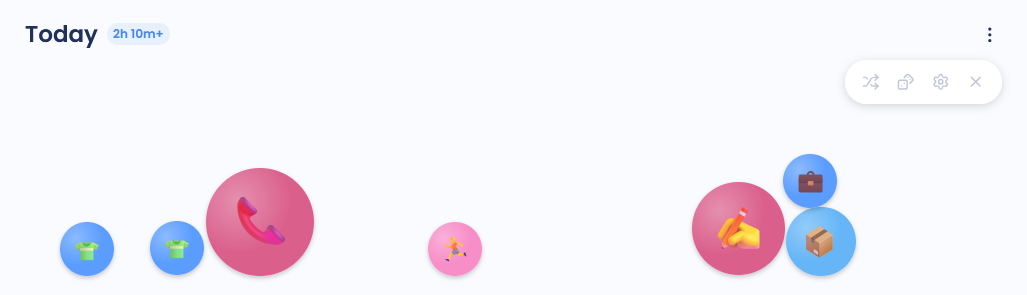
Turning it on
Turn on Ball Pit in your Features list (in the Work Modes group). It's available on desktop and web.
Using Ball Pit
Open the three-dots menu of your list.
Under Work modes, choose Ball Pit.
Click a ball to open that task, then work on it and complete it as usual.
Tasks without a time estimate are shown as if they take 15 minutes.
The buttons at the top let you:
Reshuffle the balls
Pick random to open a random task
Open Settings
Exit back to your normal list
If you have more tasks than the maximum number of balls, you'll see +N more.
You can use Ball Pit on today's or a future day's list, and on smart lists.
Settings
Ball color source: Category Color (default), Project Color, Theme Color, Color Palette or Priority Color
Max balls to show: 30 by default (0 means no limit)
Handle projects: Extract tasks from projects (default) or Show projects as balls
Click action: Open single task view (default) or Open edit pocket
Show emoji on balls: uses an emoji from the task title or picks one automatically (off by default)
Show task title on hover (on by default)