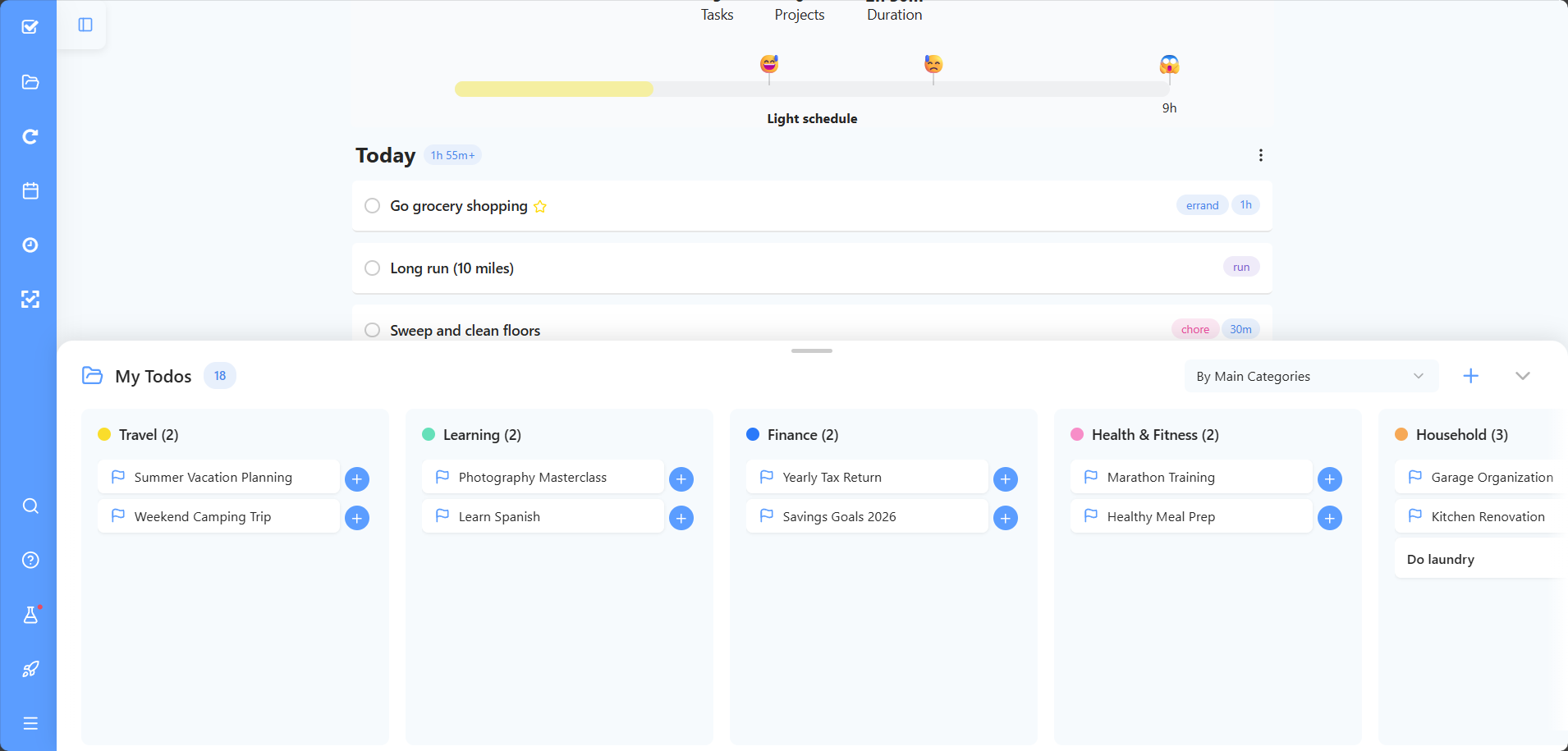
The Bottom Drawer strategy provides a Kanban board view for your tasks and projects. It sits at the bottom of your screen, ready to pop up whenever you need to see your Master List or Orbit organized in neat columns.
How to enable
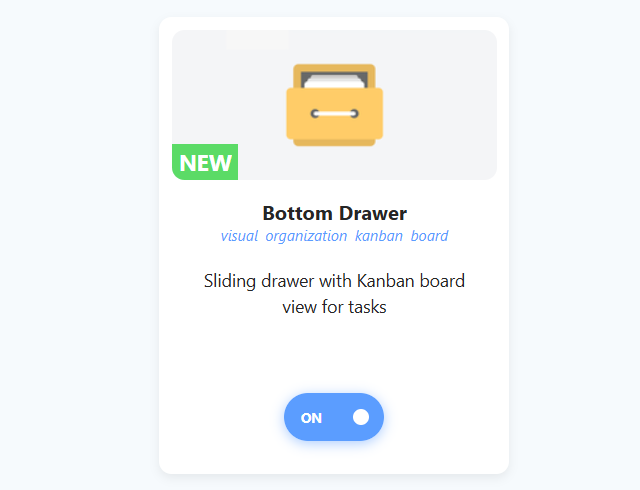
To enable this strategy, go to ☰ → Strategies → Bottom Drawer.
How to use
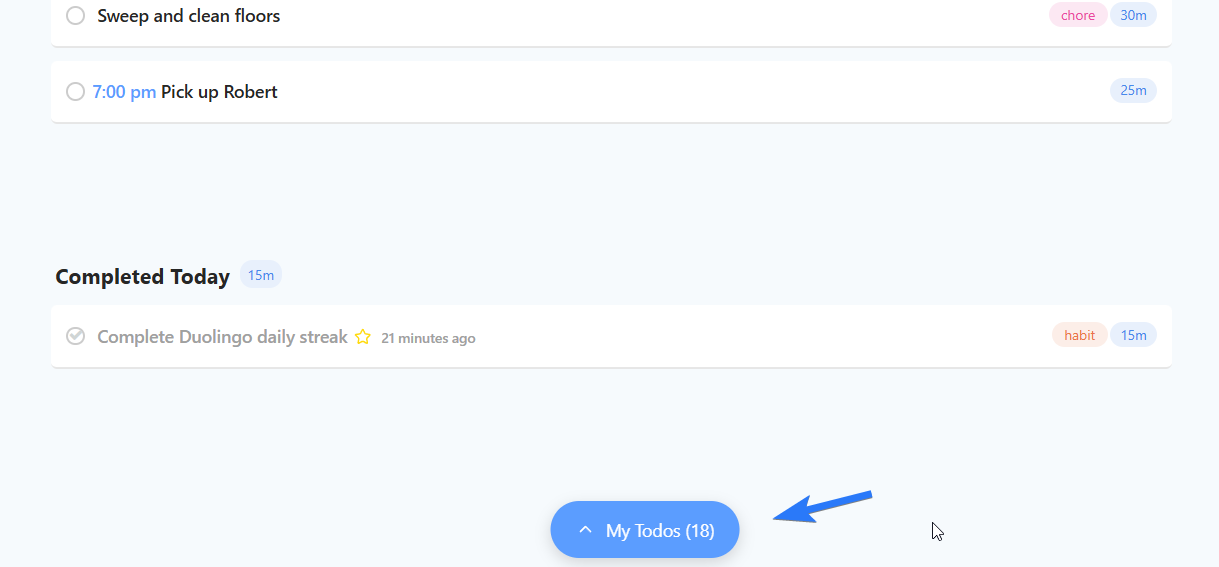
Opening and Resizing: Once enabled, you will see a button at the bottom of your screen with the list name and how many items are in it. Click it to slide the drawer open. If you prefer a small round button on the right, change Button that opens the drawer in the strategy settings. You can resize the drawer by dragging the small handle at the top, and Marvin will remember your preferred height.
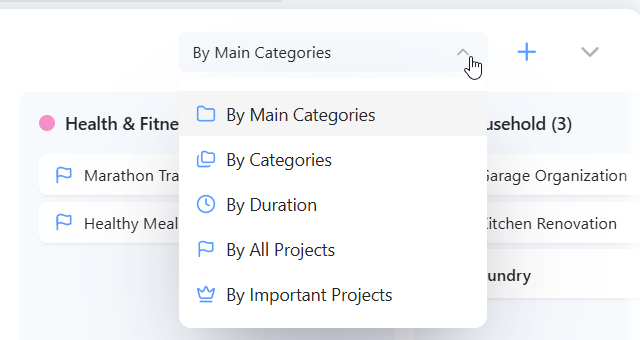
Grouping Columns: You can change how the columns are organized using the dropdown menu on the right. Group your tasks by Main Categories, Categories, Parent, Duration, Importance, Label, Label Group, Day and more, depending on which features you use.
Note: If you navigate to a future date in your main view (using the arrow keys), clicking the + button will schedule the task for that specific date.
Scheduling Tasks: To schedule a task from the drawer into your day, click the + button next to the task. If you don't see it, turn on Schedule mode in the ⋮ Drawer options menu. You can also drag a task or project from the drawer onto your calendar to schedule it for a day or time, and drag a scheduled task onto the drawer to unschedule it.
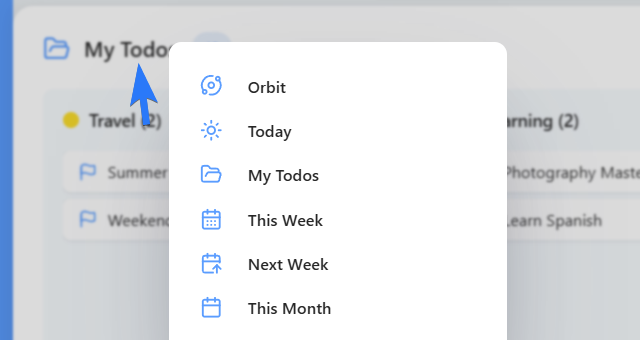
Choosing what to show: Click the list name on the top left of the drawer to switch views: Orbit, Today, My To-dos, Scheduled…, MIPs, a smart list, or a single category, project or label (some views only appear if you use those features). In the Today view, use the arrows next to the title to step through days, or the calendar icon to pick one.
Searching and filtering: Type in the search box to search the current view. Start with @ for labels, # for projects and categories, * for properties or $ for smart lists to get suggestions. Click the filter icon for more filters. Marvin remembers your filters and settings for each view.
Project tasks in columns: Turn on Independent project tasks in the ⋮ Drawer options menu to show a project's tasks in the columns on their own.
Clicking items: Use When you click an item in the strategy settings to choose what happens: Nothing, Edit sidebar, Single view or Open task.
Who is this for?
This feature is perfect for users who prefer visual board layouts (Kanban) and want to see their tasks organized in columns rather than a standard list.