Warning: this is an advanced feature! Prepare yourself for maximum customization.
Motivation
Based on frequent user request, we wanted to make it so that you could configure which actions appear for hover buttons and the right click menu...
depending on where you are in the app
depending on whether you clicked/hovered a task/project/category
in any order you choose
Features
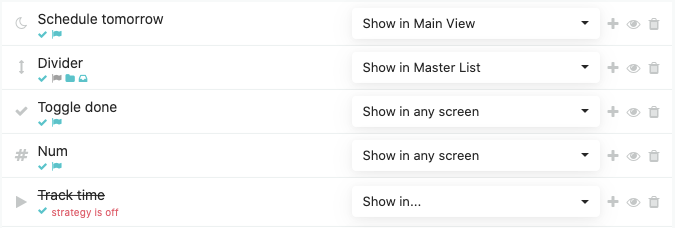
The first row in the screenshot above indicates that a "Schedule tomorrow" action is shown whenever you right click a task or project (via the checkmark and flag icons) in the Main View (via the "Show in Main View" chooser).
The second row indicates that there's then a divider line, but only in the Master List, and only for tasks, categories, and the Inbox. Why not projects? Because the user has clicked the flag icon to disable the divider for projects, which is why it's grayed out.
Notice that the "Track time" action at the end is disabled (crossed out). If you hover over the action title, Marvin will tell you why it's disabled. In this case, the red "strategy is off" text also tells you why the action is disabled. But it can also be disabled if you've clicked the eye icon to temporarily disable an action, or if you click to gray out and disable all the item types.
You can drag and drop to reorder actions. You can add additional actions either by clicking/shift+clicking the plus button on any action, or the clicking/shift+clicking the add button at the bottom of the list. Click the trash to delete actions - don't worry you can easily re-add any action.
The More menu
Both menus can have a More... button that opens a second list of actions. Use it for actions you need now and then, so your main menu stays short. You set up what goes inside it under More Menu Actions in the strategy settings.
Item Types
As mentioned above, you can click the item type icons to configure whether an action is available on tasks, projects, categories, and the Inbox. This can be useful, for example, if you want a right click action to mark projects done, but don't need it for tasks since they always have a checkbox readily available.

Many actions only apply to tasks and projects. For example, it's not possible in Marvin to schedule categories, so the item type icons look like this by default:

The Inbox gets its own item type icon since many actions apply to all categories except the Inbox.
Show In
If you click the "Show in..." chooser, you can choose in what area of Marvin an action will be available:
Show in Main View - this action will be shown in your Main View. That is, My Day or any smart list, category, label, or screen you've selected in your sidebar /skinny sidebar/custom squares/custom text links
Show in Master List - this action will be shown everywhere in your Master List
Show in My Day - this action will be shown in your Main View, but only when you've selected My Day
Show in any category/project - this action will be shown in your Master List, Main View, or Category/Project Fullscreen View, but only when you're viewing any category/project (i.e. not My Day, a label, or a custom screen).
Show in a category/project... - you will be prompted to choose a category/project, and this action will be shown when you are viewing this category/project, either in the Category/Project Fullscreen View, the Master List, or you've selected this category/project or one of its children in your sidebar/skinny sidebar/custom squares/custom text links
Show in any label - this action will be shown in your Main View, but only when you're viewing a label from your sidebar/skinny sidebar/custom square/custom text link
Show in a label... - you will be prompted to choose a label, and this action will be shown when you're viewing this label in your Main View after selecting this label from your sidebar/skinny sidebar/custom square/custom text link
Show in any smart list - this action will be shown in your Master List or Main View, but only when you have clicked to show a smart list (via sidebar/skinny sidebar/custom square/custom text link)
Show in a smart list... - you will be prompted to choose a smart list, and this action will be shown when you're viewing the smart list in your Master List (via sidebar) or Main View (via sidebar/skinny sidebar/custom square/custom text link)
Show in any screen - this action will be shown in your Main View, but only when you have clicked to view a screen
Show in a screen... - you will be prompted to choose a screen, and this action will be shown when you're viewing the screen in your Main View (via sidebar/skinny sidebar/custom square/custom text link)
If you want an action to show in two areas of Marvin, but not all areas of Marvin, just create a copy of the item. For example, you might want to show a label group in "Any screen" or "Any smart list".