Open the sidebar, tap Account & Settings, then Visuals & Interaction.
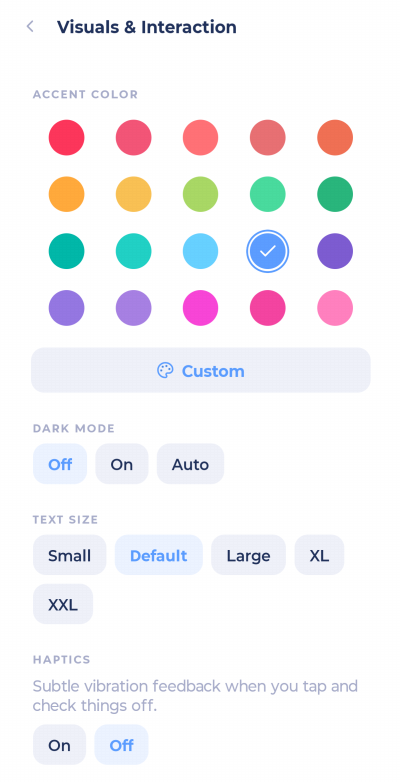
Accent color
Pick one of the color swatches, or tap Custom to choose your own. The whole app, including the sidebar, takes on this color.
Dark mode
Off: always light
On: always dark
Auto: follows your phone's setting (the default)
Text size
Choose Small, Default, Large, XL or XXL. Marvin uses this setting instead of your phone's text size.
Haptics
Subtle vibrations when you tap and check things off. Turn them on or off.
Shortcut keys
Adds a row of keys for #, @, * and other shortcuts when you add a task, so you don't have to hunt for them on the keyboard. See Shortcuts you can type while adding.
More ways to change the look
Many features have their own look settings in More > Features, for example:
Category Context: how category colors show on tasks
Check Off Behavior: your celebration animation
Home screen blocks each have their own style settings