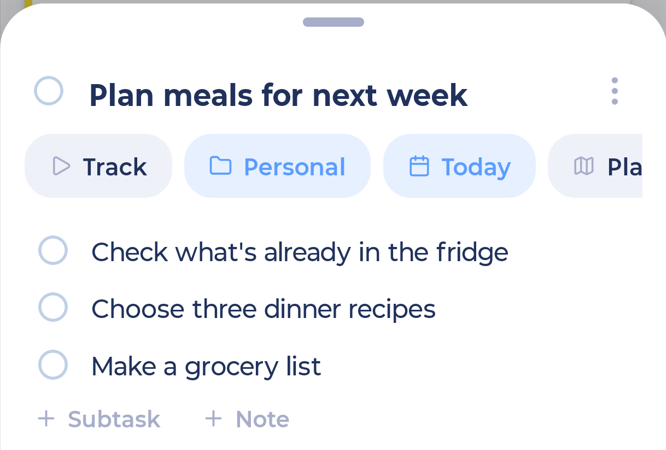
All of these live in the task's edit drawer. Tap a task to open it.
Subtasks
Tap + Subtask at the bottom of the drawer (or under the title when adding).
Type the subtask and press Return to add another.
Tap a subtask's checkbox to tick it off.
Swipe a subtask left to delete it.
You can choose how subtasks show in your lists and what happens to completed ones in More > Features > Subtasks (Checklist).
Notes
Tap + Note to add a note to a task or project. Notes on projects are also collected in Notebooks. See Notebooks and Day Notes.
To see an icon on tasks that have a note, turn on Show icon in More > Features > Item Notes.
Comments
With Comments on, tap + Comment, write your comment and tap Post. Swipe a comment left to edit or delete it.
Attachments
On iPhone, tap + Attachment to add a file to a task. On Android you can see attachments but can't add new ones yet.
Tasks you emailed to Marvin show View original email so you can read the whole email.
Screenshot to add: The attachments section with "View original email"