Turn on Saved Items (Templates) in ☰ → Features to save tasks, projects and groups of tasks, and load them anytime later.
This is great for a project or task that you want to reuse.
Think of the saved item as a template that you can then reuse again and again.
How to save a task or project
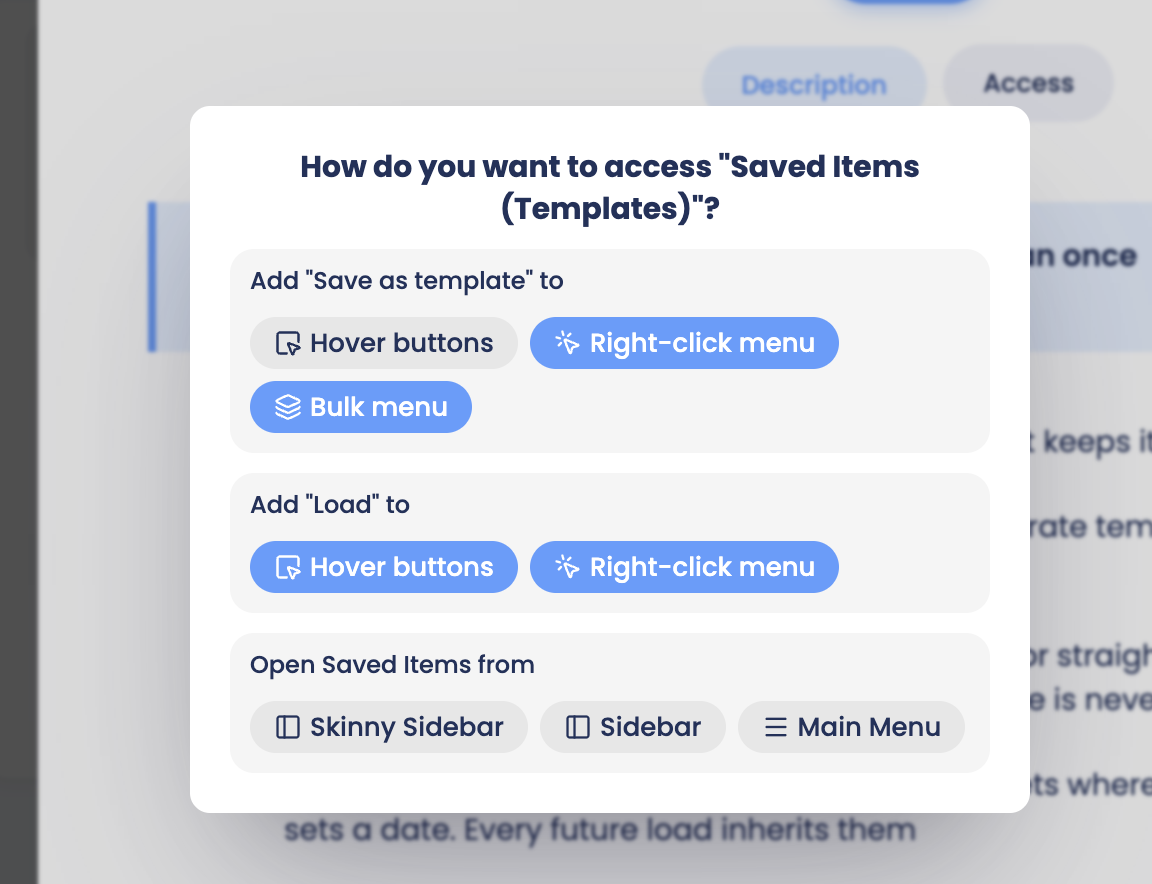
Click on the strategy card and then the "access" tab to quickly decide how you want to save items in the future: through the hover buttons, in the right-click menu and if you want to be able to bulk save items.
Do the same thing for the "Load" action to load items directly from a list.
Then also decide how you want to access the page where you can see all your saved items/templates.
How to bulk save items
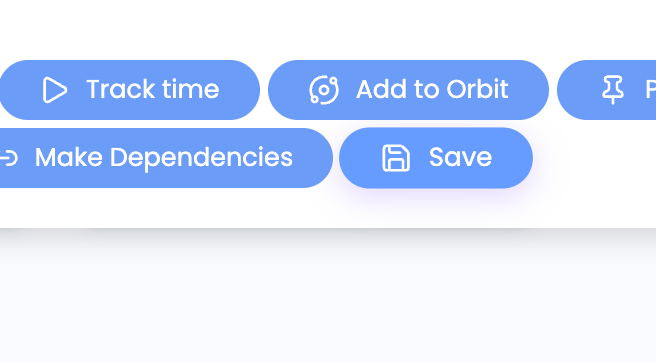
To save several tasks at once, select multiple by holding down shift and selecting the first and last task you want to select, or holding down cmd/alt and pick multiple items, then use the bulk edit buttons that appear on top and click "Save".
Marvin asks whether to save them as separate templates or together as one task group. If you pick a group, you give it a name. A task group loads all its tasks together, in order.
Building a saved item/template from scratch
While it is easier to save an existing task or project, you can also build a template from scratch: open the Saved Items screen, click + New and choose Task, Task group or Project.
Choosing where Save, Load and Saved Items show up (Access tab)
Open ☰ → Features, click Saved Items (Templates) and go to the Access tab. The same window also opens by itself when you first turn the feature on.
Click a button to turn that place on or off. Changes are saved right away.
Add "Save as template" to: Hover buttons, Right-click menu, Bulk menu
Add "Load" to: Hover buttons, Right-click menu. Load appears on projects and categories.
Open Saved Items from: Skinny Sidebar, Sidebar, Bottom Menu, Main Menu, Custom Squares, Custom Text Links
Only the places you have turned on are listed. For example, Bottom Menu only shows up if the bottom menu is on.
How to load a saved item
Loading always makes a fresh copy. The template itself stays the same, so you can load it as often as you like.
Type "load " as a task or project title
When adding a task or project, type load followed by a space. A dropdown shows your saved items. Keep typing to narrow it down, then pick one.
Day view input bar and the Add task bar at the top: all your saved items are offered.
New task in the Master List or a project (shift + t, or the + button): saved tasks and task groups are offered.
New project (shift + p): saved projects are offered.
Load action on a project or category
Use Load on a project or category and pick a saved item. It is loaded inside that project or category. Add Load to your hover buttons or right-click menu in the Access tab first.
Master List column view
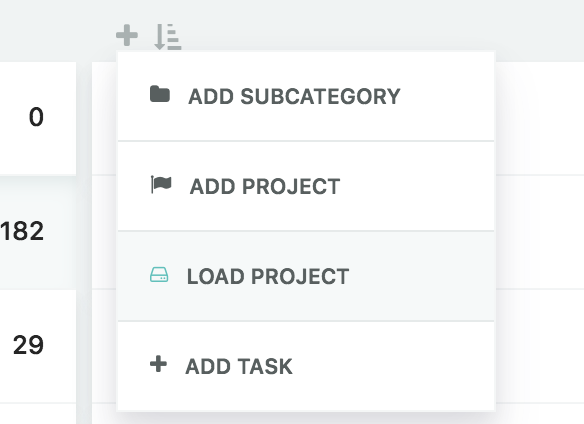
Click the + at the top of a category or project column and choose Load Project, Load Task Group or Load Task. Each option only shows when you have that kind of item saved.
From the Saved Items screen
Hover over a saved item and click the load icon, or right-click it and choose Load.... Pick the category, the day to schedule it (today unless you change it) and an optional due date, then click Load.
You can also click a saved item to open it on the right and click Load there. This only asks for the category and leaves the item unscheduled.
What gets saved?
note
parent project/category
time estimate
subprojects (saved project)
priority stars
frogs
A saved task keeps:
its title and note
its labels
its subtasks (all unchecked again)
its duration estimate and size
its importance, frog, urgency, weight, positivity, focus, energy and physical settings
its text style, reward and reward points, and sections
Anything about one particular instance of the task is not saved: its scheduled day, due date and other dates, planned week or month, and whether it is done.
Setting default parent Category/Project
By default, when you save a task or a project, its parent is the default parent. For example, if you have a task in #Work category and you save it, the next time you load it, it will be automatically assigned to #Work.
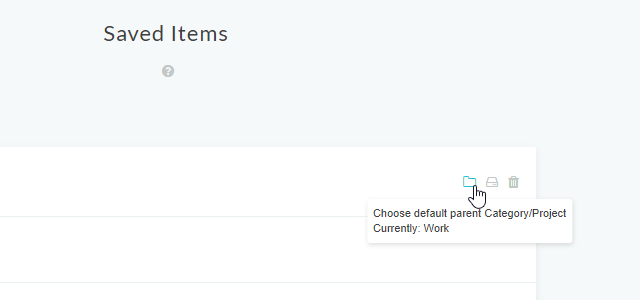
You can change this on the Saved Items screen: hover over a saved item and click the folder icon to choose its default category or project.
Editing a template task or project
Open the Saved Items screen and click a saved item. It opens on the right and works like editing a real task or project:
Change the title, and see where it loads under Loads into.
The tasks inside it are listed under the title. Click a title to rename it, and right-click a task for all its actions, like setting urgency.
Use the + Task and + Subproject buttons to add more, and + Note to add a note (when the Notes feature is on).
Click Load to load it right away.
Task groups can also be edited right on the Saved Items screen: click the arrow to show the group's tasks, edit them like normal tasks, and click Add task to add another.
Titles work like any task title, so you can type #Category to set where it loads or * to add properties.
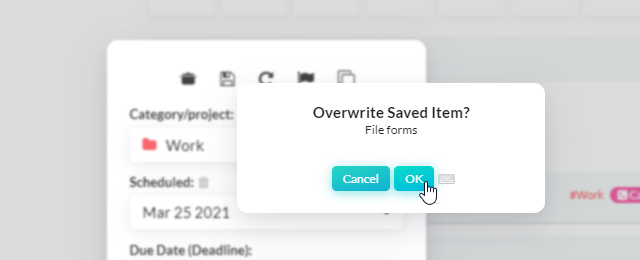
You can also still load a saved item, make changes and save it again. Marvin asks if you want to overwrite the saved item.
Deleting a template task or project
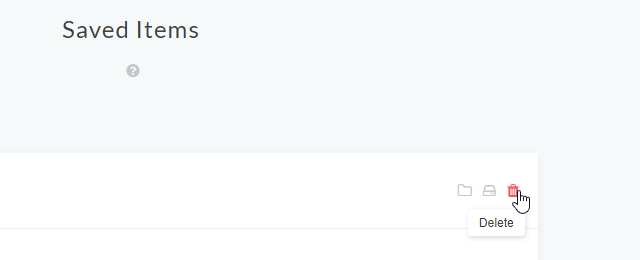
To delete a saved item, go to the Saved Items screen, hover over it and click the trash icon on the right. You can also delete it from the panel on the right when it is open.
Reordering saved items
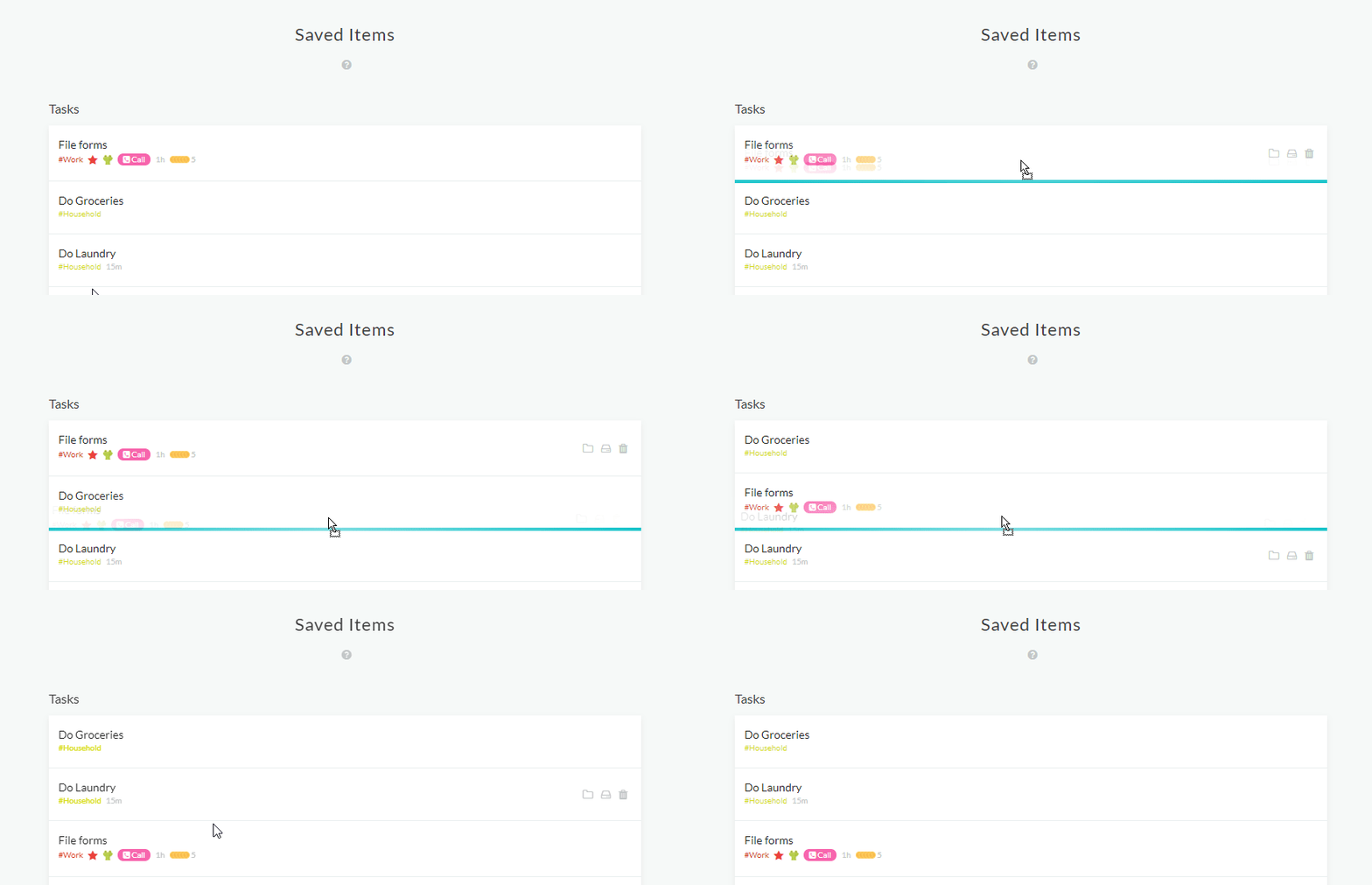
You can reorder saved items by dragging and dropping them.
Use Group by at the top of Saved Items to group them by Type or Category.