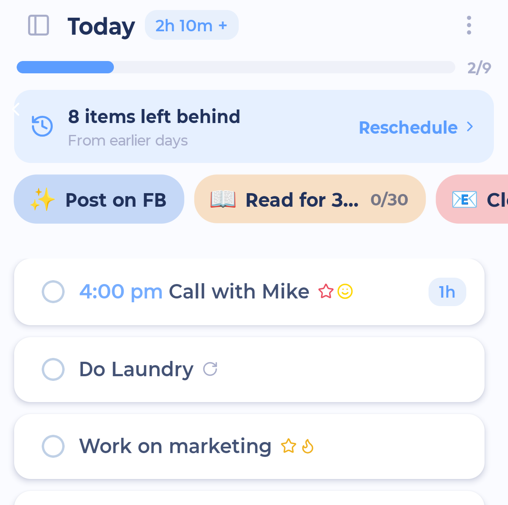
My Day is your list for today: everything you've scheduled for the day. The app opens here.
Moving between days
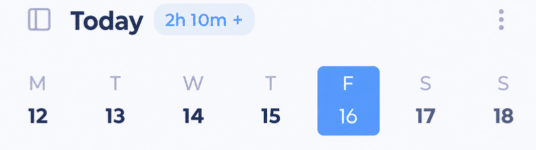
Tap the date at the top ("Today") to show the week strip. Tap it again to hide it.
Tap a day in the strip to go to that day.
Swipe the strip left or right to go to another week.
Tap My Day in the bottom bar to jump straight back to today.
The title shows "Today", "Yesterday", "Tomorrow" or the date.
Adding to a day
Tap + while you're on a day and the new task is scheduled for that day.
The progress bar
The bar near the top fills up as you complete today's tasks. You can turn it off or change it in More > Features > Day Progress Bar.
Total time for the day
If you use Duration Estimates, a small time pill next to the date shows how long today's open tasks add up to. A + at the end means some tasks don't have an estimate yet.
Pull down for your Day Note
Pull the list down past the top and let go when you see Release to open note. This opens the Day Note for that day. (Needs the Day Note feature.)
Pull up to see what you've done
Pull the list up past the bottom and let go when you see Release to show completed. You'll see everything you completed that day, plus a chart of the time you tracked. You can also use ⋮ > View completed.
On your phone you can look back up to 7 days. For older days, use the web or desktop app.
Tasks left behind
If you have unfinished tasks from earlier days, a banner says N items left behind. Tap Reschedule to deal with them all at once. See Scheduling, rescheduling and snoozing.

Pills above your day
Depending on your features, you may see rows of pills above your tasks:
Habits: tap a habit pill to record it. See Habits on mobile.
Top Mini List: tasks and projects from smart lists you pinned on the web.
List options
Tap ⋮ at the top right to change how the day looks and to start a work mode like Super Focus Mode. See List options.