Keep your most relevant tasks front and center without cluttering your daily plan.
Think of your task management as a funnel. You have all your open tasks at the top, and your "Today" list at the bottom. Orbit sits right in the middle. It acts as a holding area for tasks that are currently relevant and "orbiting" your mind, but aren't necessarily things you must do today.
This strategy is the opposite of the Backburner. While the Backburner hides tasks that aren't currently actionable, Orbit highlights a subset of tasks that are most important right now.

How to enable
To enable this strategy, go to ☰ → Features/Strategies → Orbit.
How to use
There are two main ways to add tasks to your Orbit:
Magic Word: Type
*orbitin the task title when creating or editing a task.
Menu Action: Add the Toggle orbit action to your hover buttons or right-click menu in the strategy settings. Then, simply click the action to move items in and out of Orbit.
By hand: type *orbit in the task title, or add Toggle orbit to your hover buttons, left button or right-click menu. In Braindump you can also turn on Add to orbit to send every task you type there.
Automatically: with Auto-orbit and Orbit labels (see below).
Auto-orbit
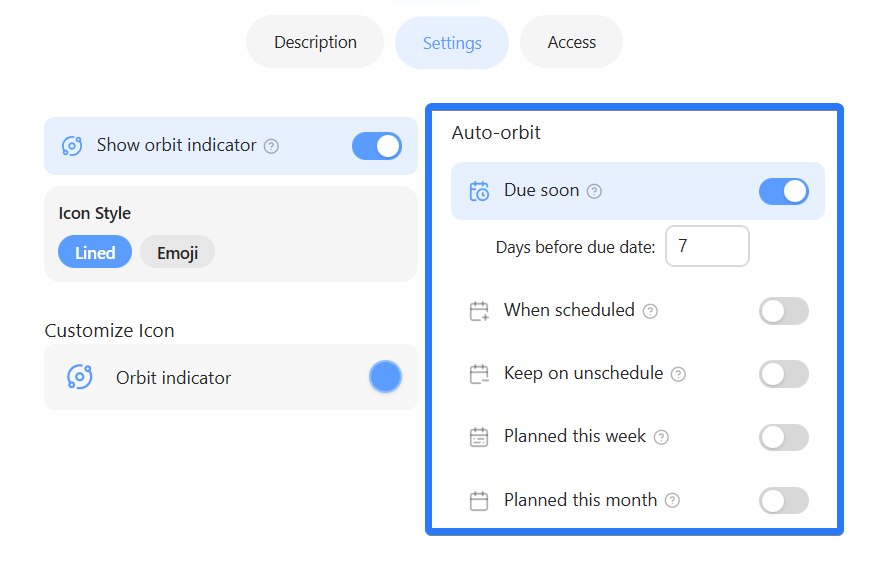
You can set up Marvin to automatically pull tasks into your Orbit based on specific criteria. This keeps your Orbit fresh without manual management. In the Settings tab of the strategy, you can enable Auto-orbit for:
Due soon: Tasks approaching their due date.
When scheduled: Tasks scheduled for specific dates.
Planned this week/month: Tasks you have planned for the current week or month.
Due soon: tasks due within the number of days you choose.
End date soon: tasks with an end date within the number of days you choose.
When scheduled: tasks scheduled for today or earlier. Turn on Include future scheduled to also include tasks scheduled in the future, and set Days ahead to include to limit how far ahead.
Keep on unschedule: tasks stay in your Orbit when you unschedule them.
Planned this week and Planned this month.
Orbit labels
Under Orbit labels in the strategy settings, pick labels that put a task or project in your Orbit. Any item with one of these labels is in your Orbit automatically.
Why use this strategy?
This strategy is perfect if you find that your "Today" list often becomes a dumping ground for everything currently going on.
Instead of dragging undone tasks from one day to the next just to keep them visible, move them to your Orbit. This allows you to keep your daily plan intentional and achievable, while still having a dedicated place for high-priority items that you are actively working on this week or month.
Note: You can combine this with the Bottom Drawer strategy to see all your Orbit items in one convenient place.