Marvin uses notifications for reminders, Bug Me and timers. If you aren't getting them, this article helps you turn them on and find what is blocking them.
Turn on notifications on web and desktop
The first time you turn on a feature that sends notifications, your browser asks if Marvin may show notifications. Click Allow.
If you missed that question, open the feature on the Features page and click Enable notifications.
On your computer, reminders only show while Marvin is open, in a browser tab or in the desktop app.
Check that they work
Open the Reminders settings and click Send a test notification. If notifications are blocked, Marvin tells you where:
Blocked in your browser: click the icon to the left of the address bar, set Notifications to Allow, then reload the page.
Turned off in the desktop app: allow notifications for Amazing Marvin in your computer's notification settings, then restart Marvin.
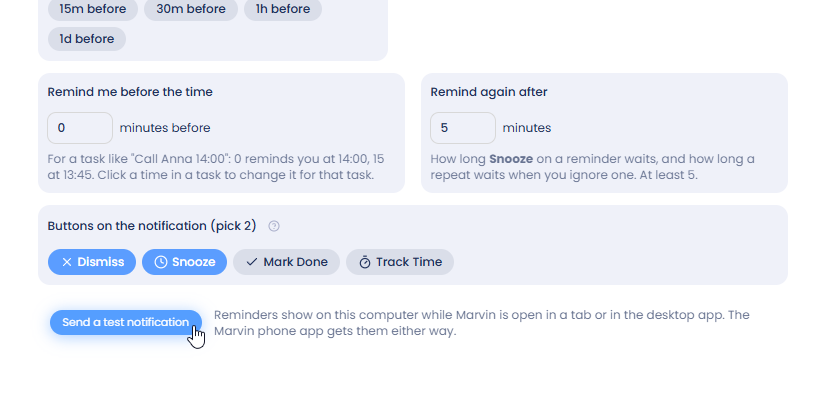
It says "Sent" but nothing appeared
Then your computer is hiding it:
Mac: open System Settings → Notifications, find your browser (or Amazing Marvin for the desktop app) and allow notifications. Chrome also has a separate entry called Google Chrome Helper (Alerts). Also check that Focus / Do Not Disturb is off.
Windows: check that notifications for your browser (or Amazing Marvin) are allowed in your system settings, and that Do Not Disturb / Focus Assist is off.
Computer, phone or both
In the Reminders settings, under Where reminders show, choose On my computer, On my phone or both. Phone reminders come from the Marvin mobile app, even when it's closed, as long as notifications for Marvin are allowed in your phone's settings.