Marvin has widgets for your Android home screen.
Adding a widget
Press and hold an empty spot on your home screen.
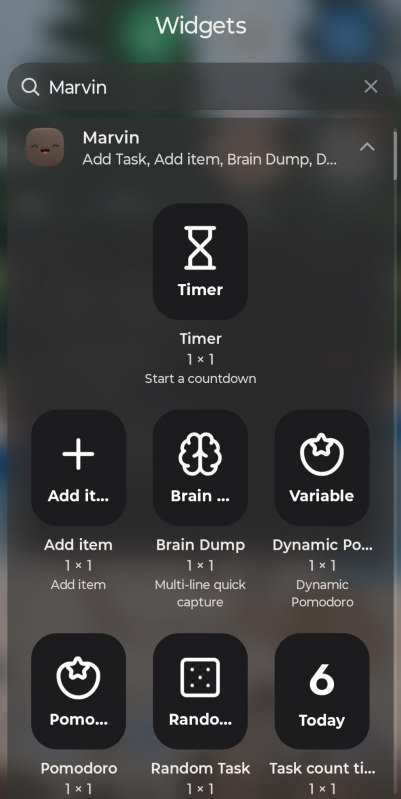
Tap Widgets.
Find Marvin and drag the widget you want onto your home screen.
Most widgets open a settings screen when you add them. You can resize most widgets by pressing and holding them and dragging the edges.
Task widgets
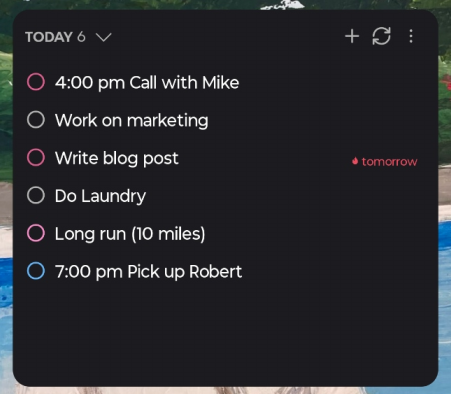
Tasks: your tasks from a list you choose: Today, one of your smart lists, a category or a project. Tick them off right in the widget. Buttons at the top: Add Task, Refresh and More Options.
Settings include: task checkboxes, theme-colored checkboxes, Dynamic Theme (match your phone's colors), category colors, trimming long titles, lines between items and dense spacing.
Up next: the one task to do next. Check it off, swap it, or start tracking time.
Deadlines: your upcoming due dates.
Task count tile: the number of tasks in a list.
Random Task: picks a random task from today.
Adding tasks
Add item: add a task quickly. Preset a list, label, "Schedule for today" or a star in its settings.
Brain Dump: capture everything on your mind in one go.
There's also an Add Task shortcut in the widgets list.
Timers
Pomodoro, Timer and Dynamic Pomodoro. Tapping one opens the app and starts the timer. Running timers and time tracking show as a notification with a Stop button.
Habits
Habit: one habit. Tap to record it.
Habit Stats: your progress on a habit.
Good to know
Android widgets refresh when you change things in the app, and on their own every 15 minutes. If a widget looks out of date, tap Refresh on it.