Every list has its own options. Tap ⋮ at the top right of My Day, a smart list or the Master List.
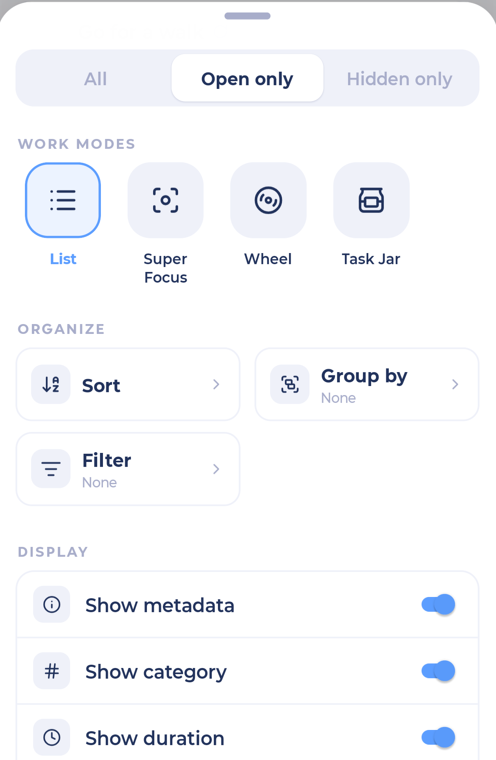
Work modes
Tiles at the top let you work through the list in a different way: List (normal), Super Focus, Wheel, Task Jar, Random Task, Suggested and Truncate. You'll only see the ones whose features are on. See Work modes.
Organize
Sort
Reorders the list once, for example Shortest first, Highest priority first, Most dreaded first, Most urgent first, Oldest first or By title. After sorting, you can still drag tasks around yourself.
Group by
Splits the list into sections. Some options:
Morning / afternoon / evening
Bonus / essential
Category, Project, Parent
Schedule date, Due date, Duration, Age, Delay
Priority, Frog, Size, Label, Custom section, Time block section (when those features are on)
Turn on Show empty sections to see sections even when nothing is in them. Choose No grouping to go back to one list.
Filter
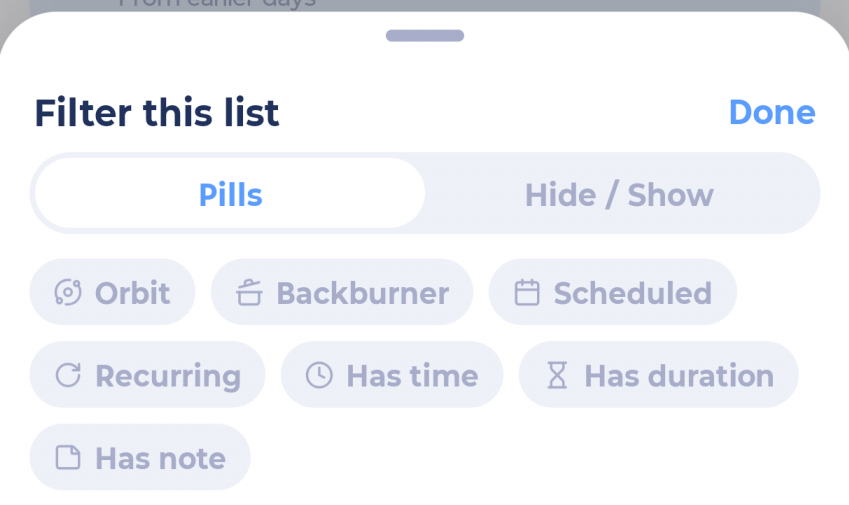
With Global Filter on, Filter lets you narrow down just this list. Tap pills like Pinned, Orbit, Scheduled, Recurring, Has time or Has note to show or hide those items. Clear all resets it.
Display
Choose what shows on each task:
My Day and lists: Show metadata, Show category, Show duration, Show calendar items
Master List: Show metadata, Show done (in projects), Show search bar, Inline add buttons
Actions
Bulk Edit: change many tasks at once. See Reordering and bulk editing.
Global Filter: pick one of your saved filters. See Global Filter.
Showing hidden items
If you use Backburner or Snooze, a switch at the top lets you show All, Open only or Hidden only (or, in the Master List, Master list, Backburner or All).