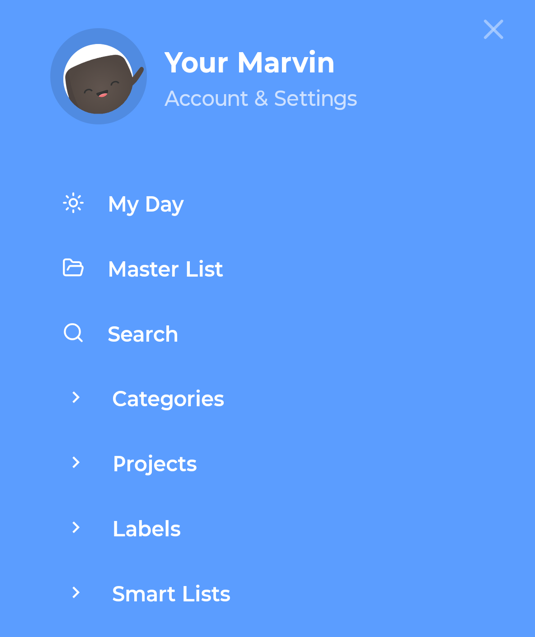
The sidebar holds your tabs (lists, categories, projects, labels) and your account and settings.
Opening and closing it
Open: swipe right from the left edge of the screen, or tap the sidebar button at the top left of My Day.
Close: swipe left, tap the X at the top right, or (on Android) press Back.
Your tabs
At first, the sidebar on your phone matches the sidebar you have on the web and desktop app: same tabs, same order, same names. Anything that can't open on a phone is left out.
Tabs can be single lists (like My Day or Inbox) or groups you can expand:
Categories: your categories and the projects inside them. Tap "see more" to go deeper.
Projects
Tap a project to open it in the Master List. Tap a list to open it.
Customizing your sidebar
You can give your phone its own sidebar.
Reorder: press and hold a tab, then drag it.
Edit or remove: swipe a tab to the right to show Edit, then tap it. Swipe all the way to open the editor directly.
Add a tab: tap the empty space under your last tab, then tap Add tab.
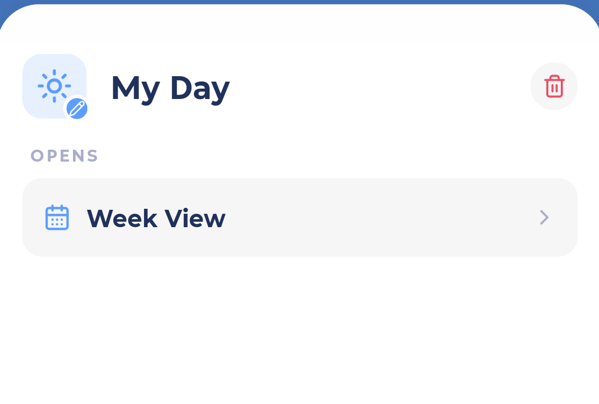
In the tab editor you can:
tap the icon to pick a new one
change the name
choose what the tab OPENS: a view (like My Day or Week View), a smart list, a project, a category or a label
tap the trash can to remove the tab
Once you change something, your phone keeps its own sidebar and stops copying the web one. To go back to matching the web sidebar, go to More > Features > Mobile Sidebar and turn on Use my web sidebar. Your phone tabs are kept in case you switch back.
In the same place you can turn on Show counts to see how many items are in each tab.
Account & Settings
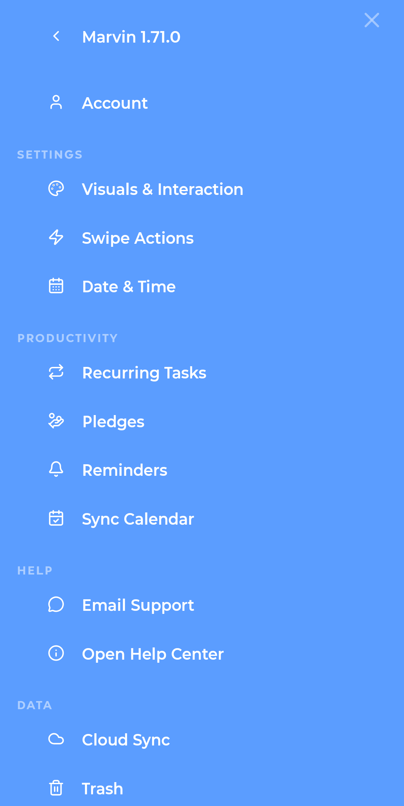
Tap the header at the top of the sidebar (Your Marvin, Account & Settings) to open the settings menu:
Account: your plan, subscription, two-factor and account details
Settings: Visuals & Interaction, Swipe Actions, Date & Time
Productivity (shows the features you have on): Recurring Tasks, Pledges, Reminders, Sync Calendar
Help: Email Support, Open Help Center, and Apple Watch Troubleshooting (iPhone with a watch)
Data: Cloud Sync, Trash, Logout
The trial banner
During your free trial, a banner at the bottom of the sidebar shows the days left. Tap it to see the plans.