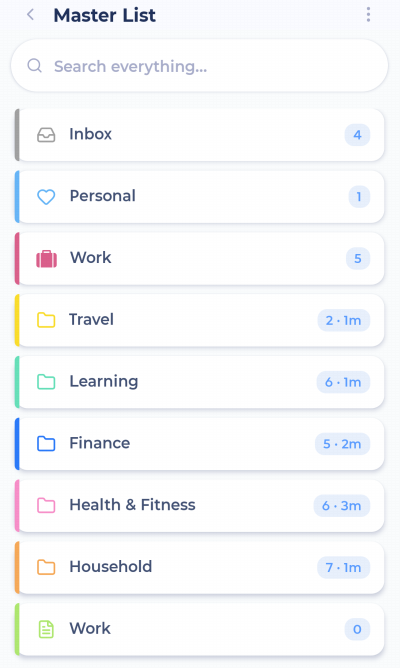
The Master List is where all your categories and projects live. Tap Master List in the bottom bar to open it.
Moving around
Tap a category or project to open it.
Tap the back arrow at the top left to go up a level.
Tap Master List in the bottom bar again to jump back to the top.
Tap the title of the project or category you're in to edit it (name, color, icon, dates, note and more).
Searching
A search bar sits at the top. At the top level it searches everything; inside a project it searches just that project. You can hide the search bar in ⋮ > Show search bar.
Adding
Tap + to add a task or project inside the project or category you're viewing. If you're at the top level, a new task goes to your Inbox.
You can also turn on ⋮ > Inline add buttons to get add buttons right inside the list.
Scheduling from the Master List
By default, a full swipe to the right on a task in the Master List schedules it for today (instead of marking it done like in My Day). Swipe again to unschedule it. You can change this in Swipe actions.
Completed tasks in projects
Turn on ⋮ > Show done (in projects) to see completed tasks inside your projects.
Work modes inside a project
Inside a project or category with tasks, ⋮ gives you work modes like Super Focus, Task Jar and the Wheel, so you can work through just that project. See Work modes.
Backburner
If you use Backburner, the top of ⋮ lets you switch between Master list, Backburner and All.