Reminders need the Reminders feature. Turn it on in More > Features.
Adding a reminder to a task
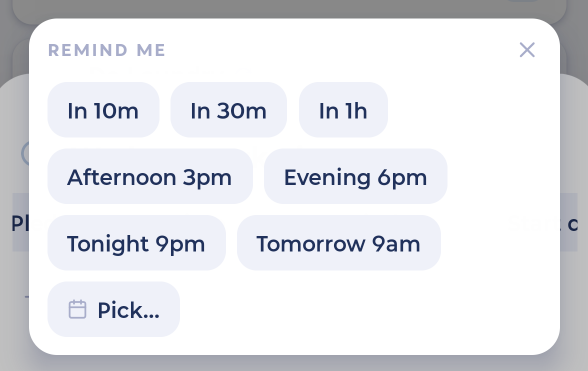
Open the task and tap the Reminders pill. Then pick a time:
In 10m, In 30m, In 1h, Afternoon 3pm, Evening 6pm, Tonight 9pm or Tomorrow 9am
Pick… to choose any day and time
If the task has a time, you also get Before task time: At time, 10m, 30m, 1h or 1d before. Once a time has passed, it's grayed out.
You can add as many reminders as you like.
Changing or removing a reminder
Reminders you've set show at the top with a bell. Tap the time to change it. Tap the x to remove it.
Bug Me: remind me until it's done
In the same place, Bug me until done, every keeps reminding you until you complete the task. Choose 5m, 15m, 30m, 1h or 3h, or tap Type a cadence… to enter your own. Tap Off to stop it.
You don't need to set a reminder first. If the task has no reminder yet, Bug Me starts one interval from now.
When Bug Me reminds you again, the new notification replaces the old one, so they don't pile up on your phone.
You can set quiet hours in More > Features > Bug Me > Active hours.
Quick reminders without a task
Tap + and choose Reminder at the top. Type something like "in 10 min call Sam", or tap a quick time. You'll see Reminder set.
Reminders on recurring tasks
On a recurring task, a reminder isn't tied to one date. With All instances selected (the default), the card says Always remind me at. Pick one or more times of day, or tap Another time…. Marvin reminds you at those times on whichever day the task shows up.
If you have automatic reminders turned on, you'll also see At the task's time. Tap it to turn that reminder on or off for this recurring task.
Want a reminder for just one day? Switch to This instance first. Reminders set that way are listed under Just and the date.
For Bug Me on a recurring task, set at least one reminder time first.
What you can do from a reminder
When a reminder arrives, you can:
Done: complete the task
Snooze: remind me again a bit later
Track Time: start tracking (for tasks you can track)
If you snooze, the next notification replaces the old one instead of adding another.
Seeing all your reminders
Sidebar > Account & Settings > Reminders lists all upcoming reminders. Swipe one to delete it.
Reminders for events and time blocks
Reminders for calendar events are off unless you turn them on. Go to More > Features > Reminders and turn on Remind me before events. Then pick how long before (you can choose more than one). To also get reminders for events from Google, Outlook or iCloud, turn on Also for synced events.
This is the same setting as on the web and desktop app, so changing it in one place changes it everywhere.
If you use time blocks, you can pick reminders under Before a time block starts.
Habit reminders
If you turn the Habits feature off, you won't get habit reminders, and they're hidden from your list of reminders. Your habit reminders are kept, so they come back when you turn Habits on again.
Where reminders go
In More > Features > Reminders you can choose where reminders show (On my phone and/or On my computer), pick a reminder sound, and turn on automatic reminders for tasks with a time.
Not getting reminders? See Troubleshooting reminders and notifications.