Overview
A few small settings let you make Marvin feel calmer and behave the way you expect. You can slow down or turn off the little tooltips that pop up when you hover, hide the Help widget, and choose exactly what happens when you click a task or project, including doing nothing at all.
These settings are on the web and desktop app.
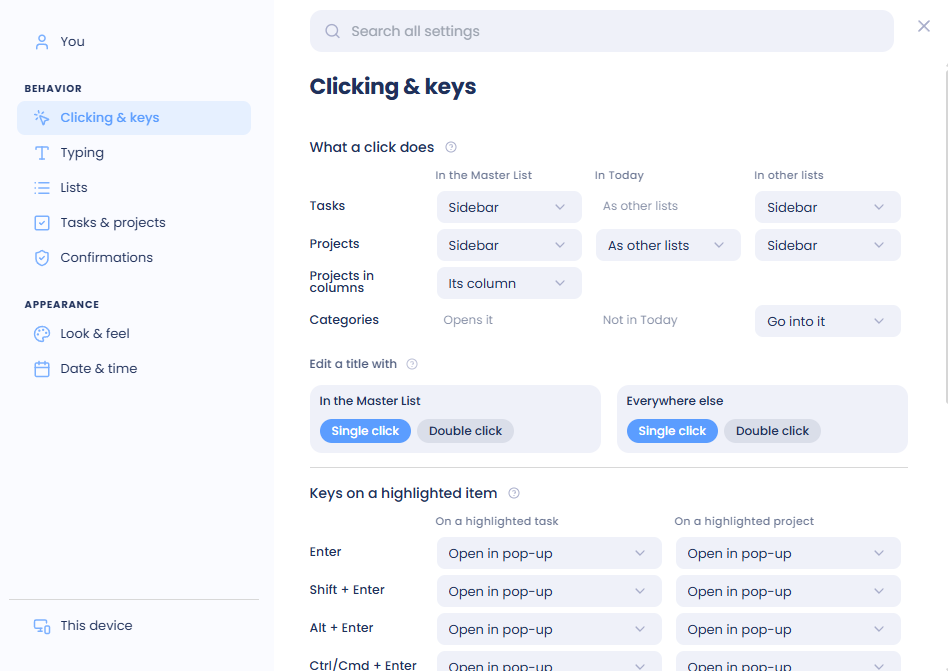
Opening Settings
Open ☰ and click Settings (or press the comma key ,). The tooltip and click settings are in the Clicking & keys tab. You can also type in the Search... box at the top to jump to a setting.
Tooltips
Tooltips are the short labels that appear when you hover over buttons and icons. In Settings, open Tooltip:
Show Tooltips: turn tooltips on or off completely (on by default).
Delay: how long Marvin waits before showing a tooltip. Choose Instant, Short (200ms), Medium (500ms) or Long (1s) (default: Instant).
A short delay is handy if tooltips keep popping up while you move your mouse around.
Hiding the Help widget
The Help widget is the small help button at the bottom of the screen that shows tips about the page you are on. To hide it, use either of these:
Open the Help widget and click the eye icon (Hide help widget) in its header.
Click the question mark icon in the sidebar (Help & Resources) and choose Hide Help Widget.
To bring it back, click Help & Resources again and choose Show Help Widget.
Screenshot to add: The Help & Resources menu with "Hide Help Widget" highlighted
Click behavior for tasks and projects
In Settings, open Task/Project click behavior. For each of these, pick what a click does:
When you click Tasks in the Master List
When you click Projects in the Master List (list view)
When you click Projects in the Master List (column view)
When you click Tasks elsewhere
When you click Projects elsewhere
The choices include None (do nothing), Select, Toggle Selection (for bulk editing), Edit Title, Open Edit Sidebar, Focus Task, Open Task and Super Focus Mode. Tasks also have Track Time, and projects also have Open in Main View and Open Project Fullscreen. The default for tasks and projects is Open Edit Sidebar. For the column view, choose Open column (default) or Open column and Sidebar.
Pick None (do nothing) if you often click a task by accident and don't want anything to open.
Settings
Edit title on click in Master List: click a title to edit it there (off by default).
Edit title on click elsewhere: click a title to edit it everywhere else (off by default).
When these are off, double click a task or project to edit its title.
Tip: With None (do nothing), you can still double click to edit a title and right-click to open the task's menu.