You can set most details just by typing them in the title. As soon as you type a space after a shortcut, Marvin picks it up, removes it from the title and lights up the matching pill.
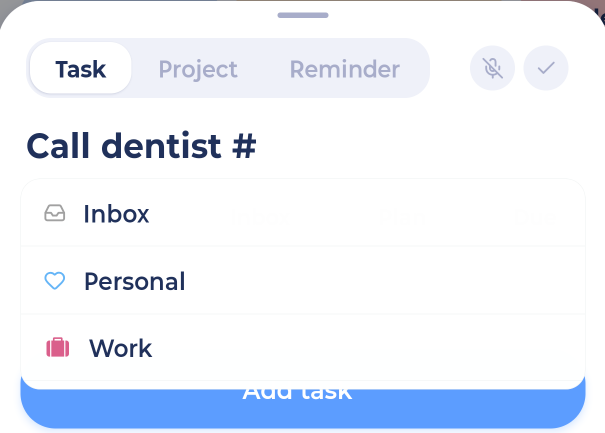
Shortcuts
#: To set: Category or project; Example:#work@: To set: Label; Example:@phone*: To set: Priority or attribute; Example:*p1,*frog+: To set: Schedule date; Example:+tomorrow,+fridaydue: To set: Due date; Example:due friday~: To set: Duration; Example:~20m,~1h30m\|: To set: Start date; Example:\|monday=: To set: End date; Example:=dec 1&: To set: Plan ahead; Example:&next weekreview: To set: Review date; Example:review in 2 weeks
Typing #, @ or * also opens a picker so you can tap instead of typing the whole name.
Plain words work too
Marvin understands a lot of everyday words:
Days: today, tomorrow, monday, on 28 october
Repeats: daily, weekly, every monday, weekdays
Priorities and more: urgent, important, frog, morning, afternoon, evening, backburner
If Marvin picks up a word you didn't mean as a date, you can turn some of this off in More > Features > Natural Language Processing.
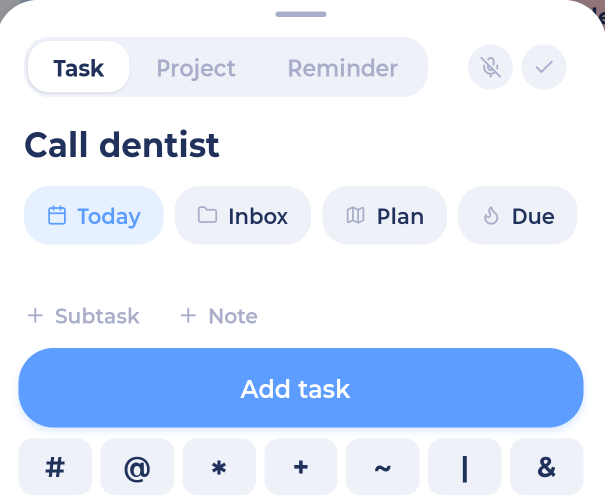
Shortcut keys above the keyboard
Tired of hunting for # and @ on your phone keyboard? Turn on sidebar > Account & Settings > Visuals & Interaction > Shortcut keys. A row of shortcut keys appears in the add sheet.
When editing
Shortcuts also work when you change a task's title in the edit drawer. They're picked up when you leave the title field.