Turn on the Reminders feature (☰ → Features → Reminders) to get reminded about tasks and projects. A task or project can have more than one reminder.
How do reminders show up?
Desktop and web app
Depending on which browser you use to use the Marvin web app or on which platform you use the desktop apps the notifications look and function slightly differently.
This is how a notification looks on Chrome:
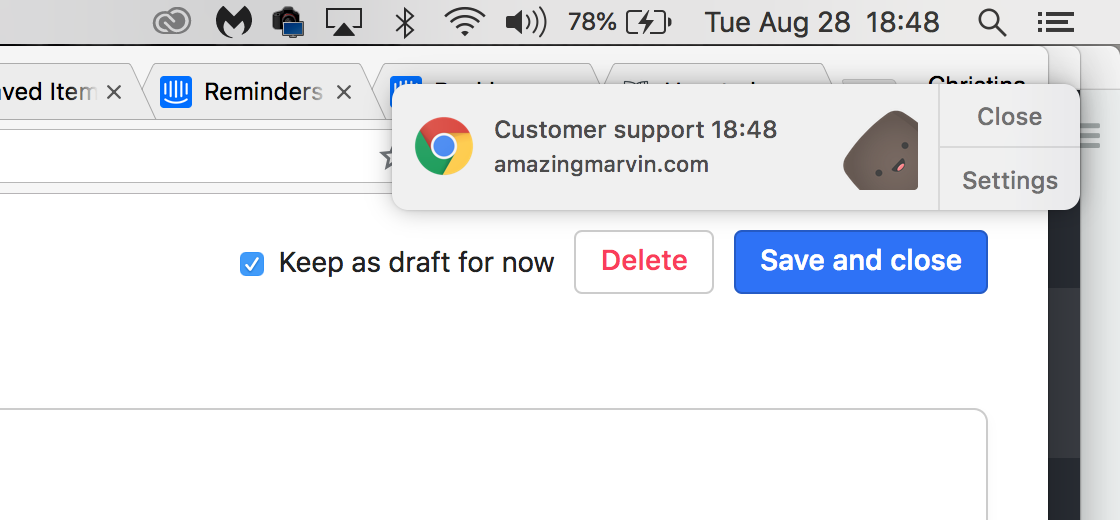
Usually you have to allow notifications for app.amazingmarvin.com the first time they try to pop up.
You can often configure if you want there to be a sound etc. in your local settings.
In the Reminders settings, under Where reminders show, choose On my computer, On my phone or both. On your computer, reminders show while Marvin is open in a browser tab or in the desktop app. Click Send a test notification to check that reminders get through.
You can also choose which buttons show on the notification: Dismiss, Snooze, Mark Done or Track Time.
Mobile
If you have the Marvin mobile apps installed on your phone and are logged in, you will also get push notifications for the reminders.
How to set a reminder for a task
Use the Add reminder action (the bell) on any task or project. You can add it to your hover buttons or right-click menu from the Reminders feature's Access tab. Pick a quick time (In 10m, In 30m, In 1h, Afternoon, Evening, Tonight, Tomorrow 9am) or click Pick… to choose any date and time. If the task has a time, you can also pick At time, 10m before, 30m before, 1h before or 1d before.

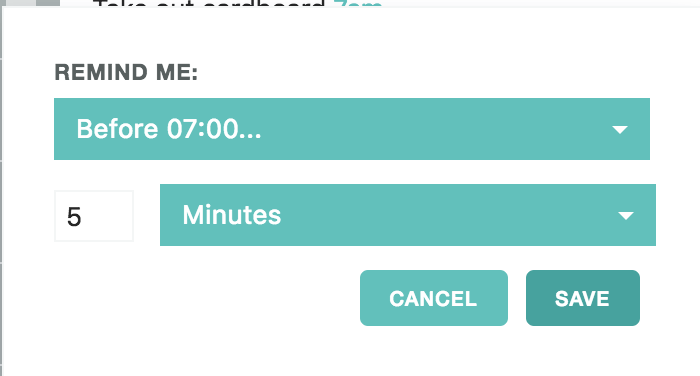
If a task has a time in its title (like "Call Anna 14:00"), you can also click the time. Choose when to be reminded (At time, 10m before and so on, or Custom…) and what happens if you don't respond: Just once, or repeat every 5, 10, 15 or 30 minutes.
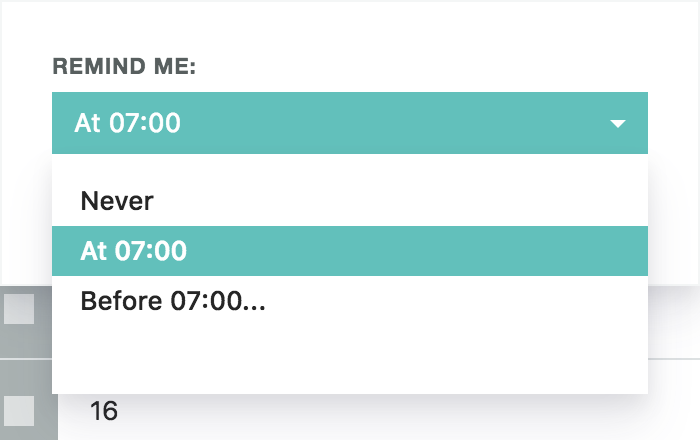
Your choice is saved right away. There is no Save button.
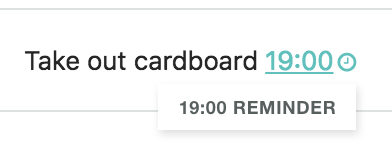
A small bell after the title shows that a task or project has a reminder coming. Hover it to see when, or click it to change it. You can turn the bell off with Show a bell on items with a reminder in the Reminders settings.
Set automatic reminders
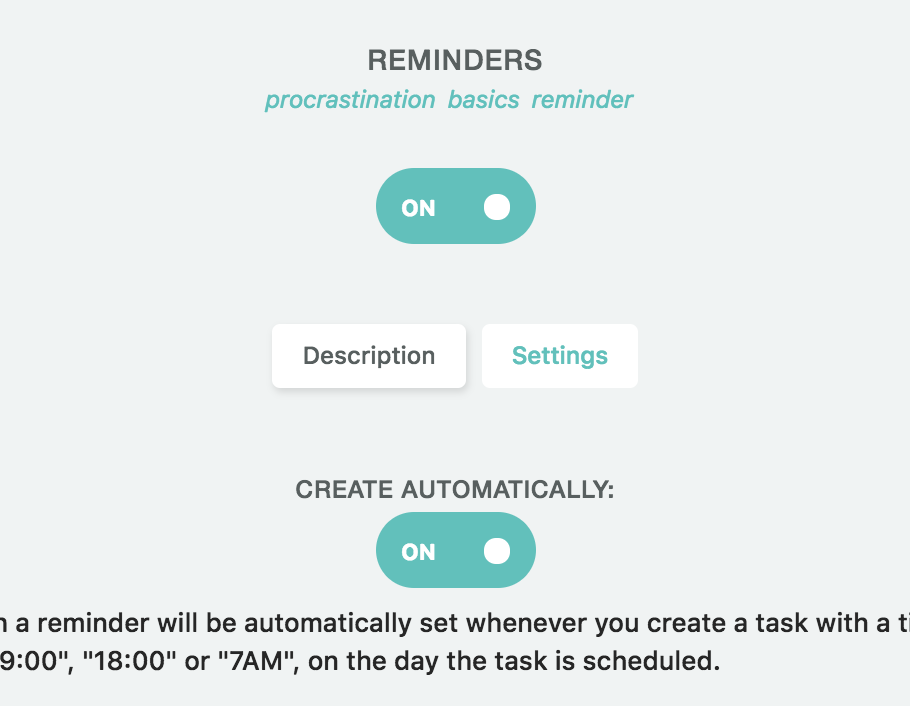
If you want a reminder every time you include a time in a task title, turn on Create reminders automatically in the Reminders settings. Use Remind me before the time to set how many minutes before the time it reminds you.
Can you set multiple reminders for a task?
Yes. Open Add reminder again and pick another time. Each reminder shows as a pill in the popover. Click a time to change it, or the × to remove it.
Reminders on recurring tasks
When you add a reminder to a recurring task, it applies to every occurrence by default. At the top of the popover you can switch between Every … (the whole series) and Just … (only this date). A reminder for the whole series is a time of day, and it comes back on the day of each occurrence.
Reminders without a task
Press ☰ → Reminders (or Shift+R) and click New reminder for a quick reminder that isn't a task, like "take the pizza out in 10 min". With Standalone reminders in Quick Add turned on, you can also add one from Quick Add.
Why do I keep getting reminders even after turning off the strategy?
Reminders are scheduled ahead of time and it's not practical to check whether the feature is on before delivering each reminder. Turning the feature off therefore only prevents the creation of new reminders. You can see and delete scheduled reminders in ☰ → Reminders (or press Shift+R), or in the mobile app under sidebar → Account & Settings → Reminders.