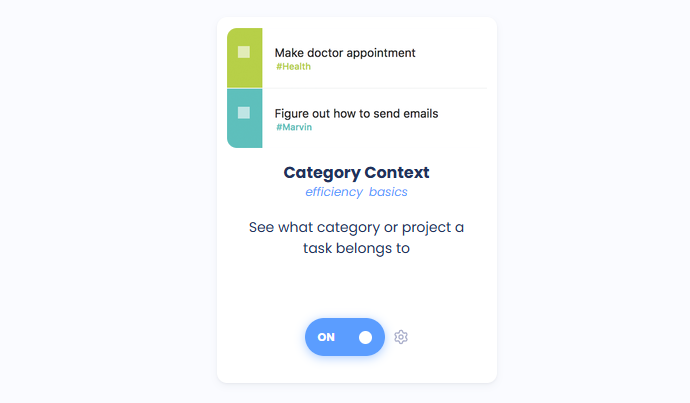
Use the category context feature to get more context (what project or category a task belongs to) for a task in your day view.
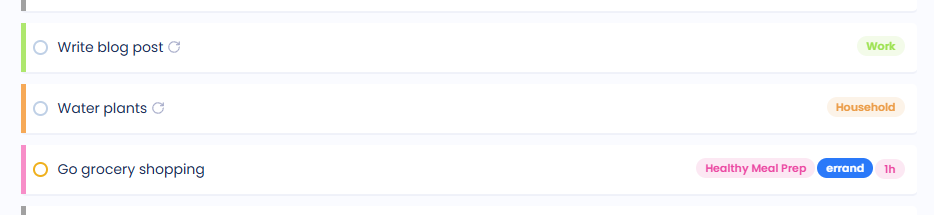
Without this feature enabled a task in Marvin looks something like this:

Turning on the category context feature (☰ → Features→ Category Context) enables you to see a task with some added context of where the tasks belong in your Master List.
You can choose in the settings (click on the feature card then on the settings button) how the context should be displayed.
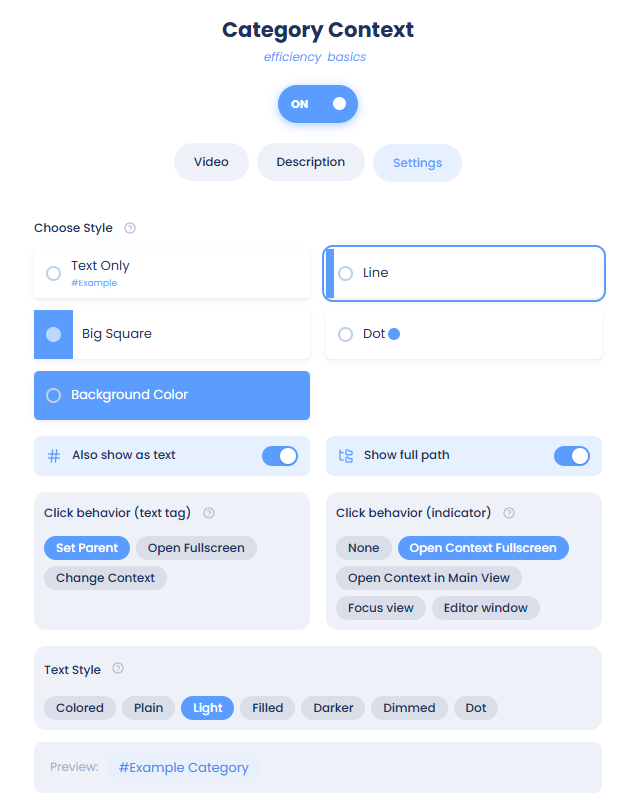
Category Context options
You can choose to see the immediate parent as text underneath the title, have an additional colored line or big square on the left, to have a dot right from the title, or to have the background colored. Or you can choose to display them without the text.
The color for the line, square, or another color indicator is the color you picked for the parent category/project in the Master List.

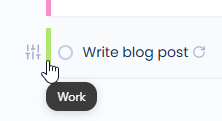
Hovering over the indicator, in this case the line, will show you the name of the parent category/project.
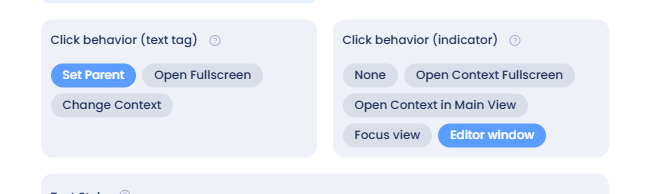
Clicking on the indicator, or the text on the right, will perform the action selected in the feature settings.