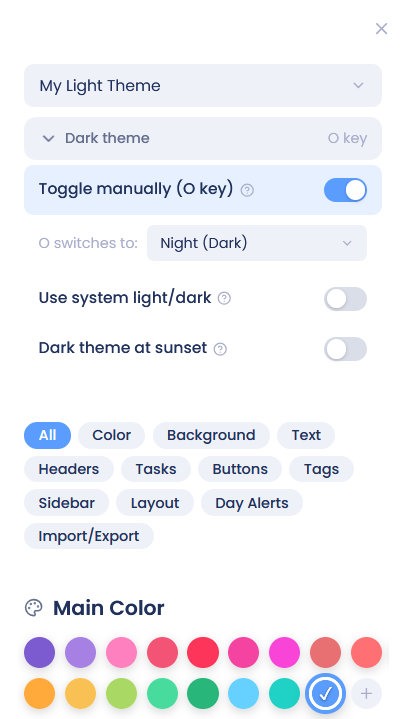
To switch to a dark theme in Marvin:
Click the hamburger icon (☰) in the bottom-left corner
Click Style. The Style panel opens on the right.
Click the theme name at the top of the panel.
Under Presets, pick Night (Dark), Dusk (Dark) or Silver (Dark).
Your selected theme will be applied immediately.
Additional Settings - Automatic Theme Switching
To switch themes automatically, open the Style panel, click More options in the Main Color section and turn on one of these:
Use system light/dark: Marvin follows your computer's or device's light or dark setting.
Dark theme at sunset: Marvin switches to a dark theme after sunset, based on the location you enter.