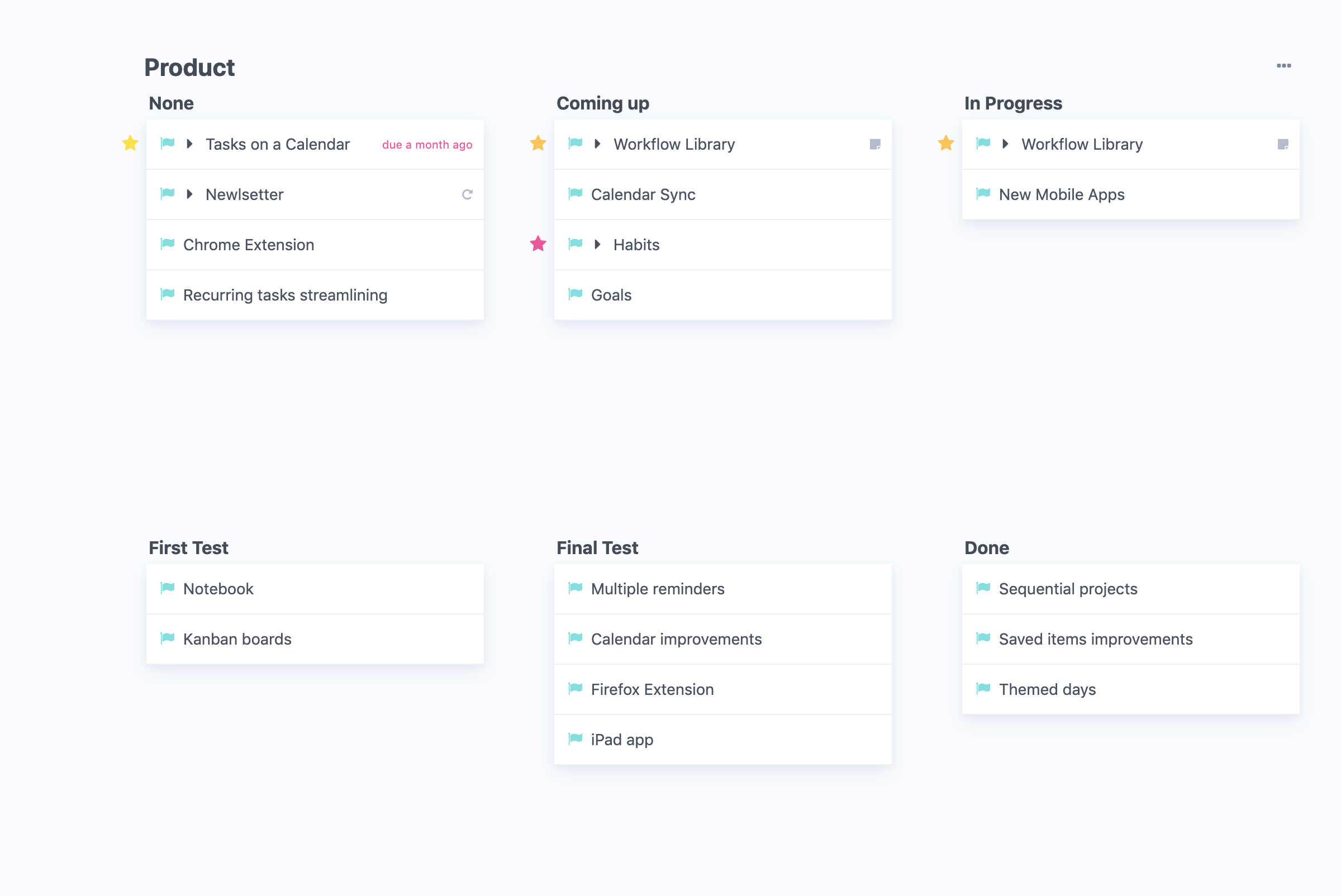
When a list is grouped, you can choose how its sections are laid out: side by side as columns, stacked on top of each other, or in a grid.
How to change the layout
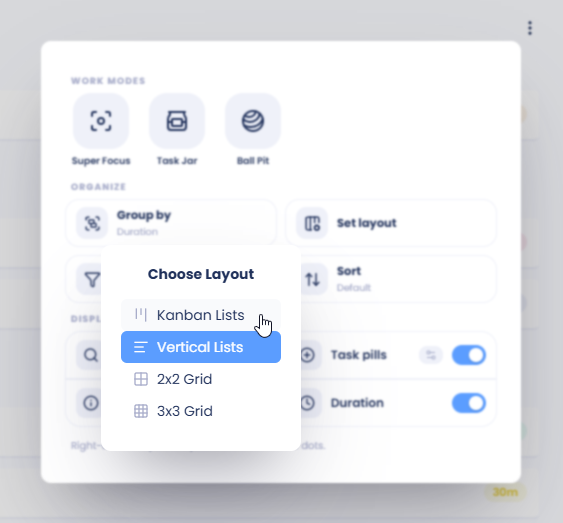
Open the ⋯ menu in the top right corner of the list.
Click Set layout.
Pick Kanban Lists, Vertical Lists, 2x2 Grid or 3x3 Grid.
Set layout only appears once the list is grouped. If you don't see it, group the list first: open the ⋯ menu and click Group by. See Grouping your lists.
In Screens and in a project's fullscreen view, Set layout is always there.
The layouts
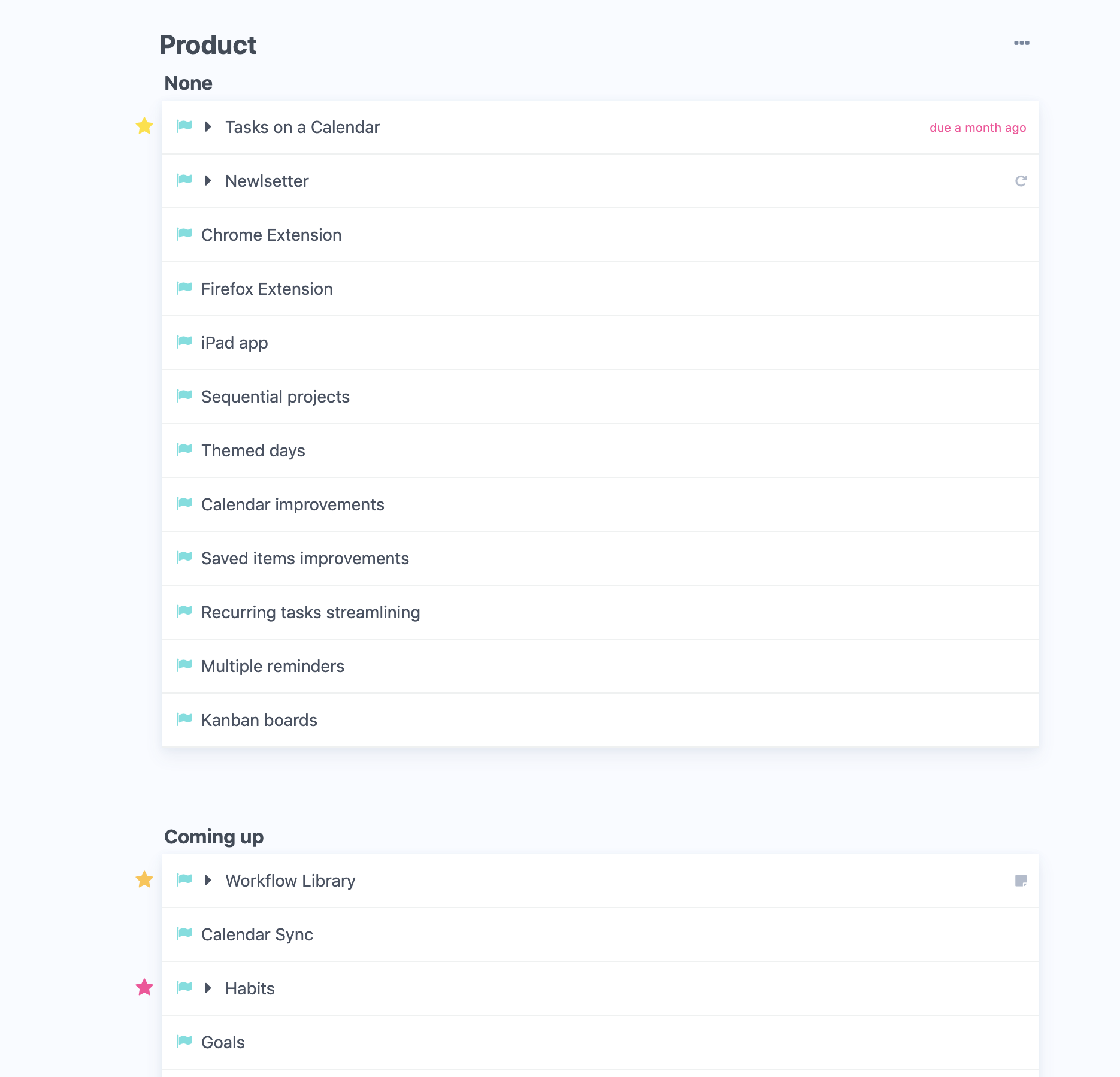
Vertical Lists
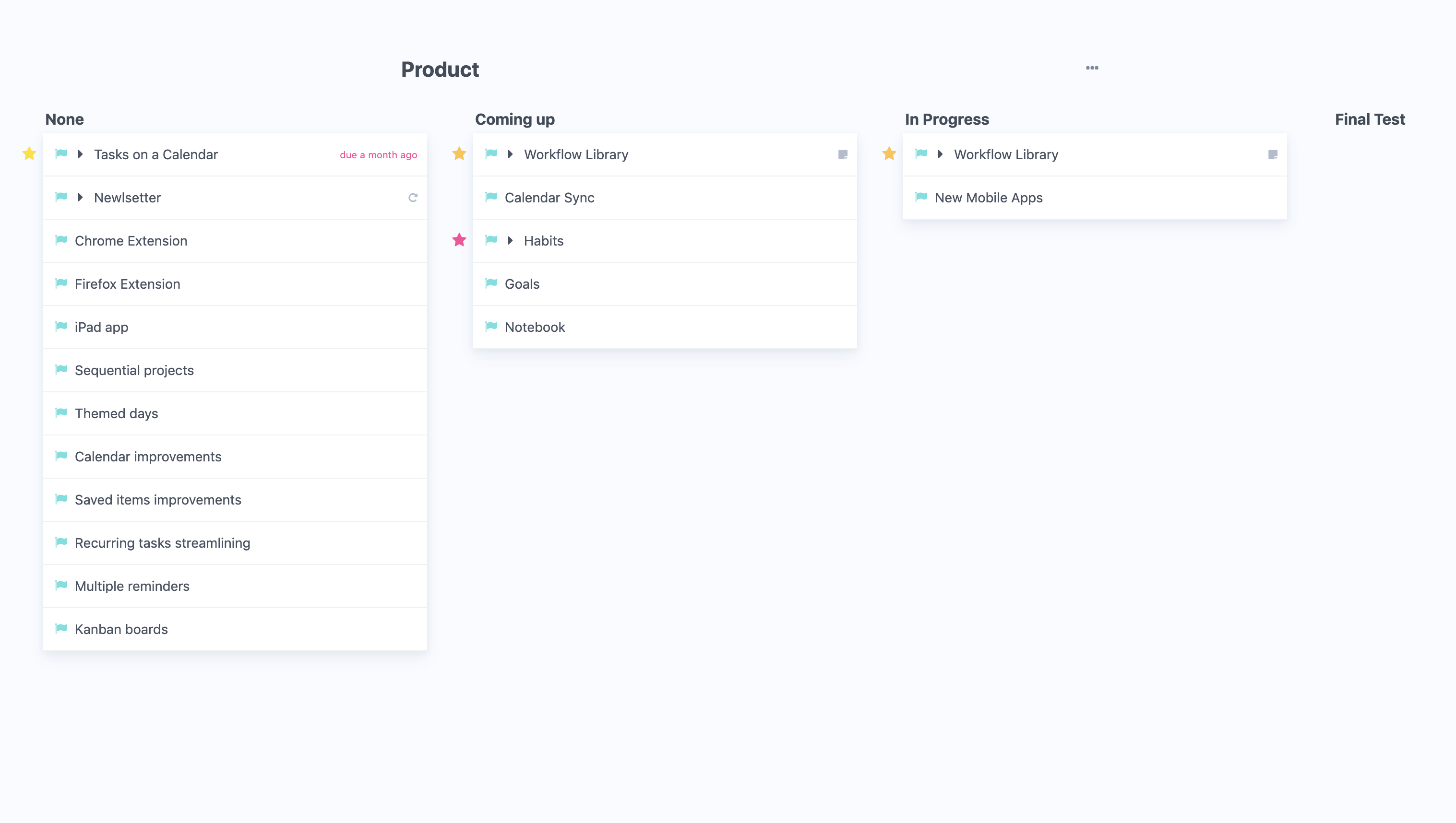
Kanban Lists
Each section becomes a column, side by side. When you pick Kanban Lists, a Column Width slider appears so you can make the columns narrower or wider. To use this as a Kanban board, see Kanban boards.
2x2 Grid
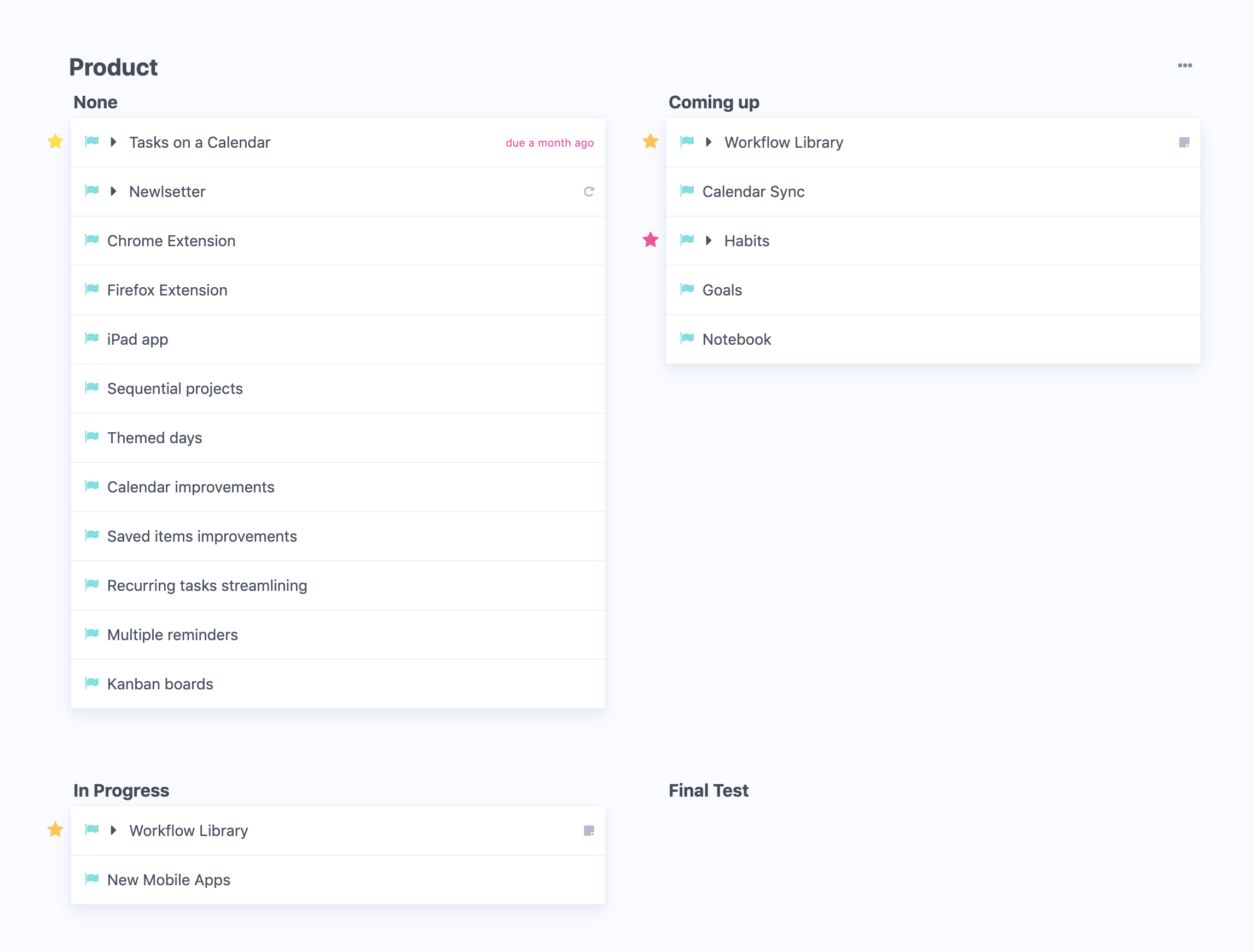
3x3 Grid