Once you know these, you know your way around most of the app. The same patterns work everywhere.
Tasks and projects
Tap a task: Open it and edit it
Tap the checkbox: Complete it
Hold the checkbox: Complete it on a different day ("When did you complete this?")
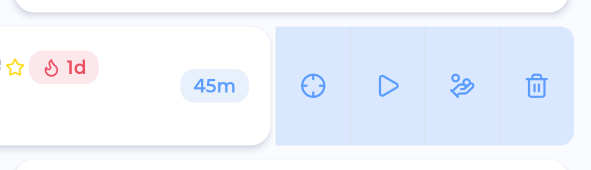
Swipe left: Show action buttons (Focus, Track time, Delete...)
Swipe all the way right: Quick action: Mark done in lists, Schedule today in the Master List
Hold, then drag: Reorder
Hold a section heading: Add a task to that section
Lists and screens
Swipe right from the left edge: Open the sidebar
Tap the date on My Day: Show or hide the week strip
Pull up at the bottom of My Day: See what you completed
Tap ⋮ at the top right: List options: work modes, sort, group, filter, display
Turn your phone sideways on a grouped list: Kanban board (with Landscape Kanban on)
Pills
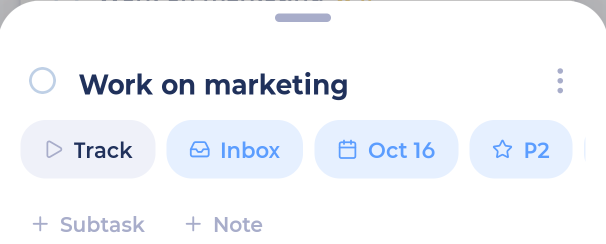
Pills are the small rounded buttons you'll see in the add sheet and when editing. Tap a pill to set that thing: date, list, duration, labels and more. A lit-up pill has a value set.
Sheets and drawers
Many things open as a sheet from the bottom of the screen. Drag the handle at the top to make it bigger or smaller. Drag it down, or tap outside it, to close it.
Undo
Most actions show a message at the bottom with Undo. Tap it if you didn't mean to do that.
Hold to customize
Many things in the app can be customized by pressing and holding:
Hold a tile in the More panel to move it or pin it to the bar
Hold a tab in the sidebar to reorder it
Hold a block on the Home screen to edit your Home screen
Hold a swipe button to change your swipe actions
Hold the ⋮ in a task to customize its menu
Back
On Android, the Back button closes whatever is open (a sheet, the sidebar, a screen), and from a main screen takes you back to My Day. On iPhone, use the back arrow at the top left.