Recurring tasks repeat on a schedule you choose, like every day, every Monday, or on the first of each month. This feature is always on.
Creating a recurring task
The quickest way is to type the repeat into the task title when you add it, for example water plants daily. You can also right-click a task and choose Make recurring (it may be under More).
For step-by-step guides, custom patterns and magic words, see the Recurring Items section in Marvin 101.
What your lists show
Your lists show the actual task you need to do, looking just like any other task, with its own notes, subtasks and deadline. If you have missed some, you see the oldest one that is still open, so you can tell how long it has been waiting.
The repeats themselves are listed on the Recurring screen. Open it from the Main Menu and click Recurring.
If you miss an occurrence
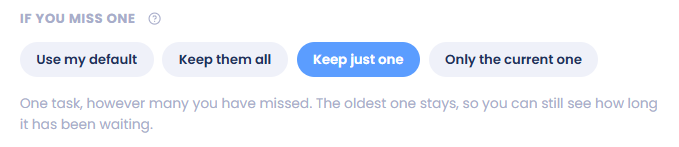
Every recurring task has an If you miss one setting:
Keep them all: every occurrence you missed stays on your list.
Keep just one: one task, however many you have missed. The oldest one stays, so you can still see how long it has been waiting.
Only the current one: only the occurrence for the day you are looking at. Missed ones drop off once their day is over. This suits habit-like tasks.
New recurring tasks start on Keep just one. You can change it for each task in its own settings, or choose a default for older tasks on the Recurring screen. Nothing is ever deleted, so switching back brings the hidden occurrences straight back.
Creating occurrences ahead of time
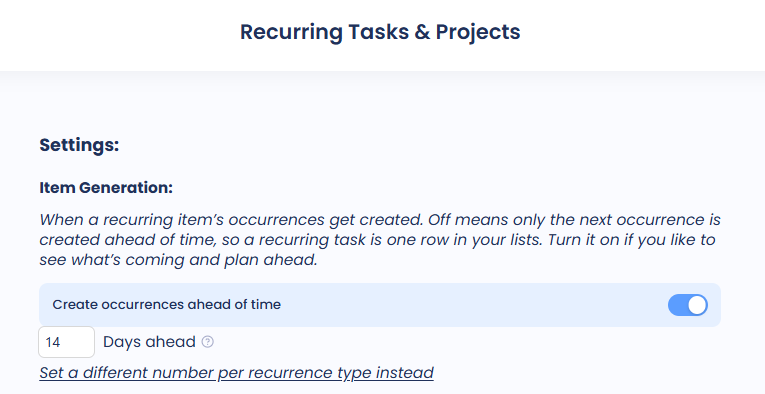
On the Recurring screen you can turn Create occurrences ahead of time on or off.
Off: each occurrence appears on the day it is due, so a recurring task is one row in your lists.
On: Marvin creates occurrences in advance so you can see what is coming and plan ahead. You can choose how many days ahead.
Settings
Open the Features page, find Recurring Tasks and open its settings.
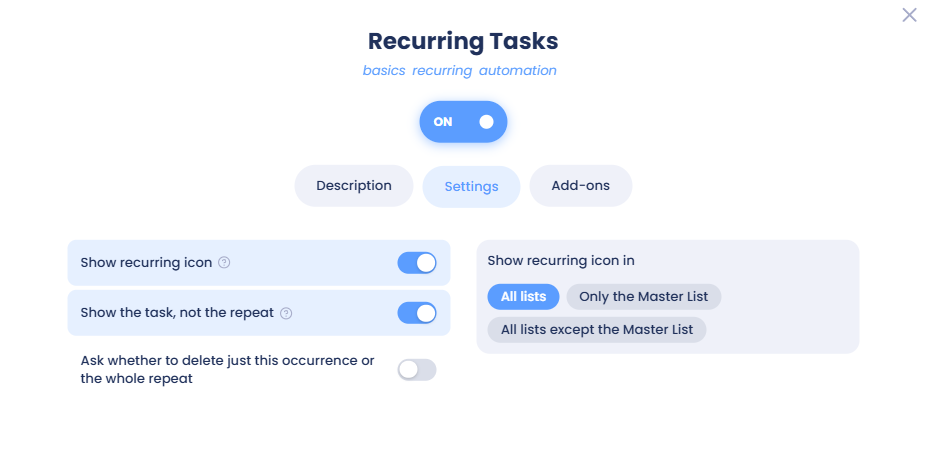
Show recurring icon: marks recurring tasks and projects with a curly arrow icon.
Show recurring icon in: choose All lists, Only the Master List, or All lists except the Master List.
Show the task, not the repeat: on by default. Your lists show the task you have to do instead of the repeat that creates it. Turn it off to see the repeats in your lists instead.
Ask whether to delete just this occurrence or the whole repeat: when you delete a recurring task, Marvin asks whether to delete just this one or the repeat and all its open occurrences. Completed ones are always kept. When this is off, deleting removes only that occurrence.