Scheduling a task
In the add sheet or edit drawer, tap the Schedule pill and pick Today, Tomorrow, This weekend, next week, or a date.
Or type
+tomorrow,+fridayand so on in the title.In the Master List, swipe a task all the way right to schedule it for today.
In Week View, drag tasks between days.
To unschedule, pick None in the Schedule pill, or use an Unschedule swipe action.
Tasks left behind
When you have unfinished tasks from earlier days, My Day shows a banner: N items left behind. Tap Reschedule.
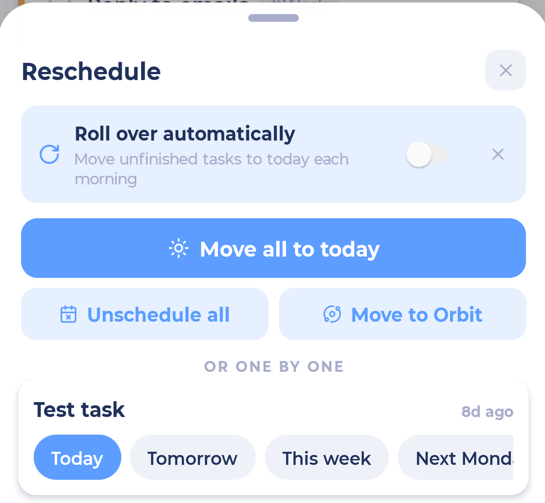
In the Reschedule sheet you can:
Move all to today
Unschedule all
Or go one by one: Today, Tomorrow, This week, Done or Unschedule for each task
Want this to happen by itself? Turn on Roll over automatically at the top of the sheet. Unfinished tasks then move to today each morning.
Snoozing
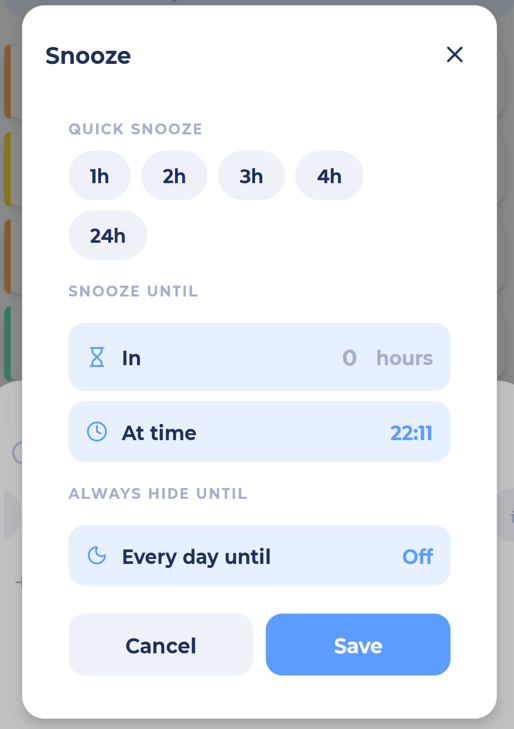
Snoozing hides a task for a while so it's out of your way. Tap the Snooze pill in the edit drawer (or use a Snooze swipe action).
Quick snooze: 1h, 2h, 3h, 4h or 24h
Snooze until: in a number of hours, or at a set time
Always hide until: hide it every day until a certain time
Backburner
Send things you're not working on for now to the backburner with the Backburner pill or a swipe action. They're hidden from your main lists until you bring them back. In the Master List, ⋮ lets you switch to see your backburner.
Planning ahead
With Planning Ahead on, the Plan pill lets you plan a task for a week or month (This week, Next week, This month...) without choosing a specific day.