Logging in
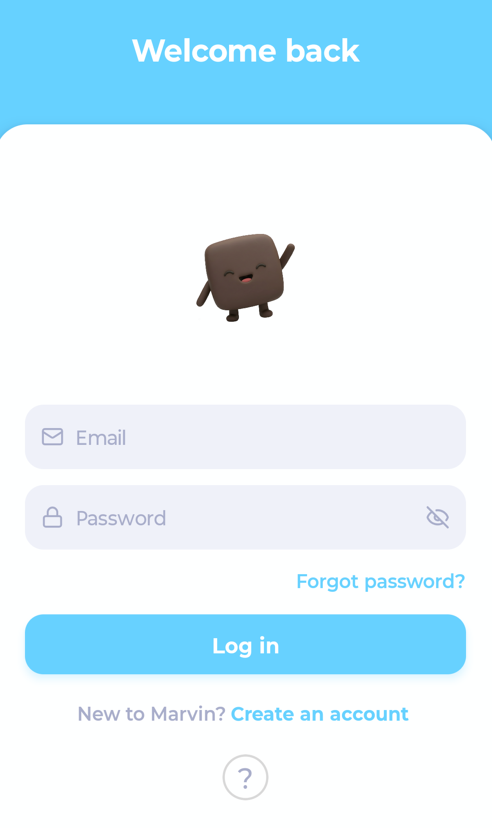
When you open the app you'll see Welcome back.
Enter the email and password you use for Marvin.
Tap Log in.
You log in with email and password. Signing in with Apple or Google isn't available.
If you use two-factor authentication
After your password, Marvin asks for your 2FA Code. Enter the code from your authenticator app and tap Submit.
Lost your authenticator? Tap Use recovery code and enter one of the recovery codes you saved when you set up two-factor authentication.
Forgot your password?
Tap Forgot password?, enter your email, and we'll send you a link to reset it. Tap Back to log in when you're done.
Creating a new account
On the login screen, tap Create an account (under "New to Marvin?").
Enter your email and choose a password.
Tick the box to agree to the Terms & Conditions, EULA and Privacy Policy.
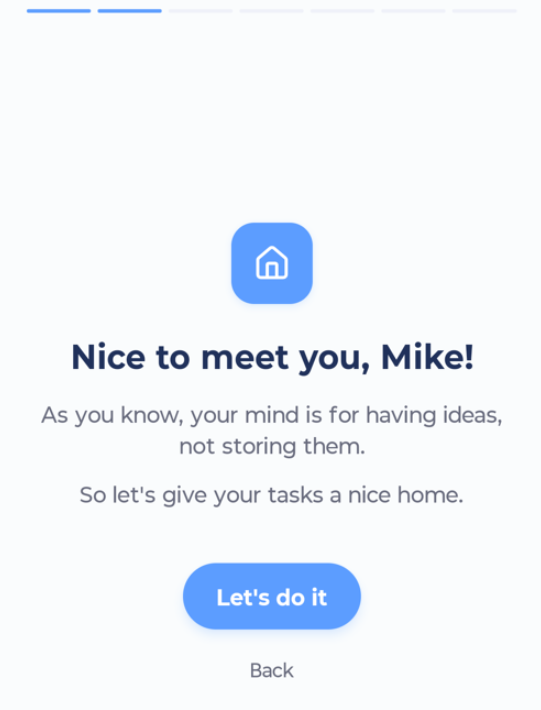
Continue. Marvin walks you through a short setup. See Your first minutes: the onboarding walkthrough.
No card is needed to start your free trial.
Already have an account from the web?
Just log in with the same email and password. All your tasks, projects and settings are already there.
Can't log in?
Tap the ? on the login screen for help.