There are two ways to add a due date to a project.
Adding a due date via the edit button
When you hover over a project, click on the edit button (cog icon).
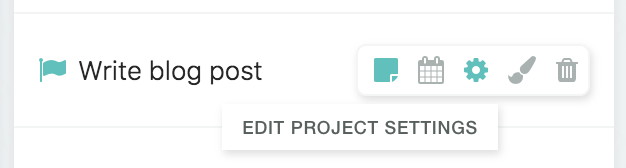
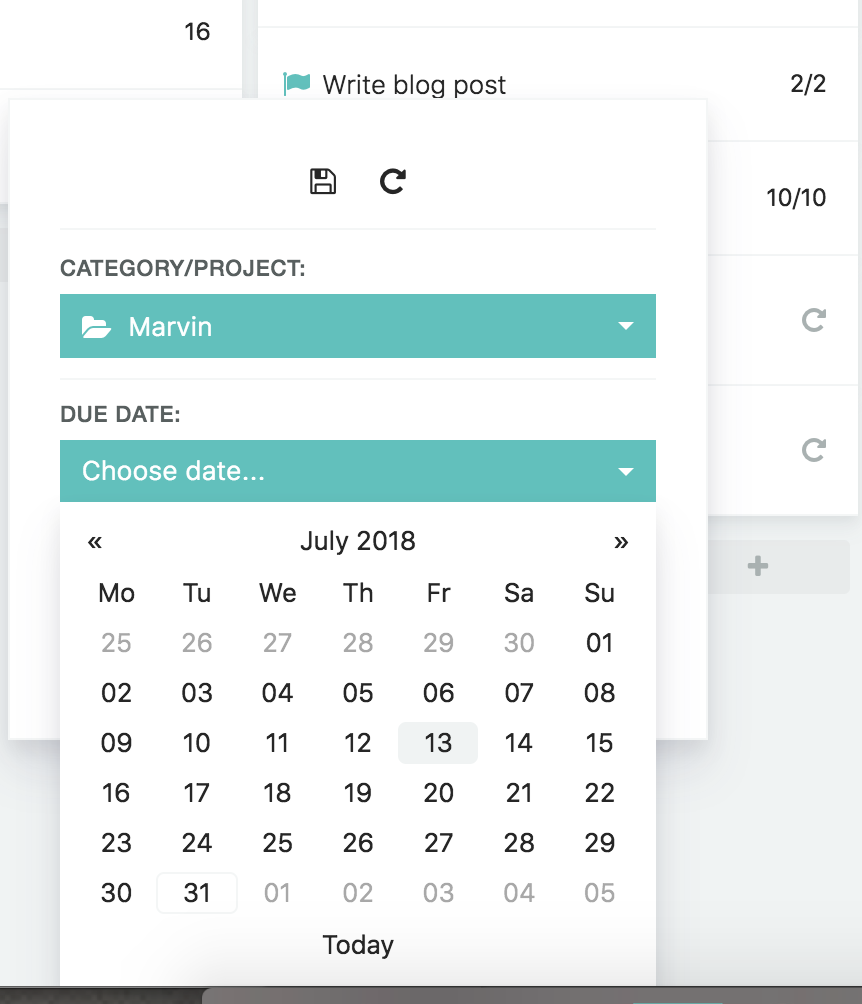
Then click on "Choose date..." underneath "Due date" and pick a date to set the deadline for your project.
Adding a due date with a shortcut
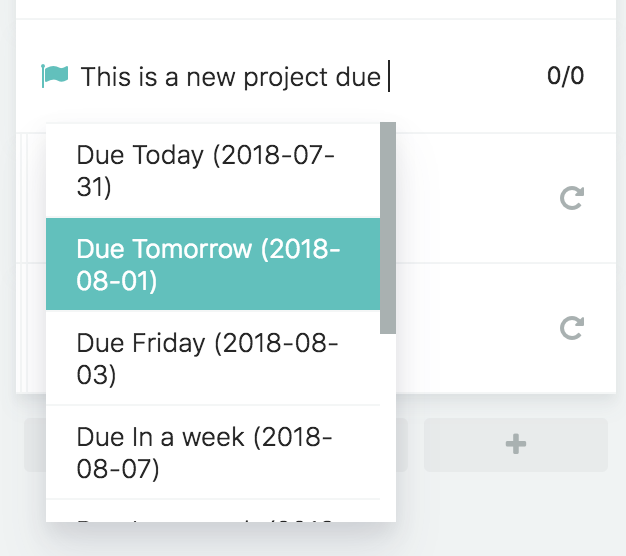
You can also add a due date to an existing project by clicking the title/name of the project to edit it and then start typing the word "due".
You will then see a menu pop up with autocomplete options:
How to use the due date shortcuts
30d (due in 30 days)
4w (due in 4 weeks)
1m (due in 1 month)
2018-12-31 (due on exact date you specify)
You can use the following shortcuts to specify a due date:
You can use this shortcut to quickly add a due date/deadline to a project when creating it or anytime when editing the project title.