Overview
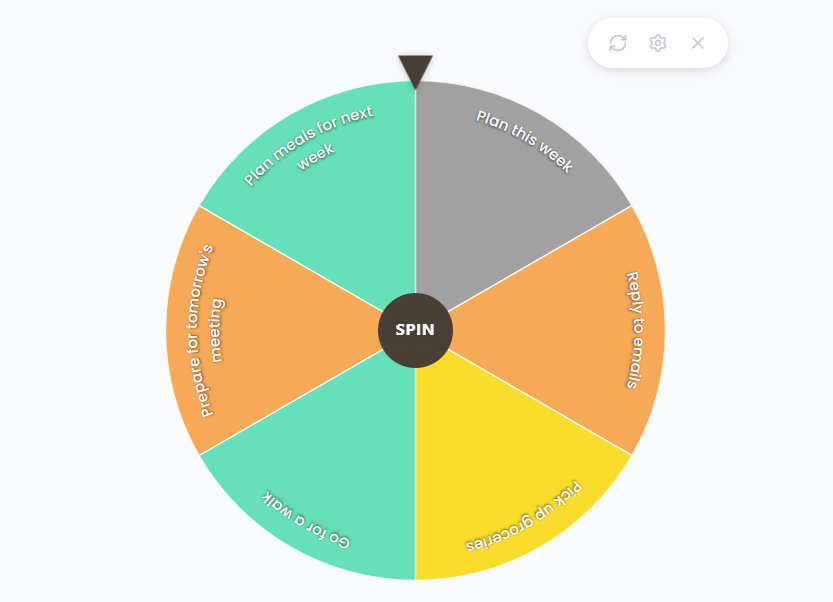
Can't decide what to do next? Spinning Wheel turns your list into a wheel of tasks. Spin it, watch it slow down, and let it land on your next task.
It works best with about 3 to 15 tasks.
Turning it on
Turn on Spinning Wheel in your Features list (in the Decision Makers group). It works on desktop/web and mobile, and is on by default on mobile.
Spinning the wheel
On desktop/web:
Open the three-dots menu of your list.
Under Work modes, choose Spin Wheel.
Click SPIN in the middle of the wheel.
The task it lands on is shown below the wheel. To go back to your normal list, choose Exit Wheel in the same menu or click the exit icon.
On mobile, open the list's three-dots menu and tap Wheel under Work Modes. Tap List to go back.
You can use the wheel on today's or a future day's list, on smart lists and in a project's fullscreen view. On mobile you can also use it on projects and categories in the Master List, and from a Spotlight session.
When you complete a task, it's removed from the wheel.
Settings
Label Layout: Curved (default) or Radial text on the slices
Wheel Colors: Category Color (default), Theme Color or Color Palette
Task Display Mode: how the picked task is shown: Inline (default), Single Task or Super Focus Mode (desktop/web only; on mobile the task is always shown inline)
Play sounds while spinning (off by default)
Auto-start time tracking on picked task (off by default, needs Time Tracking; called Auto-start time tracking on mobile)
Extract tasks from projects: puts the tasks inside a project on the wheel instead of the project itself (on by default)
Tip: On desktop/web, if you turn on reduced motion on your device, the wheel picks a task right away without spinning.