Giving a task or project a start date means you don't want to work on this until the specified date.
Anything with a start date in the future will show in the backburner and is hidden from the Master List.
Adding a start date
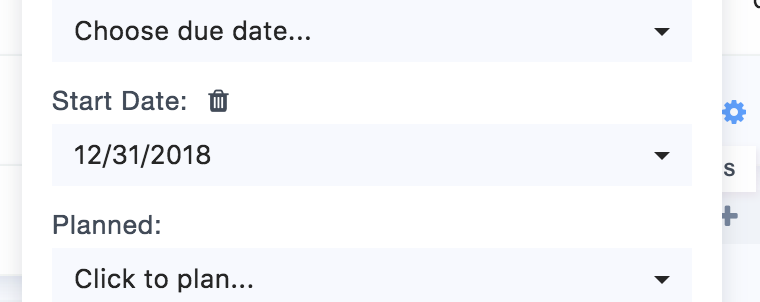
To add a start date, click the edit icon on the right and pick a start date in the mini dialog.
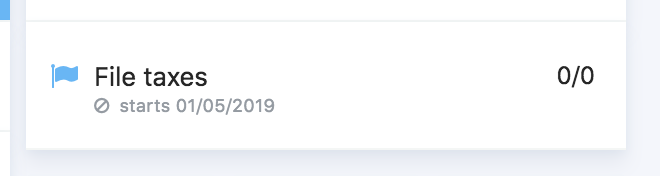
In the backburner any item that is there because it has a start date in the future will show the start date underneath the title:
When the start date arrives, the item will automatically be moved out of the backburner to the Master List.
Any item that got moved to the ML will have a "new" tag.
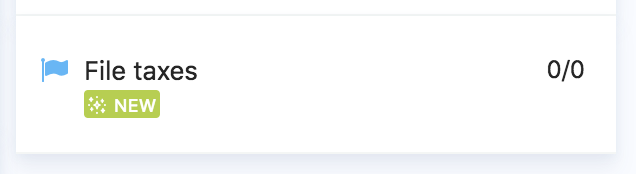
Clicking the "new" tag will make it go away, meaning you acknowledged that this item became actionable and performed the next step in your workflow (e.g. scheduling it in your days, planning it for a specific day etc.)
Start dates on recurring tasks
A recurring task or project can give each copy its own start date. In the recurring task settings, under Deadlines for each one, turn on Available from (start date) and choose how many days before or after the scheduled day it starts.
This is different from Starts on under More options, which is the date the first copy of the repeat appears. You can set it for every repeat pattern.
Date overview
Check out all of Marvin's date options for an overview on dates.