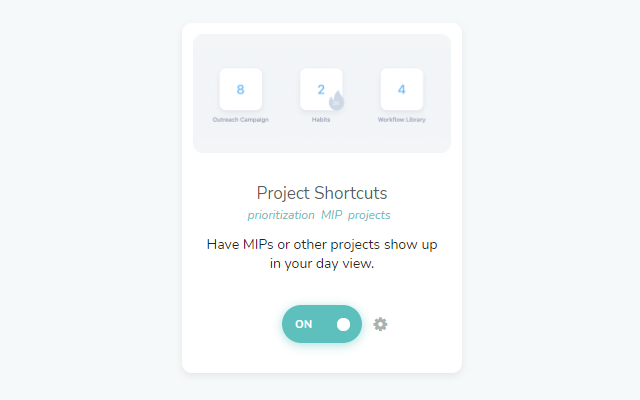
The Project Shortcuts strategy (☰ → Strategies → Project Shortcuts) shows shortcuts to your projects above your Today list.
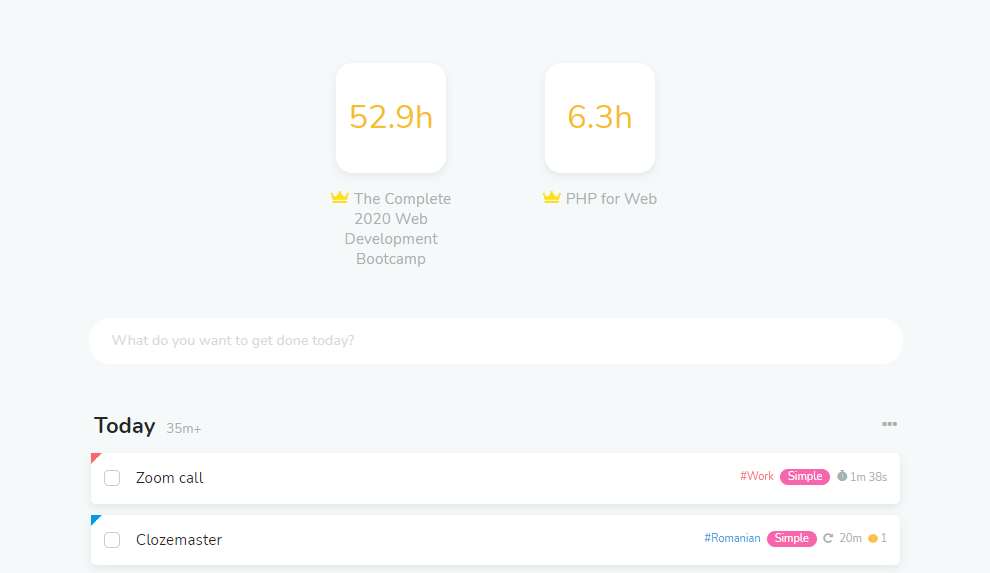
How to toggle MIPs in your day view
You can hide/show them with the Important Projects button (crown icon) in the vertical menu on the far right.
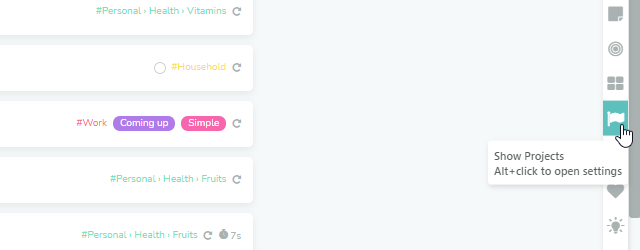
As shown on the screenshot, you can also enter the strategy settings by alt-clicking on this button.
Choosing which projects get displayed
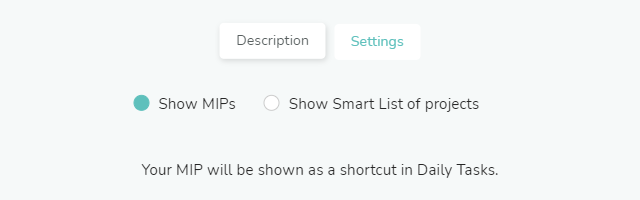
In the strategy settings, use Show to pick which projects appear:
Auto: your Most Important Projects, or upcoming deadlines if you have no MIPs.
Most important: your Most Important Projects.
Pick by hand: only the projects you choose.
Deadlines: projects with the soonest due dates.
Priority: projects with a priority, highest first.
All projects: all your projects, in Master List order.
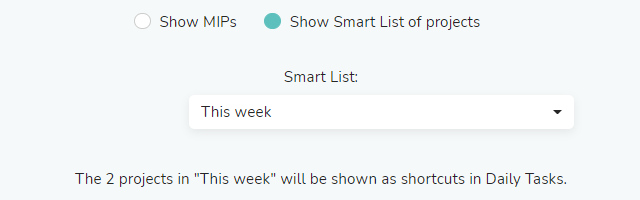
Smart list: the projects in a Smart List you choose.
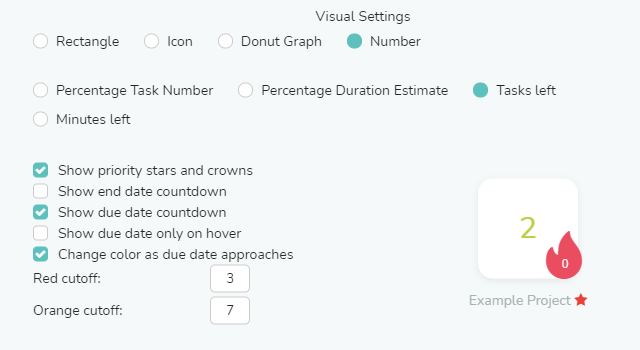
Visual Settings
In the strategy settings, use Visual style to choose how projects look: Rectangle, Card, Chip, Icon, Donut or Number. Each style has its own options, like what the donut or number shows, and a preview shows you how it will look.
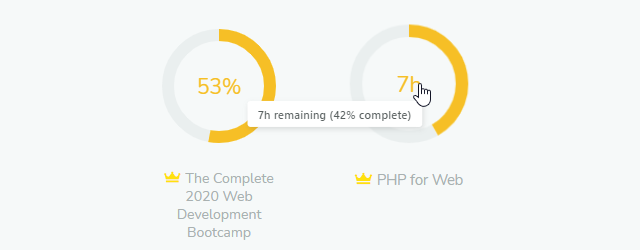
Hovering over the project radials
If you choose the Donut style, then when you hover over a project you will see additional information. For example, if Donut shows is set to % duration, you will see how many minutes/hours are remaining until you're done with all tasks.
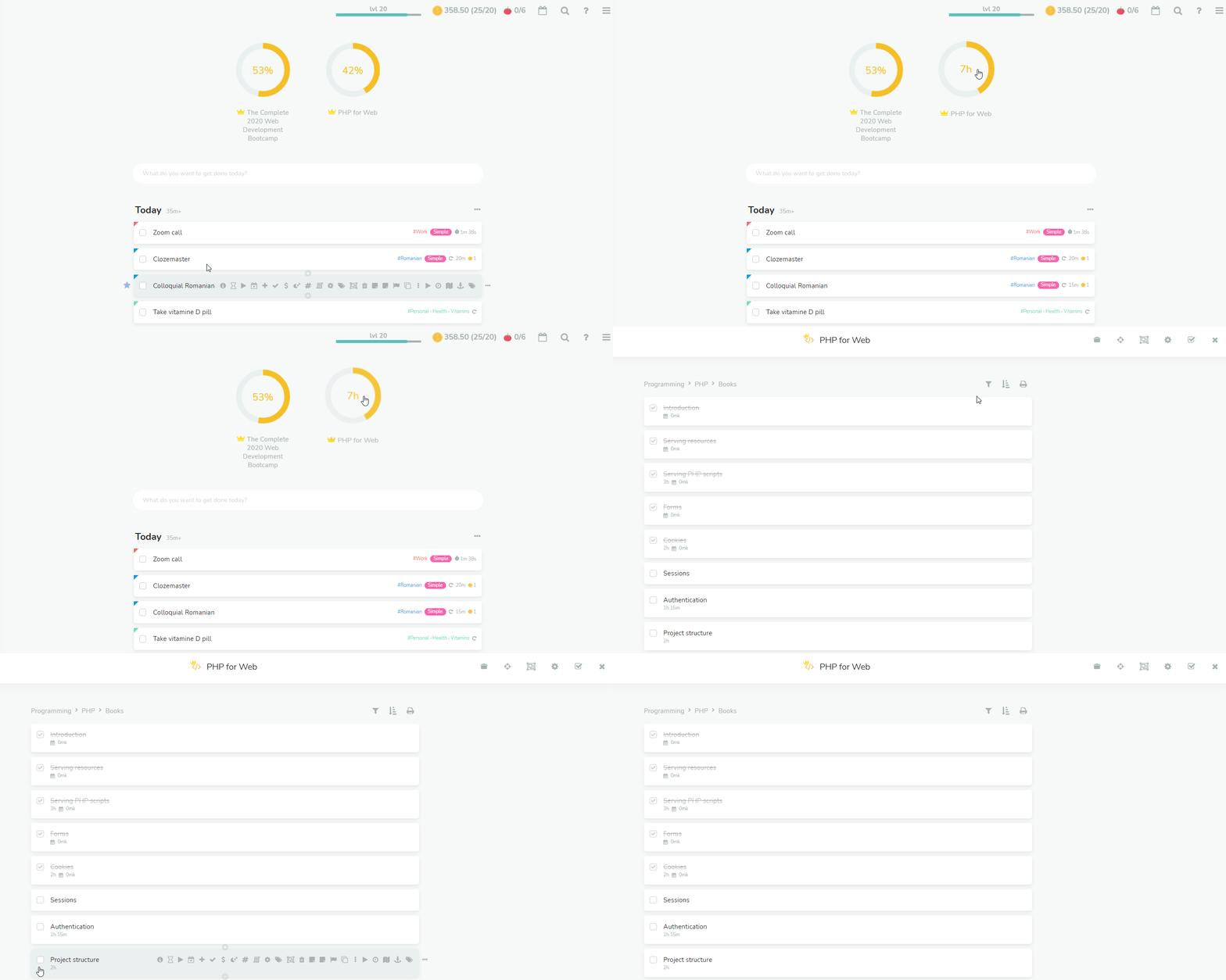
Clicking the project radial
Clicking a shortcut opens that project. Use On click in the strategy settings to choose Open fullscreen or Open in main view.
Quick actions
Hover over a shortcut and click + to add a task to that project.
If you use the Work Session Scheduler, hover over a shortcut and click the briefcase to schedule a work session on the selected day. Alt-click it to choose how long.
Drag a task onto a shortcut to move it into that project.
Drag shortcuts to change their order. This works when Show is set to Most important or Pick by hand.