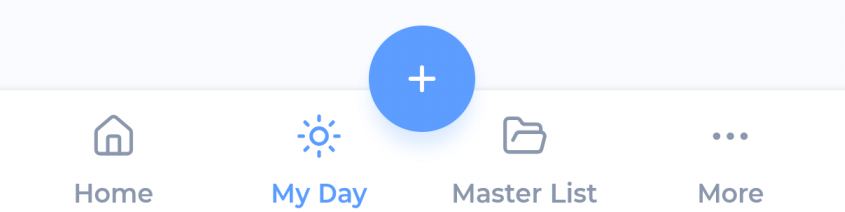
The bottom bar is how you move between the main parts of the app.
The bar
By default it has:
Home: your dashboard of blocks.
My Day: today's list. Tapping it always brings you back to today, even if you were looking at another day.
Master List: all your categories and projects. Tap it again while you're inside a project to jump back to the top.
More: opens the More panel.
The round + button above the bar adds something new. See "What the + button adds" below.
The More panel
Tap More and the bar opens upward into a grid of tiles. Tap Close, or tap the dimmed area above, to close it.
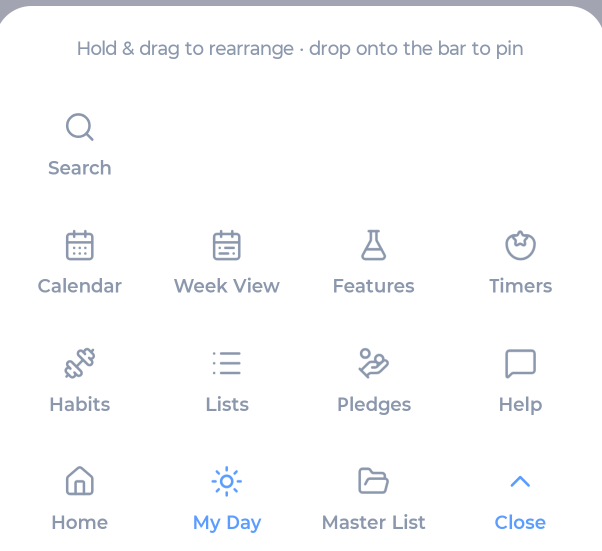
Tiles you may see:
Spotlight: Focus session suggestions
Week View: Your week, with tasks per day
Features: Turn features on and off
Timers: Timers and Pomodoros
Mood: Mood Tracker
Lists: All your smart lists
Saved: Saved Items (templates)
Pledges: Your Accountability Pledges
Filter: Choose a Global Filter
Help: Email us a question
Some tiles only show up when the feature is turned on. For example, you'll only see Habits when Habits is on, and Pledges when Accountability Pledge is on. See Turning features on and off on mobile.
Rearranging and pinning tiles
You can move any tile into the bar, so the screens you use most are one tap away.
Tap More to open the panel.
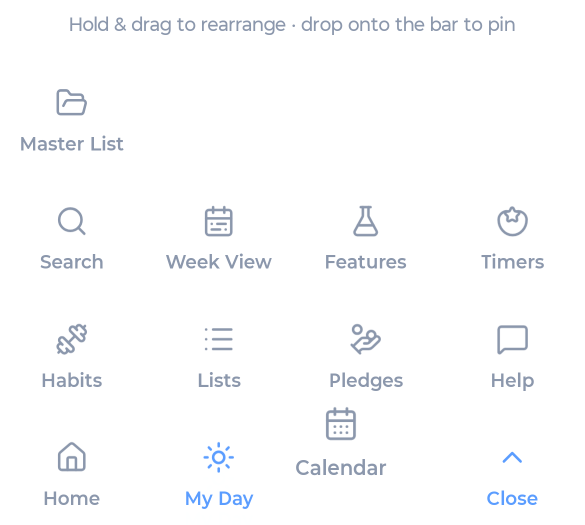
Press and hold a tile, then drag it.
To pin it to the bar, drop it onto the bottom row. The tile it replaces moves back into the panel.
To reorder the panel, drop it somewhere else in the grid.
The first spot in the bar is always Home. The other two can be anything you like.
Your layout syncs to your other phones and tablets.
What the + button adds
The + button knows where you are:
My Day (or another day): Adds a task scheduled for that day
Master List: Adds a task or project inside the project or category you're viewing. At the top level, it goes to your Inbox
A smart list: Adds a task that fits that list (for example, with its category or label filled in)
Calendar: Adds a task, event or time block at a time you choose
Habits: Starts the new habit wizard
Labels: Adds a label
See Adding tasks and projects.
When the bar hides
The bar gets out of the way when you don't need it: in Super Focus Mode, while you're typing, while a sheet or the sidebar is open, while editing your Home screen, and when you turn your phone sideways on some screens. Close what's open, or turn your phone back upright, to see it again.