Marvin has some Kanban support already. But we still have major plans to extend our board/Kanban functionality. Vote for this feature here: https://portal.productboard.com/gvwfgxmcwqylldrxlfagmgkw/c/89-kanban-boards
Steps of setting up a basic Kanban board
Make a label group with your desired states (open, in progress, done).
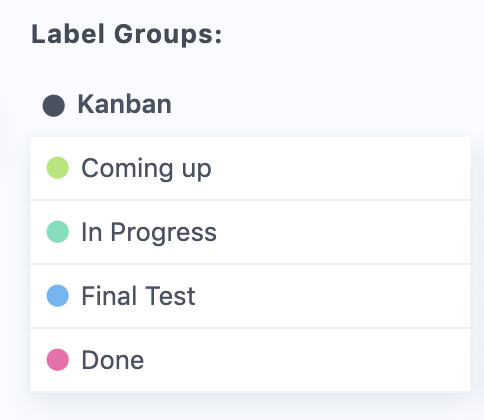
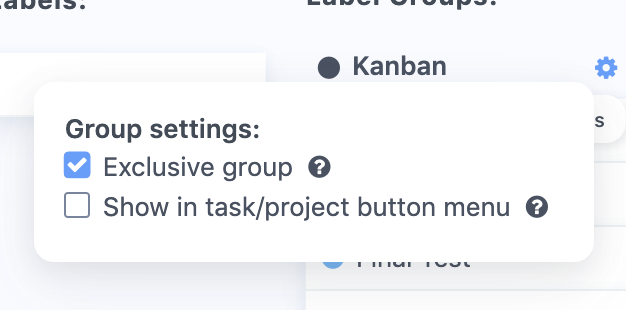
Make this group exclusive by clicking the cog icon on the group and checking this box:
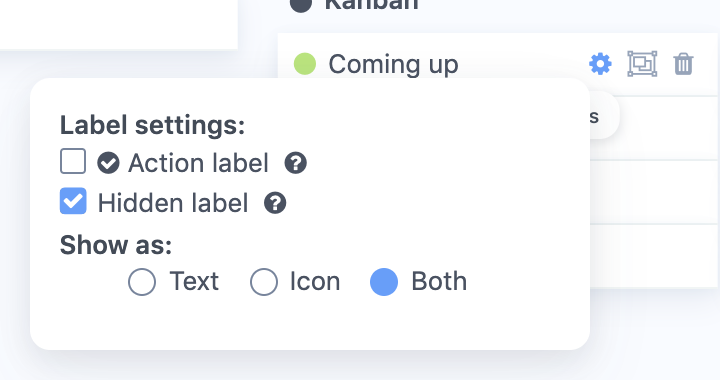
Set each label in the group to be hidden in the edit menu. This way your Kanban view is much cleaner.
Create a smart list of what you want to see on the board or navigate to a project, category, label group in the sidebar.
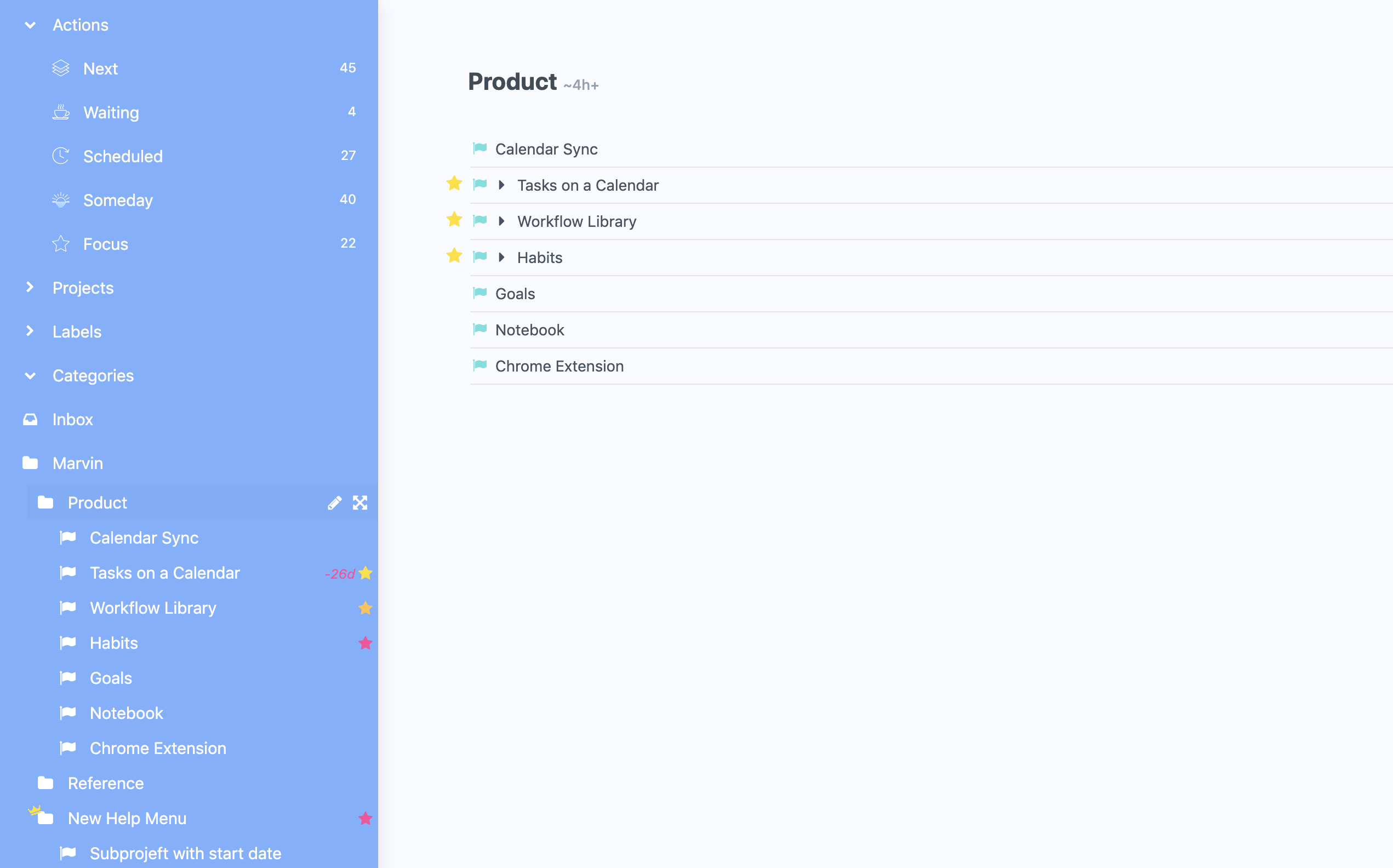
Click the group icon at the top right and select the label group with your states
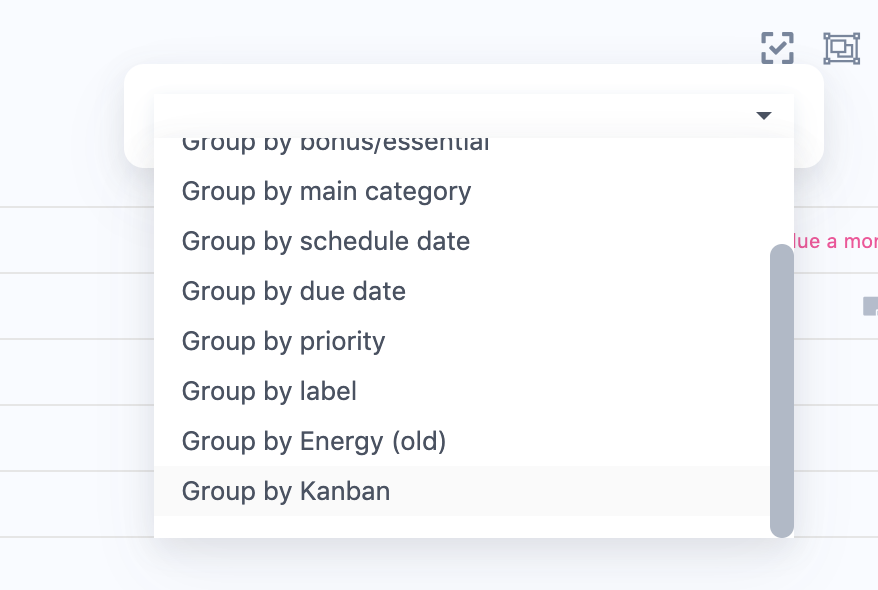
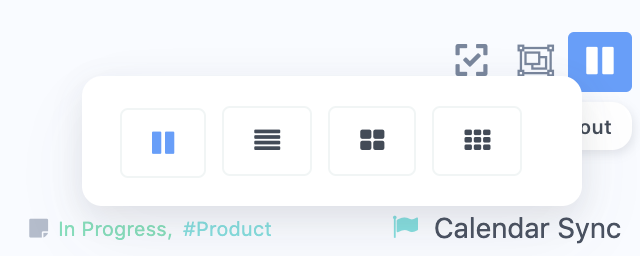
Then change the layout to horizontal:
Final Kanban view:
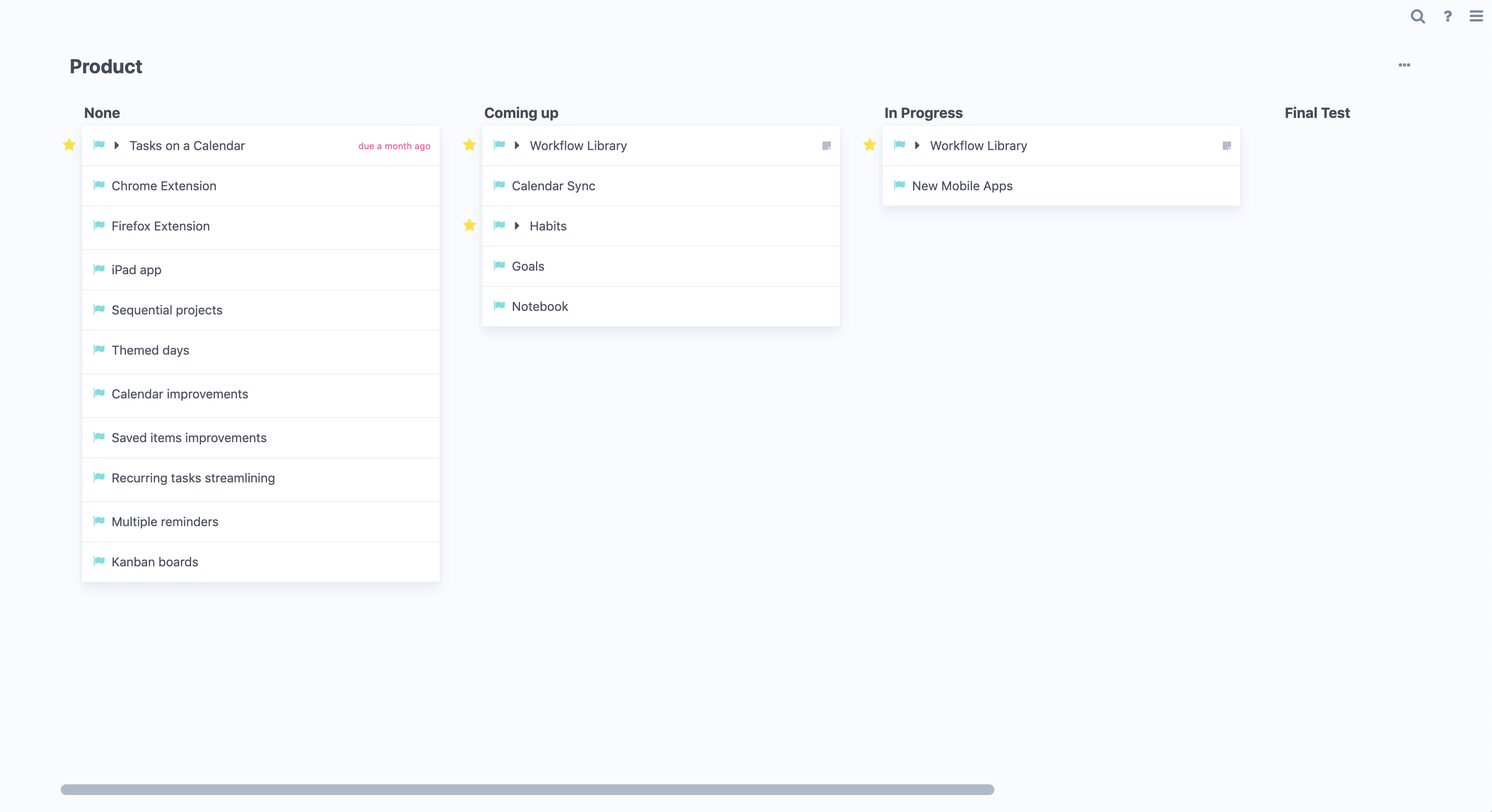
What you can do with the Kanban view
Drag and Drop
The nice thing about this simple Kanban board is that you can move items from one column to the next and the labels will automatically change.
This allows you to create additional Smart Lists/Views based on everything that is "in progress" for example. As the Kanban labels function just like any other labels.
Add items
You can also directly add items to a column and the correct label/category will get applied to the item.
Board variations
Multiple smart lists with screens
You can create more complex boards by using custom smart lists for columns and combining them in one view with the screens feature.