Overview
Skip a recurring task a few times and you can end up with the same task in your list three, four or five times. Two settings fix this. If you miss one decides what happens to occurrences you missed. Create occurrences decides how far ahead Marvin creates them. Nothing is ever deleted by If you miss one, so you can always switch back.
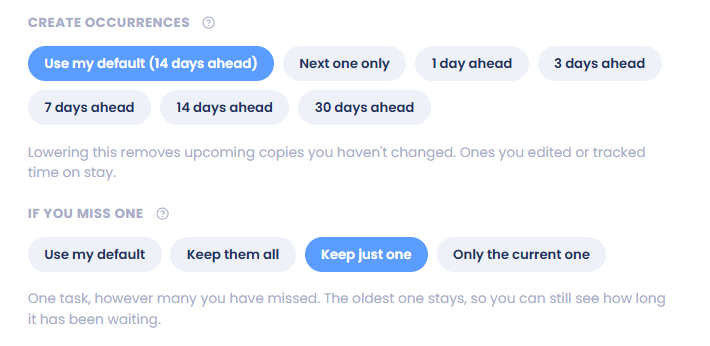
If you miss one
You get three choices:
Keep them all: every missed occurrence stays in your list, because each one is work you still owe. Good for things like invoices or weekly reports.
Keep just one: one task, however many you have missed. The oldest one stays, so you can still see how long it has been waiting. Good for standing jobs like watering the plants.
Only the current one: you only see the occurrence for the day you are looking at. A missed one drops off once its day is over. Good for habit-like things.
Example: "Tidy the desk" repeats Monday, Wednesday and Friday, and it is now Friday and you haven't done any of them.
Keep them all: you see three tasks (Monday's, Wednesday's and Friday's).
Keep just one: you see one task, Monday's, still showing it has been waiting since Monday.
Only the current one: you see only Friday's. On Saturday, nothing shows until Monday.
Occurrences planned for future days always stay visible, whichever option you pick.
One task or all of them
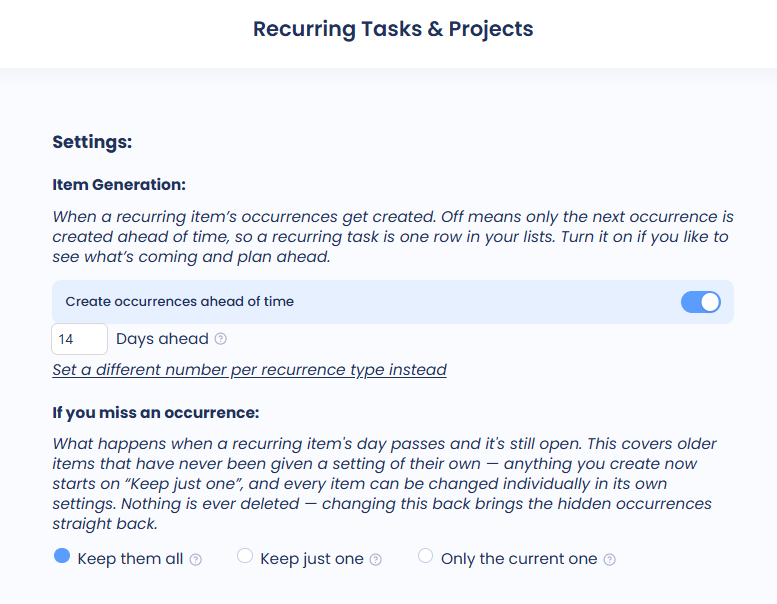
For one recurring task: open it and pick an option under If you miss one. Use my default follows your account-wide choice.
For all your recurring tasks:
Web and desktop: go to ☰ → Recurring, then click the settings button (Edit settings). Pick an option under If you miss an occurrence.
Mobile: open Features, tap Recurring Tasks and go to its Settings tab. Pick an option under If you miss an occurrence.
The account-wide choice applies to recurring tasks that don't have their own setting. New recurring tasks start on Keep just one (unless you've picked an account-wide default). Older recurring tasks stay on Keep them all until you change them, so nothing you already had changes on its own.
Fix a pile in one click
If some of your recurring tasks have three or more open occurrences:
The Health Dashboard shows a Recurring tasks piling up card. Click Keep just one of each to switch only those tasks, or Review recurring tasks to go through them yourself.
On mobile, a banner can appear on your Today list. Tap Keep one to switch those tasks, or the X to dismiss it.
Create occurrences
This decides when each occurrence appears:
On the day: each occurrence shows up on the day it's due, so a recurring task is one row in your lists.
1 day ahead up to 30 days ahead: you can see what's coming and plan it, but several copies sit in your lists at once.
Set it for one task under Create occurrences in its dialog. To set it for all of them:
Web and desktop: ☰ → Recurring → Edit settings, under Item Generation. Turn Create occurrences ahead of time off for "on the day". With it on, you can enter a different number for each type (Daily, X times/week, Every X days, Others) or click Use one number for all recurrence types instead.
Mobile: Features → Recurring Tasks → Settings, under Create occurrences ahead of time. Only today is the same as "on the day". You can also pick 3 days, 7 days, 14 days or 30 days. Automatic keeps the older per-type numbers.
New recurring tasks start on On the day (unless you've set one number for all types). Older accounts keep the per-type numbers they've always had.
If you lower the setting, upcoming copies you haven't changed are removed. Copies you edited or tracked time on stay.
Tip: Want to see a habit-like task only on its day, with nothing piling up? Pick On the day together with Only the current one.