Subtasks let you break a task into smaller steps, or add a checklist to it. The Subtasks (Checklist) feature is on by default.
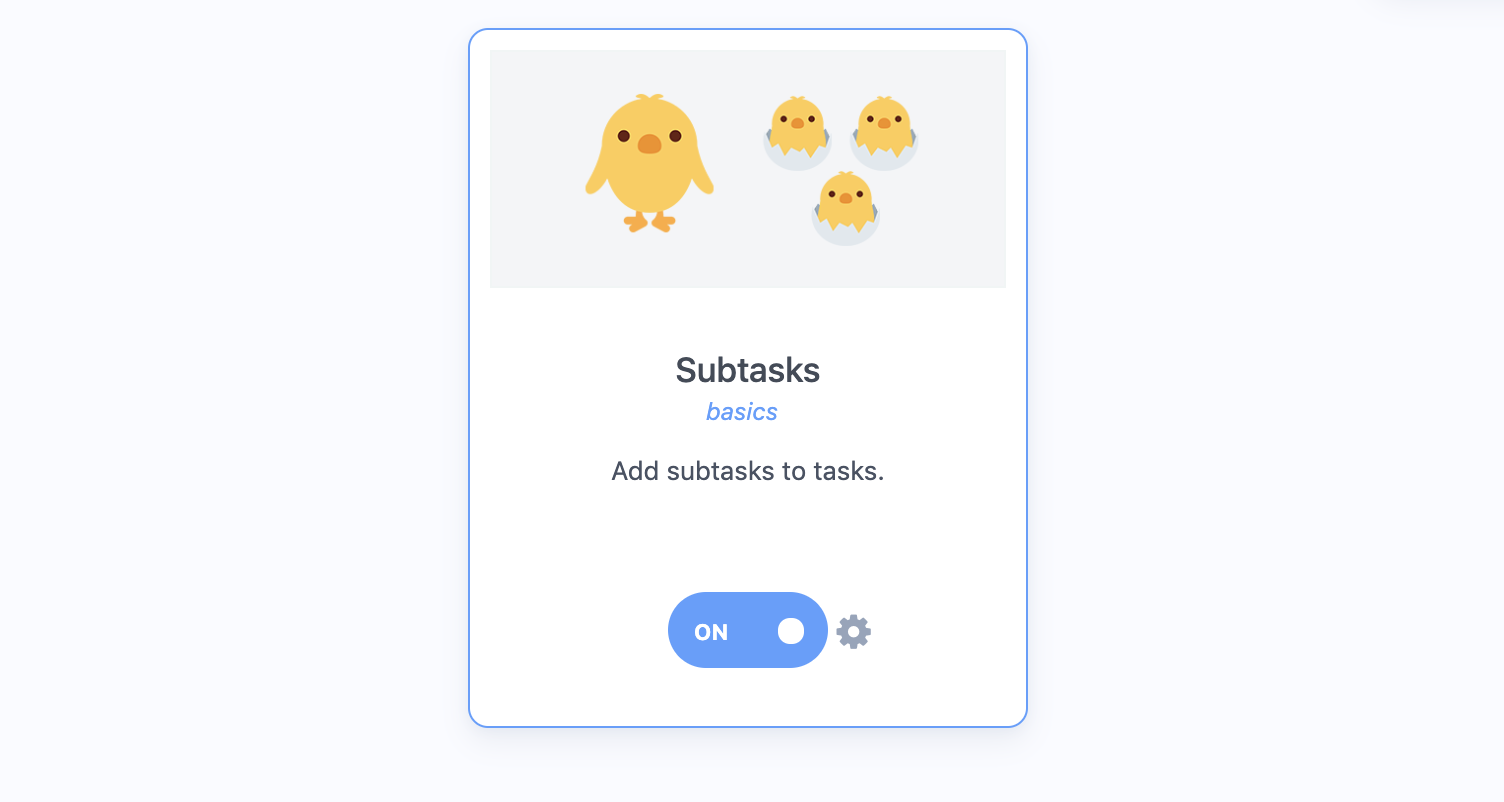
Each task can have its own list of subtasks.
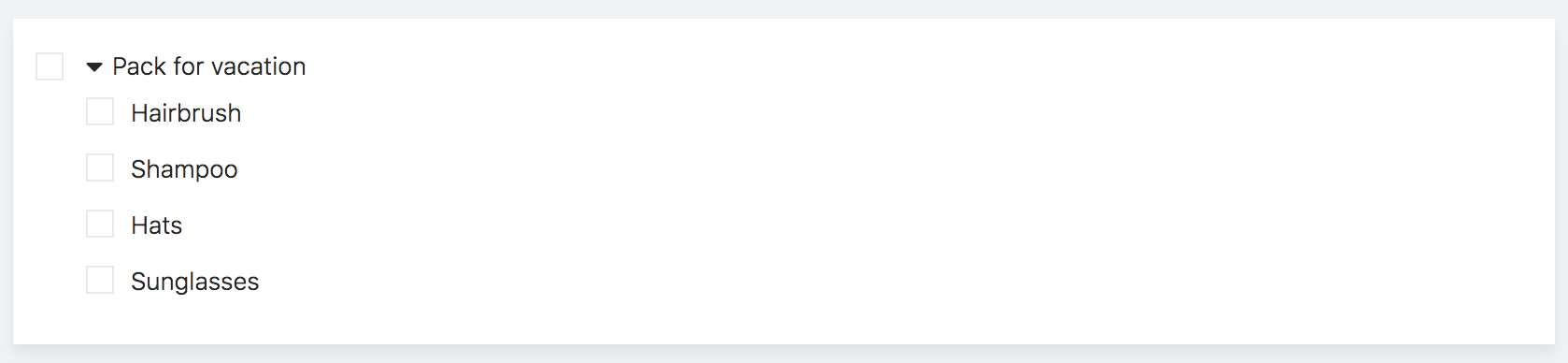
Subtasks are part of the task and always stay with the task (just like little chicks stay with their mom)
If you want subtasks to be their own tasks, with their own dates and properties, turn the task into a project instead.
When to use subtasks
Checklists
Since it is best practice in Marvin to keep tasks relatively short and to use projects for larger multi-step to-dos, subtasks are often used to serve as checklists for tasks.
Break down larger tasks
Subtasks can also be helpful when a task is a bit too large and unpleasant and you want to break it down into smaller steps so it is easier to get started on it.
Adding and editing subtasks
To add subtasks to a task, hover over the task and click the plus icon on the right.
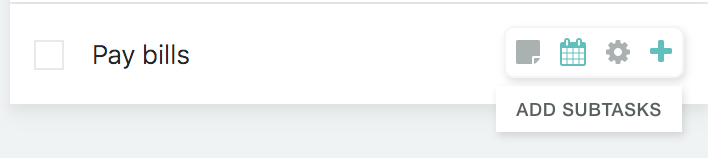
After you are done typing your subtask and press enter to save it, another subtask automatically gets created below it. If you press enter without typing anything, the empty subtask goes away.
You can also choose Add subtasks from a task's hover buttons or right-click menu.
Inserting subtasks in between other subtasks
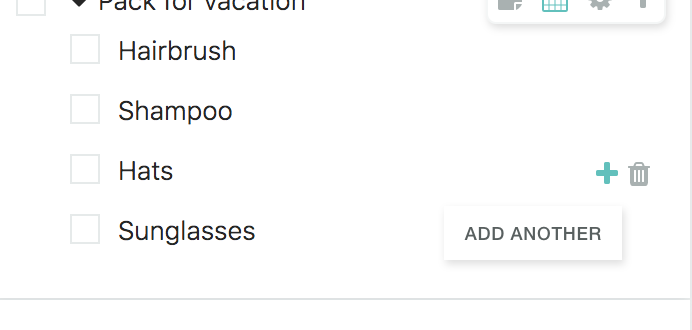
You can also click on the plus icon on a subtask to insert another one right below it.
Reordering subtasks
Subtasks can be reordered by drag and drop.
Deleting subtasks
Hovering over a subtask reveals a trash icon which can be used to delete the subtask.
Collapsing subtasks
You can collapse/expand the subtasks by clicking the arrow on the left of the task title.
Hold Alt (Option on Mac) and click the arrow to show or hide the completed subtasks of just that task.
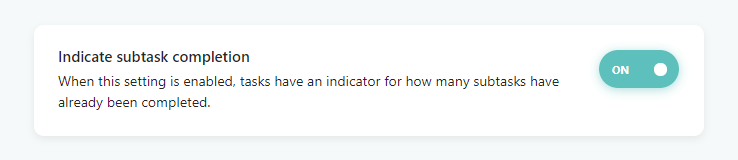
Subtask completion indicator

To see how much progress you've made on a task, go to ☰ → Features → Subtasks (Checklist) settings and pick a Subtask indicator: Pie, Count (2/5), Count + chevron, Percent (40%), Chevron, Progress bar or Dots. Choose Hidden to turn it off. Click the indicator on a task to open or collapse its subtasks.
Showing or hiding completed subtasks
Go to ☰ → Features → Subtasks (Checklist) settings. Under Completed subtasks, choose Hide done. You can also choose In order to keep them where they are, or Done at end to move them below the open ones.

Subtasks are not like tasks
It is important to understand the limitations of subtasks.
Subtasks are not independent tasks and are always attached to a task. They can't have their own labels, time estimates etc.
If you need this for your subtasks, use projects and regular tasks instead.